L-Gate User Manual 122 LOYTEC
Version 3.2 LOYTEC electronics GmbH
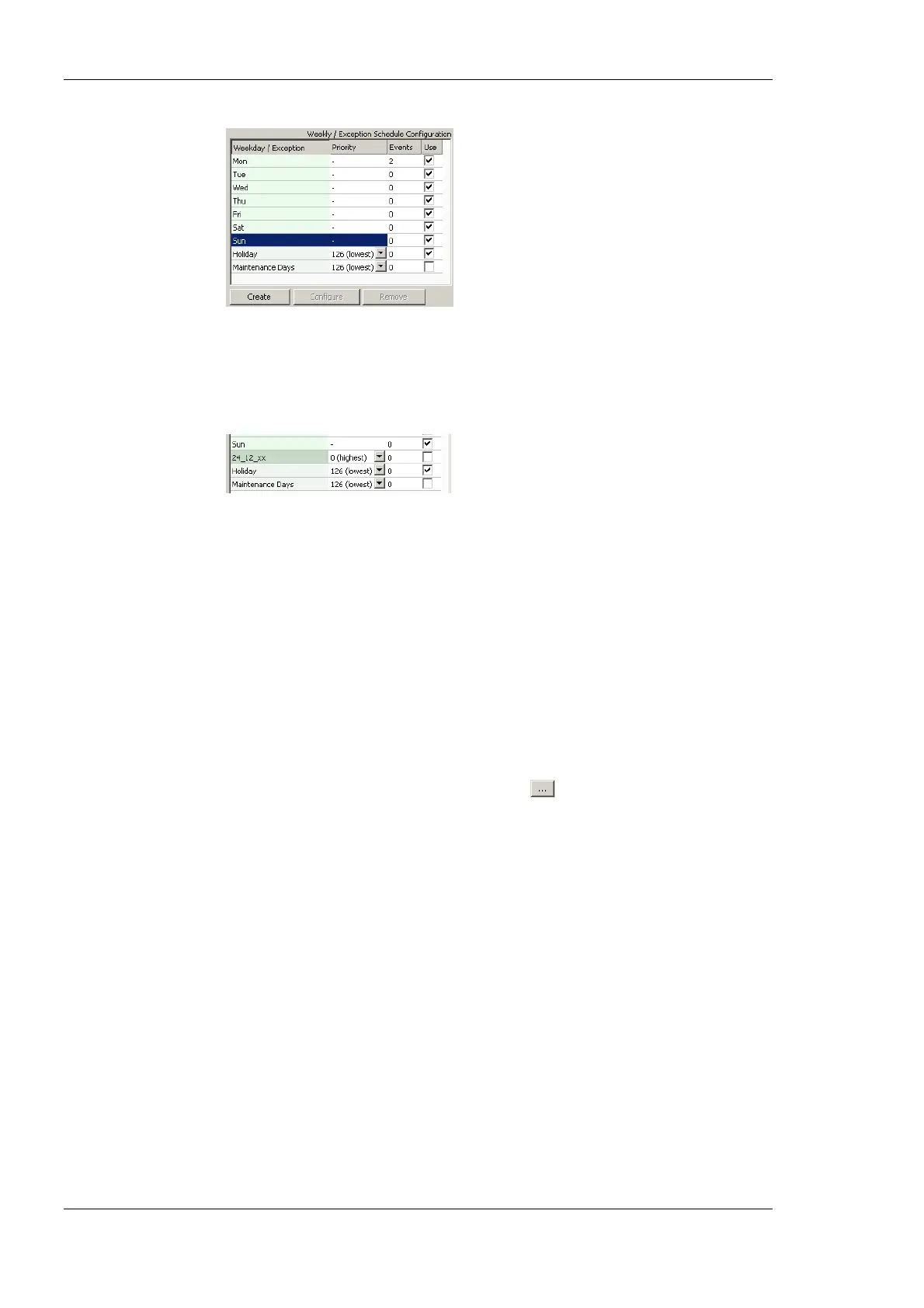
3. The Create Pattern dialog opens. You can enter exactly one pattern entry for the
embedded exception. It is recommended to choose a descriptive name for the day, e.g.
‘24_12’xx’ for every 24
th
of December.
4. Click Create Pattern. The embedded exception is now available.
6.12.8 Configure Control Data Points
A scheduler object can be configured to use special control data points. An enable/disable
data point can be configured, which enables or disables the scheduler depending on its
Boolean value. An enable/disable feedback data point is updated with the current enabled
state of the scheduler. This also reflects and an enable from the network. The Preset Name
data point can be attached to be updated with the name of the currently active preset.
To Configure Control Data Points
1. Open the Configure Schedule dialog to configure daily schedules as described in
Section 6.12.4.
2. Go to the Scheduled Datapoints tab.
3. In the Control Datapoints group box, click the
button to add the desired control
data point. A data point selection dialog opens.
4. Select a matching data point and click OK. For the preset name a string data point
must be selected.
5. To remove an undesired control data point, click on the Remove button.
6.12.9 Using the SNVT_tod_event
The SNVT_tod_event can be used in a schedule for implementing the next-state feature.
The parts of this network variable contain:
• Current state: This is the currently scheduled occupancy state.
• Next state: This is the next, future occupancy state in the schedule.
• Time to next state: This part reflects the time in minutes until the next state becomes
active.



 To Next Page