L-Gate User Manual 79 LOYTEC
Version 3.2 LOYTEC electronics GmbH
To use the L-Gate in the non-LNS management tool, commission the L-Gate using the
exported XIF file and create the bindings.
When changing a running L-Gate configuration with existing bindings, it is recommended
to create additional data points as external NVs with polling as described in Section 6.4.3.
Otherwise, a new XIF file needs to be exported and replacing the L-Gate in the non-LNS
tool requires the user to create all bindings again from scratch (see Section 5.5.2).
6.4.5 Replace an L-Gate
An L-Gate can be replaced in the network by another unit. This might be necessary, if a
hardware defect occurs. First of all, the replacement L-Gate needs to be configured with the
appropriate IP settings, including all relevant BACnet device settings. The remainder of
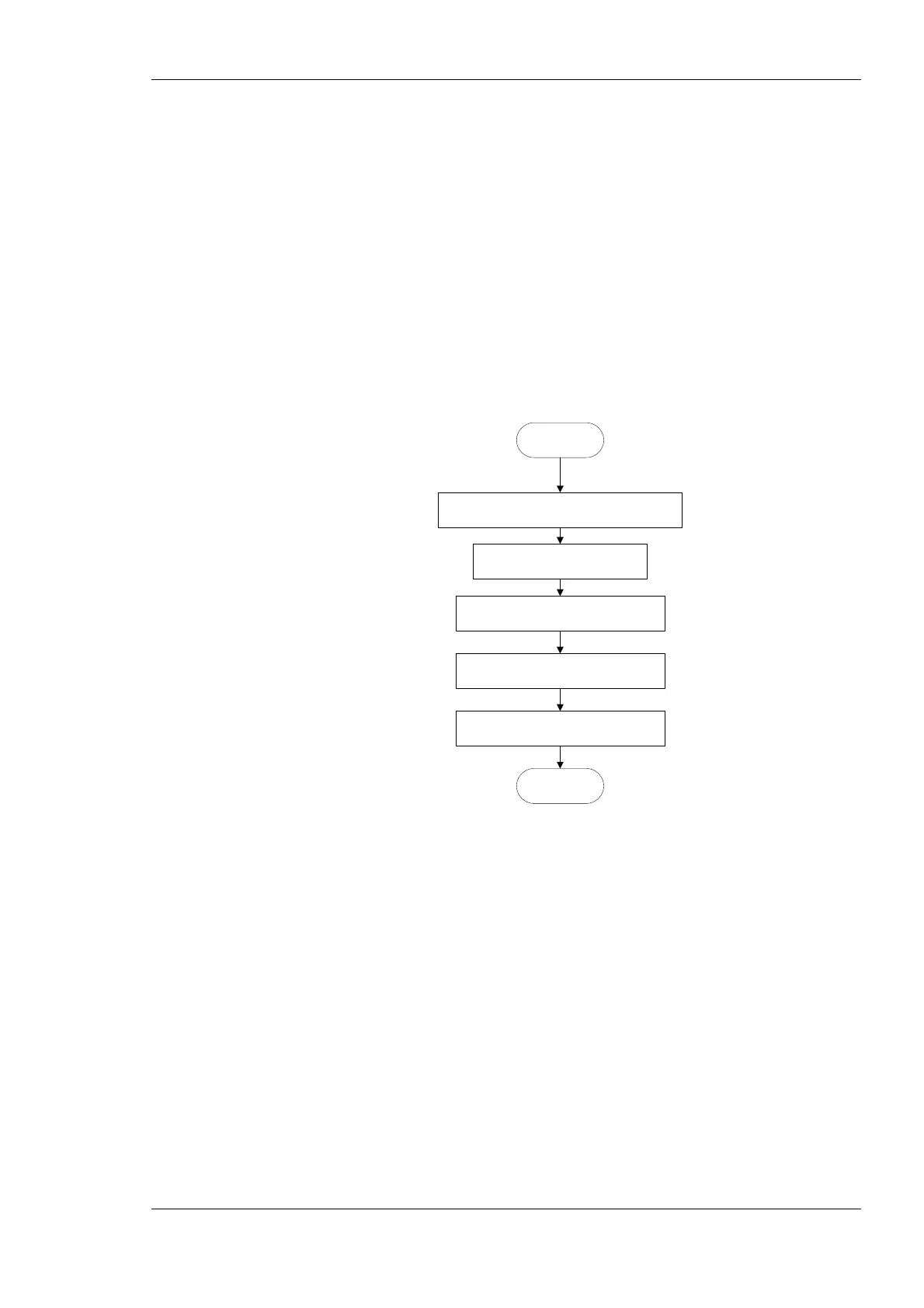
this section focuses on the L-Gate data point configuration. The work flow is depicted in
Figure 58.
Start the Configurator stand-alone
Section 6.7.2
Load a saved L-Gate project file
START
DONE
Download configuration to L-Gate
Section 6.7.13
Replace L-Gate
Section 6.6
Reboot the L-Gate
Section 4.4
Figure 58: Basic work flow to configure a replacement device.
Start the L-Gate Configurator software stand-alone and connect via the FTP method (see
Section 6.7.2). Then load the L-Gate configuration project file from disk, which has been
saved when the original L-Gate has been configured or modified. Double-check, if the data
point configuration seems sensible. Then download the configuration to the L-Gate (see
Section 6.7.13).
If using an LNS-based tool, the L-Gate device needs to be replaced in that tool (see Section
6.6). If you are not using LNS, then refer to your network management tool’s reference
manual on how to replace a device. After replacing the device in the network management
tool, reboot the L-Gate (see Section 4.4)
6.4.6 Configure from BACnet
The flow diagram in Figure 59 shows the steps that need to be followed in order to
configure the L-Gate from the BACnet side. In this scenario the L-Gate will be configured
with BACnet data points from the BACnet network. The CEA-709 side of the gateway has
to be engineered as described in the previous section, but without automatic BACnet object



 To Next Page