L-Gate User Manual 98 LOYTEC
Version 3.2 LOYTEC electronics GmbH
5. Click Create Register.
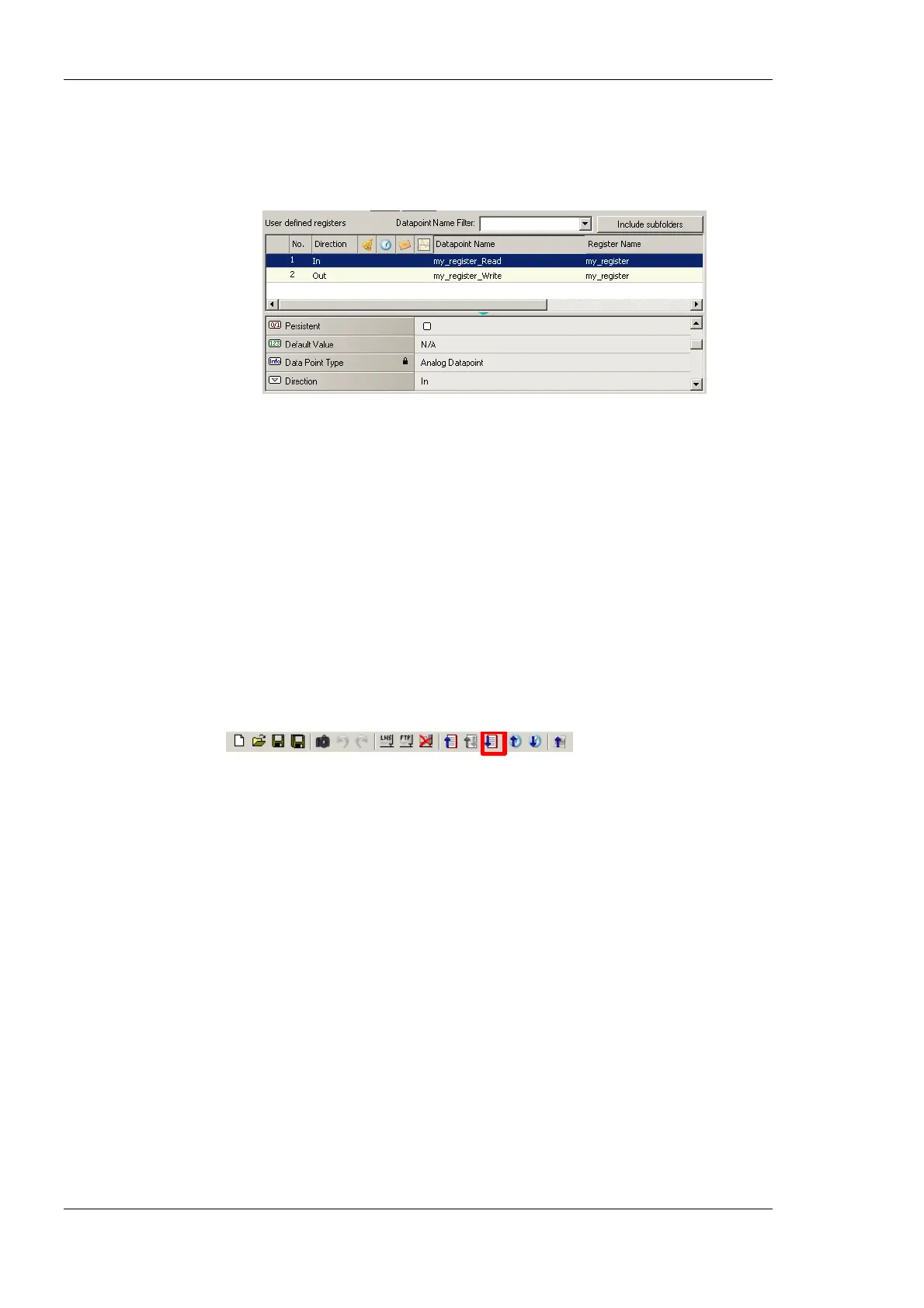
6. Two data points now appear for the register, one for writing the register and one for
reading the register as shown in Figure 84.
Figure 84: Manually created user register.
6.7.13 Configuration Download
After the data points have been configured, the configuration needs to be downloaded to
the L-Gate. For doing so, the L-Gate must be online. If the L-Gate is not yet connected to
the network, the configuration can be saved to a project file on the local hard drive.
If connected via LNS, and the NVs on the L-Gate are “Static NV” or “Dynamic NV”, the
Late Configurator can create the bindings automatically. This behavior can be influenced
by the download dialog. When connected via LNS, the download procedure also manages
the device template upgrade in the LNS database, if the static NV interface has been
changed.
To Download a Configuration
1. Click on the Download Configuration button
in the tool bar. The configuration upload dialog opens up as shown in Figure 85.
2. If no bindings shall be generated, deselect the Automatically create bindings
checkbox indicated by the red circle in Figure 85.
3. If the static NV interface has been changed, a new model number for the L-Gate needs
to be selected. This is necessary, as the static network interface of the L-Gate changes
on the CEA-709 network. The L-Gateway configuration software automatically selects
a usable value, which can be overridden in the field Model Number marked by the
blue rectangle in Figure 85.
4. Click Start to start the download. Each of the actions is displayed in the Task List
section of the dialog. The current progress is indicated by the progress bar below.
5. When the download process has finished, a notification window appears, which has to
be acknowledged by clicking Ok.



 To Next Page