L-Gate User Manual 69 LOYTEC
Version 3.2 LOYTEC electronics GmbH
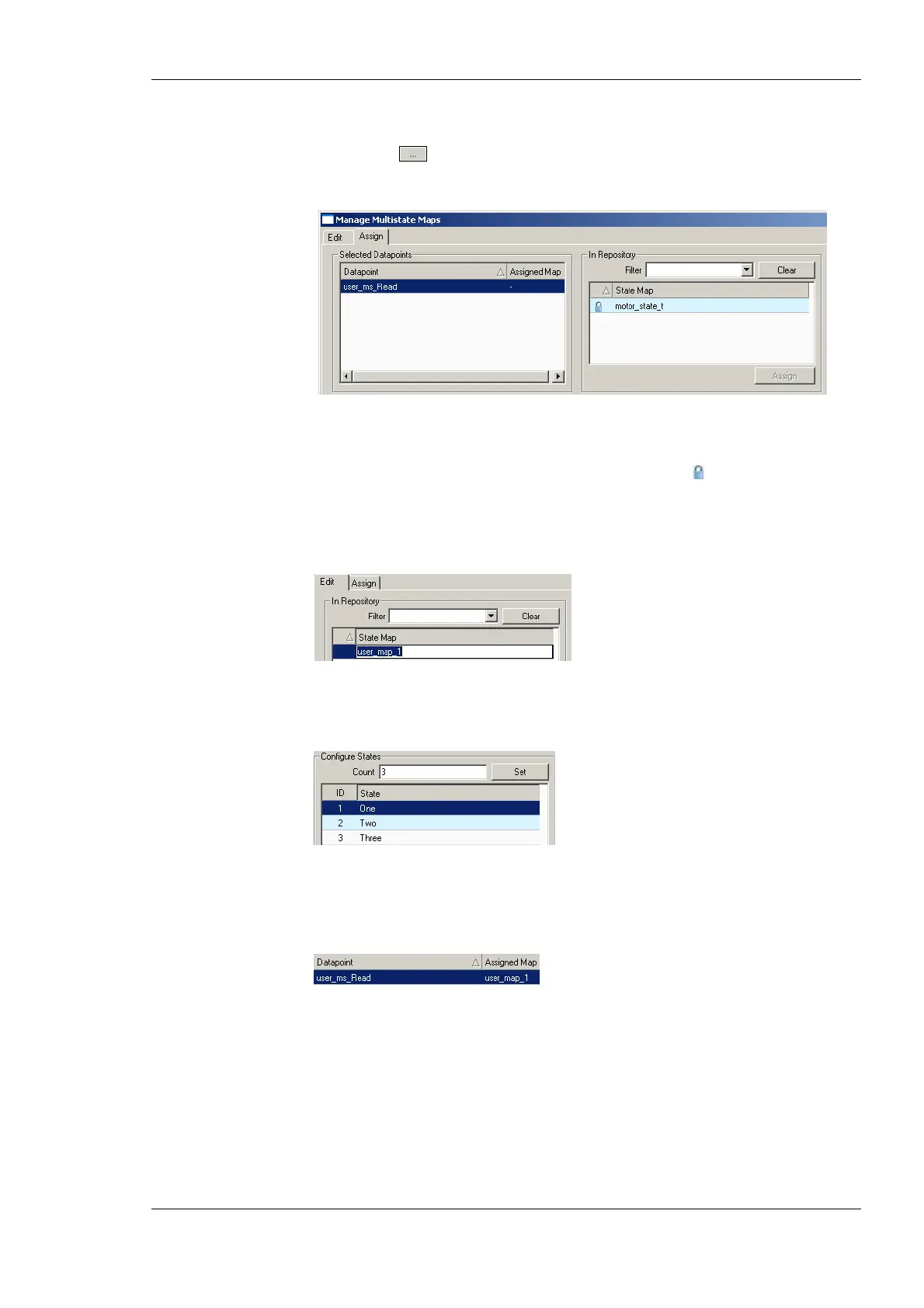
To Edit a Multistate Map
1. Click on the
button in the State Count property of a multistate data point. This
opens the multistate map manager as shown in Figure 49.
Figure 49: Assign multistate maps in the multistate map manager.
2. Select an existing state map in the State Map list and click on Assign. Maps that are
fixed and cannot be changed are marked with a lock symbol
.
3. If a new multistate map shall be created, change to the Edit tab.
4. Click on the Create button and enter a new multistate map name. Then hit Enter.
5. In the Configure States box enter the desired number of states and click Set.
6. Edit the state texts as needed.
7. Change back to the Assign tab.
8. Select the newly created multistate map and click the Assign button. The assigned map
is now displayed next to the data point.
6.2.6 CEA-709 Properties
Apart from the common data point properties discussed in Section 6.2.4 the data points of
the CEA-709 technology have additional properties. Depending on if a NV is local or
external (remote), the properties may vary.
• NV Allocation: This property defines how a data point shall be allocated on the
device. Choices are “Static NV”, “Dynamic NV”, and “External NV”. If the allocation
type cannot be changed, this property is locked.
• SNVT: This property defines the SNVT of the NV, e.g., “lux (79)”.



 To Next Page