L-Gate User Manual 89 LOYTEC
Version 3.2 LOYTEC electronics GmbH
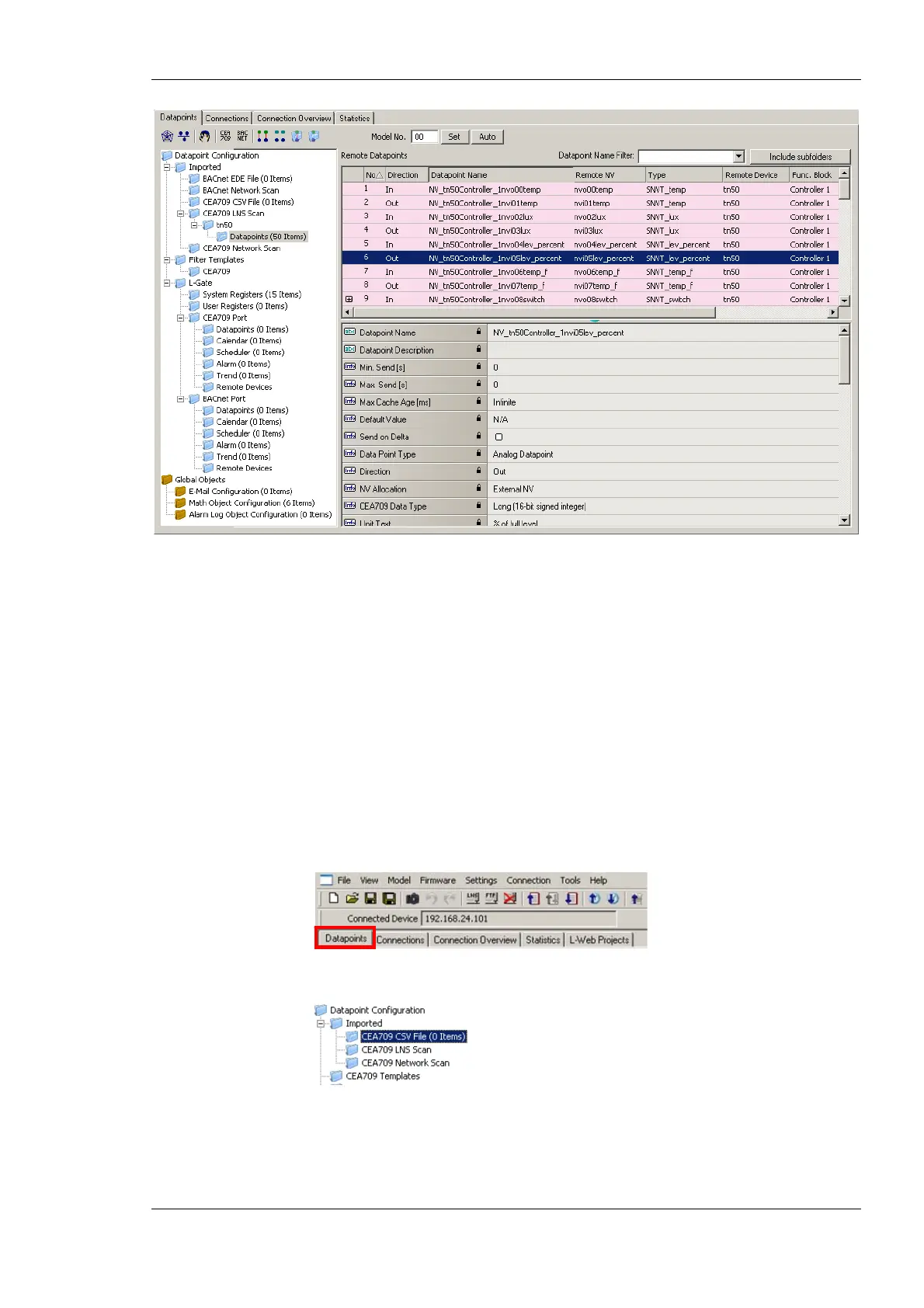
Figure 74: Scanned NVs in the LNS Database Scan Folder
Figure 74 shows an example result of the database scan. The list can be sorted by each
column. Selecting a line will display a number of associated properties in the property view
below. Multiple items can be selected by using the <Ctrl> key and clicking with the mouse.
All items can be selected by pressing <Ctrl-A>.
6.7.5 Importing Network Variables
Without LNS, the tool cannot connect to an LNS database, where it scans for network
variables (NVs). Therefore, the list of NVs to be used on the L-Gate has to be available in a
CSV file. This file can be produced by external software or created by hand. The CSV
format for importing NVs is defined in 7.2.1.
To Import NVs from a File
1. Click on the Datapoints tab.
2. Select the folder CEA709 CSV File
3. Right-click and select Import File. In the following file selector dialog, choose the
CSV import file and click Ok.



 To Next Page