L-Gate User Manual 39 LOYTEC
Version 3.2 LOYTEC electronics GmbH
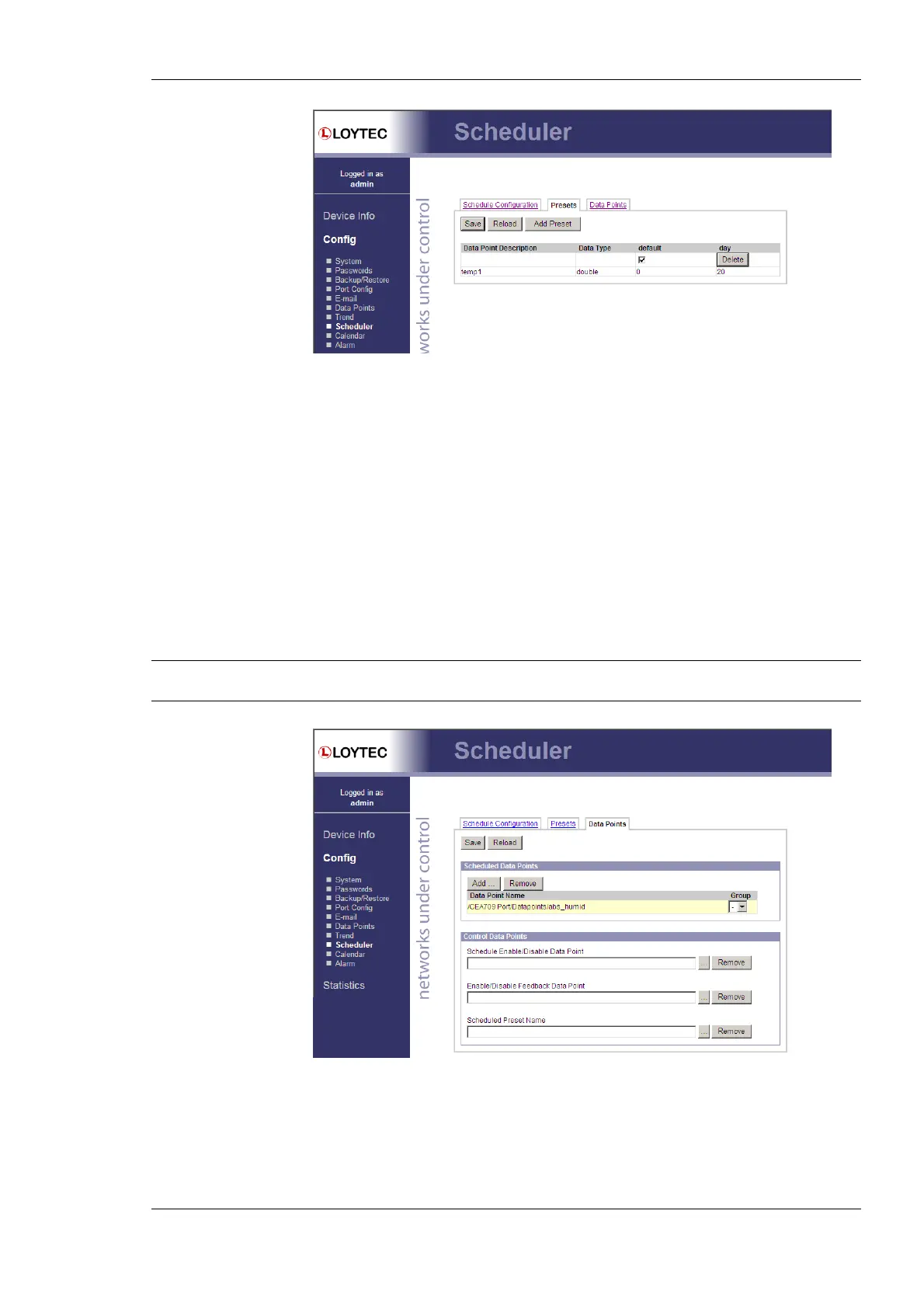
Figure 29: Scheduled Data Point Value Configuration Page
You can switch back and forth between the two tabs. Once the configuration is complete,
click on the Save button. This updates the schedule in the device. Any changes made
become effective immediately.
On local schedulers the Web UI also allows to reconfigure the scheduled data points. This
change takes effect immediately without a reboot of the device. To add and remove data
points to the scheduler, go to the Data Points tab. The configuration page is depicted in
Figure 30. To add a new data point, click the Add… button. To remove a data point, select
the data point in the list Scheduled Data Points by clicking on it and then press the
Remove button. Finally, store the changes by clicking the Save button. After modifying the
scheduled data points, go back to the Presets tab and enter descriptive value label names.
For more information on how to configure a scheduler please refer to the Configurator
Section 6.12.4.
Note: This firmware version does not allow configuring scheduled data points on local BACnet
schedulers. The feature is currently limited to CEA-709 schedulers.
Figure 30: Re-configure scheduled data points on the Web UI.
4.2.15 Calendar
The Web interface provides the calendar page to edit its calendars at run-time, i.e., change
the exception days. The calendar main page displays all available calendars. Click on the



 To Next Page