L-Gate User Manual 46 LOYTEC
Version 3.2 LOYTEC electronics GmbH
master on the network. If there are multiple masters on the network, this state is a hint to a
broken cable. In state TOKEN LOST, the token is currently not circulating.
The counter MS/TP lost tokens is an indicator for communication problems on the
MST/TP network. If it increases, there is a cabling, ground, or termination problem. The
counters Rcv OK and Send OK reflect the number of successfully received or transmitted
MS/TP frames. Check these counters to verify that communication is flowing on the
MS/TP segment.
4.3.7 Scheduler Statistics Page
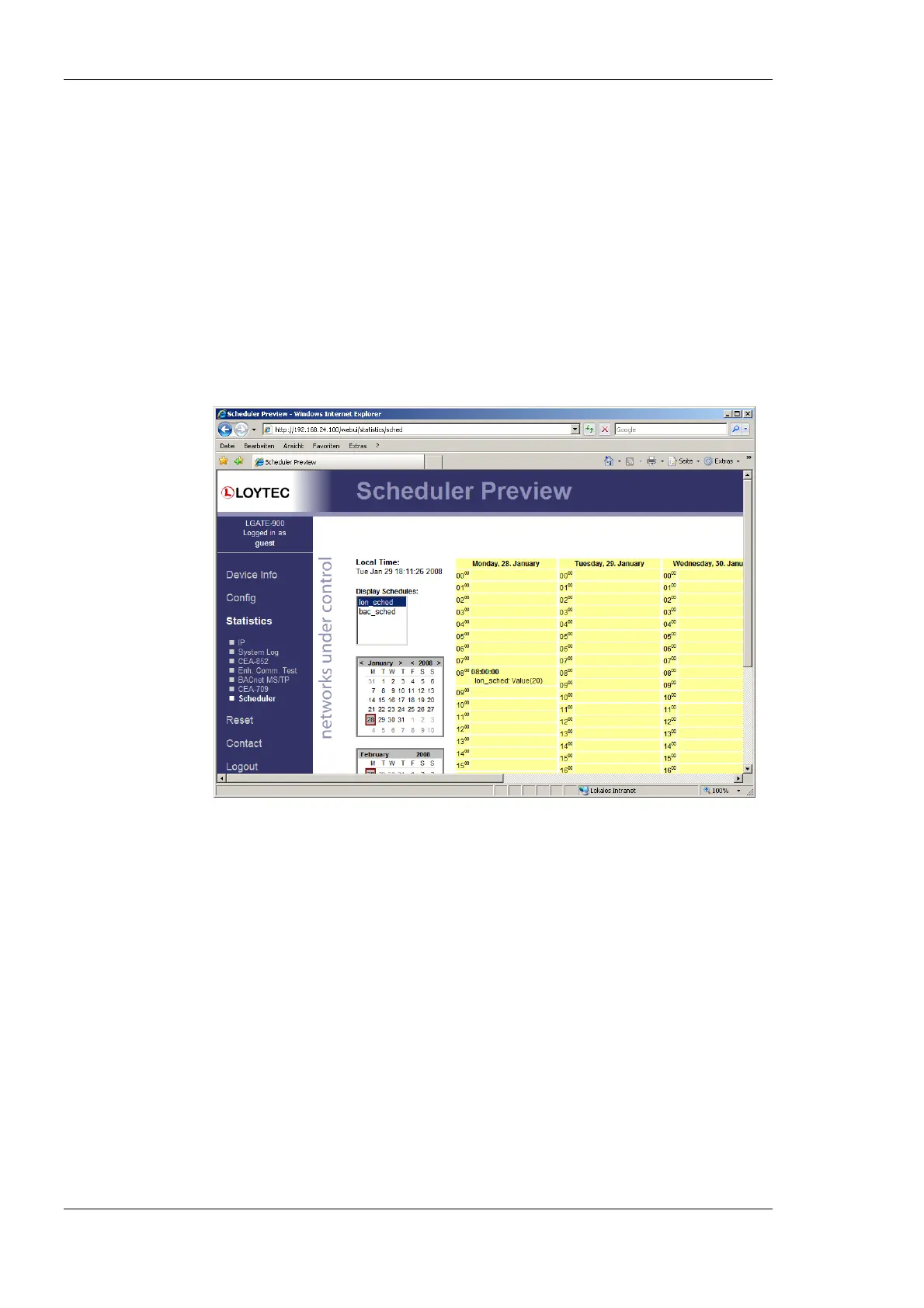
The scheduler statistics page provides an overview of what is scheduled at which day and
which time. In the Display Schedules list select a single schedule to view its scheduled
values and times. Use the multi-select feature to get the overview of more schedules. An
example is shown in Figure 39.
Figure 39: Scheduler Statistics Page
4.3.8 Alarm Log Page
The alarm log page provides an overview of all alarm logs on the system. Click on one of
the links to view a specific alarm log. Each alarm log contains a historical log of alarm
transitions. When an inactive and acknowledged alarm disappears from the alarm summary
page (live list), the alarm log contains this last transition and maintains it over a reboot. An
example is shown in Figure 40.
To refresh the alarm log contents click on the Reload button. Currently active alarms
cannot be acknowledged in this historical view. Follow the link to the attached alarm
objects to get to the respective live lists, where alarms can be acknowledged on the Web
interface (see Section 4.2.16).
The alarm log contents can be uploaded from the device in a CSV formatted file. Click on
the button Upload Alarm Log to upload the current log. To clear the log, press the button
Clear Alarm Log. Please note, that this permanently purges all historical alarm log data of
this alarm log.



 To Next Page