L-Gate User Manual 101 LOYTEC
Version 3.2 LOYTEC electronics GmbH
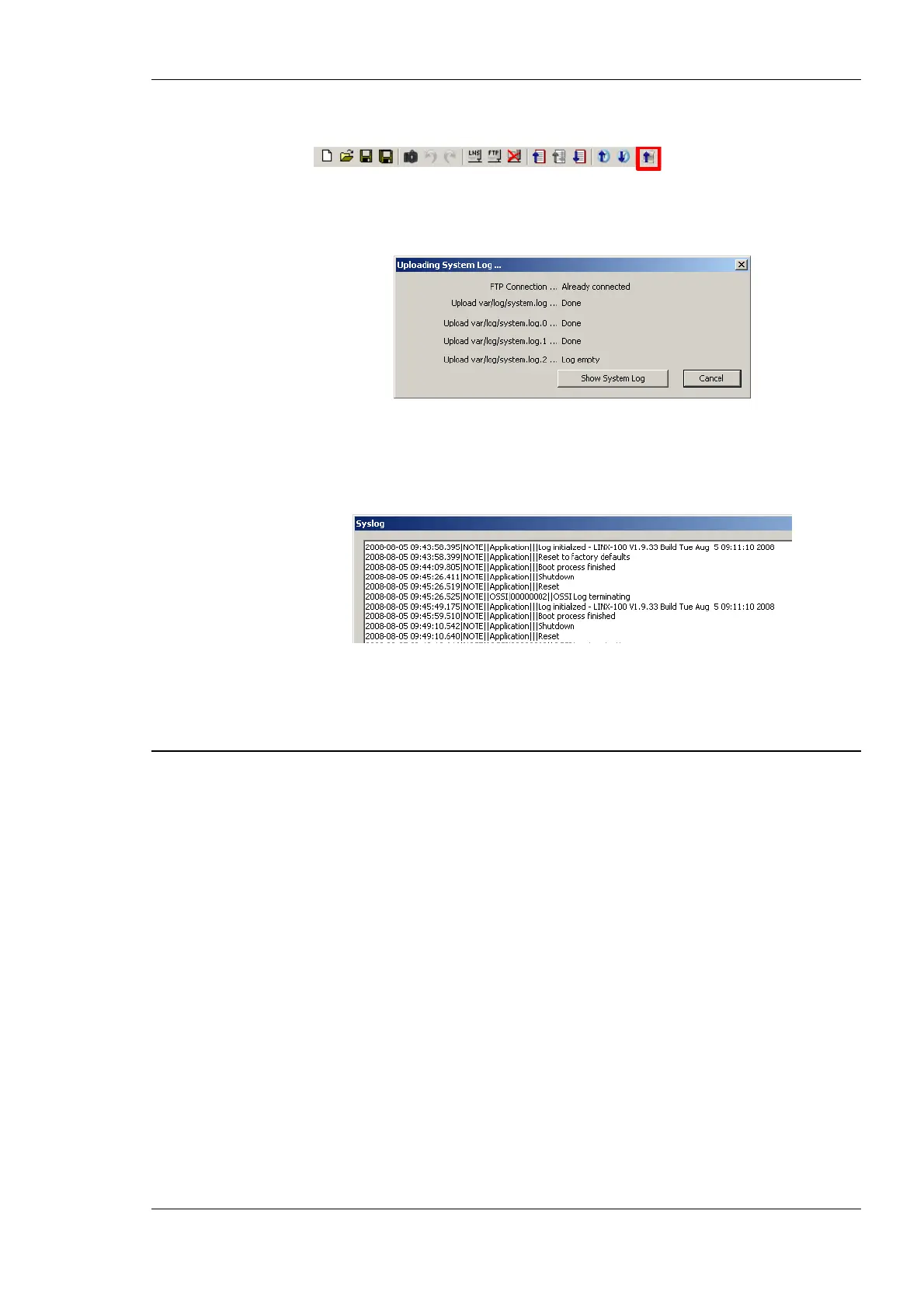
2. Click on the Upload system log button
in the tool bar. The upload system log dialog as shown in Figure 87 opens showing the
upload progress.
Figure 87: Upload system log dialog.
3. When the upload is finished, click on Show System Log. The system log window
appears as shown in Figure 88.
Figure 88: System log window.
4. Click on Save to store the system log into a file on your local hard drive.
6.8 Advanced CEA-709 Configuration
6.8.1 Working with Configuration Properties
Configuration properties (CPs) are supported by the LNS network scan and the online
network scan. They can be selected and used on the device in a similar way as NVs. There
is a notable difference to NVs: CPs are part of files on the remote nodes. Reading and
writing CPs on the L-Gate results in a file transfer.
The L-Gate supports both, the L
ONMARK file transfer and the simpler direct memory
read/write method. In both cases, however, one has to keep in mind that a file transfer
incurs more overhead than a simple NV read/write. Therefore, polling CPs should be done
at a much slower rate than polling NVs.
Another aspect is how CPs are handled by network management tools. Formerly, those
tools were the only instance that could modify CPs in devices. Therefore, most tools do not
automatically read back CPs from the devices when browsing them. This can result in
inconsistencies between the actual CP contents on the device and their copy in the network
management tool. It is recommended to synchronize the CPs from the device into the LNS
database before editing and writing them back.
To Synchronize CPs in NL220
1. Double-click on the device object in the device tree.



 To Next Page