L-Gate User Manual 138 LOYTEC
Version 3.2 LOYTEC electronics GmbH
Important: If there already exists a calendar connection, don’t create a new connection and add the
exposed calendar as a target to the existing connection! There can only be one calendar
connection that contains all exposed calendars.
8. Create a second new connection. Give it a descriptive name, e.g., cal_conn.
9. Select the BACnet calendar as the hub. When exposing a remote schedule, select the
calendar from the same remote device folder where the schedule was selected from.
10. Select the created CEA-709 calendar as the target.
11. Click Save. Now a calendar connection appears in the connections list.
6.17.4 Create One-Way Mappings
A one-way mapping lets schedules and calendar patterns be updated in one direction only:
From the hub to the target(s). If a schedule in the hub is updated, the targets receive the
new schedule. If a target schedule is updated, however, the change remains local to this
scheduler. The local change is overwritten the next time the hub schedule is updated again.
This feature is convenient to distribute calendar patterns and schedules from a central
location (e.g., the BACnet OWS) but allow temporary, local modifications at the same
time.
To Create a One-Way Mapping
1. Create a schedule and/or calendar mapping.
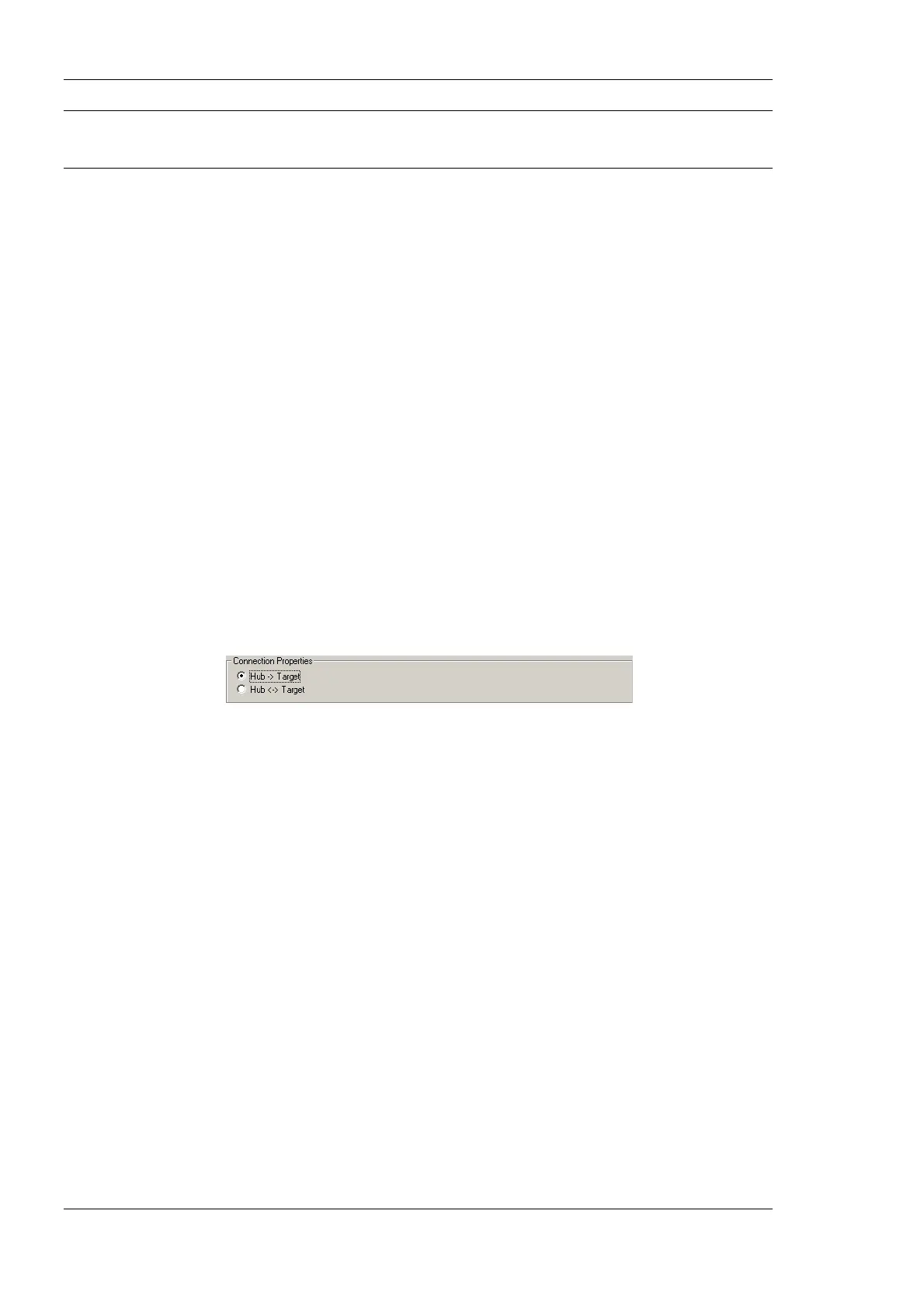
2. Select the created connection and select the radio button hub Æ target in the
Connection Properties.



 To Next Page