L-Gate User Manual 94 LOYTEC
Version 3.2 LOYTEC electronics GmbH
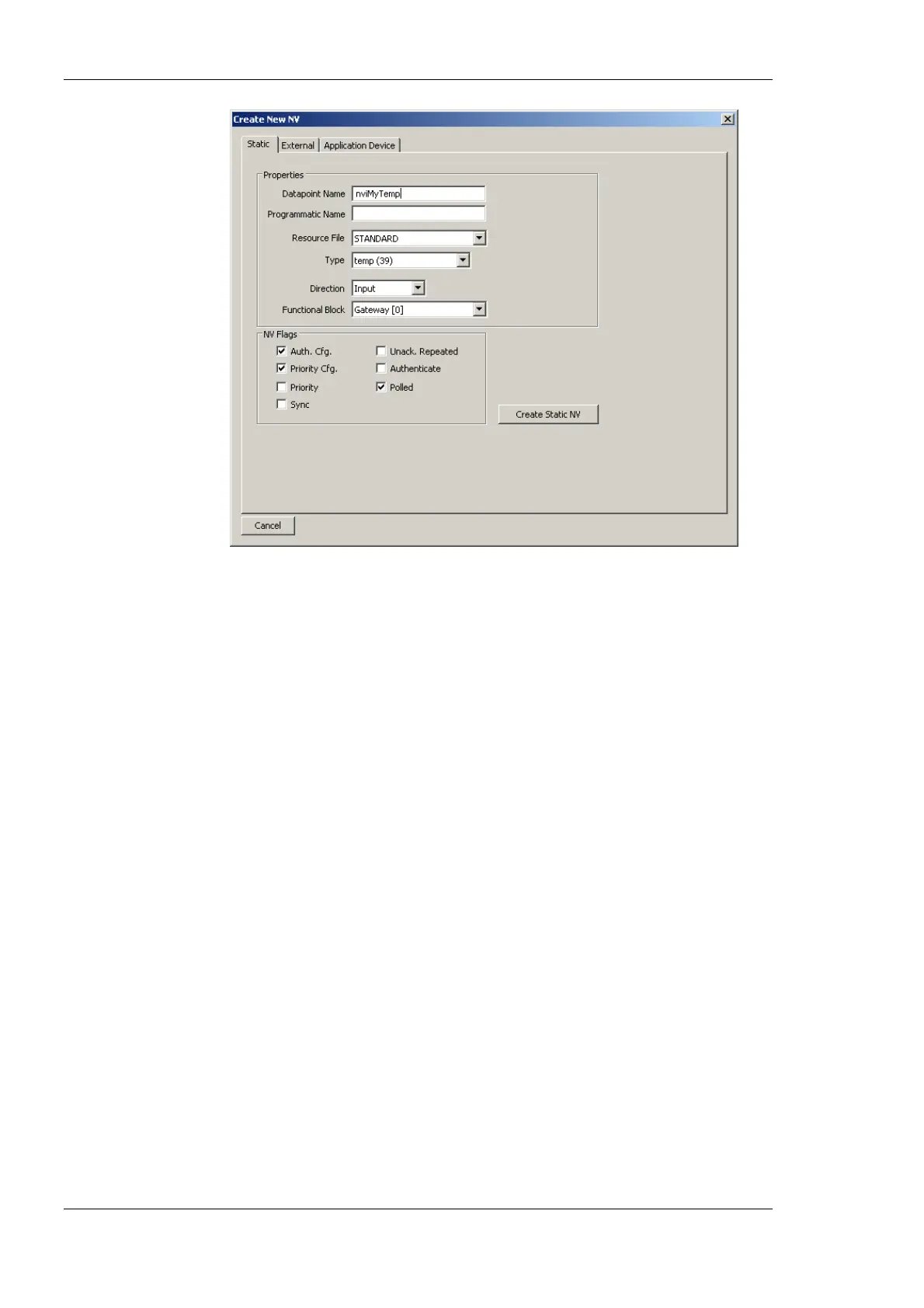
Figure 79: Create a static NV manually.
3. Enter a data point name and a programmatic name. The programmatic name is the
name of the static NV, which is being created, while the data point name is used for
exposing the NV as a BACnet object.
4. Select a resource file. To create a SNVT let the STANDARD resource file be selected.
5. Select a SNVT and a direction. If a non-standard resource file has been selected,
choose from one of the UNVTs.
6. Choose a functional block where this static NV shall be located in.
7. Click Create Static NV. The static NV is created and appears in the data point list.
8. Note, that the static interface of the L-Gate will change as soon as static NVs are added
or modified in the data point manager. This change is reflected in a new model
number, which the L-Gate will have after the configuration download (see Section
5.5.2). Also note that the manually created static NVs are not bound automatically by
the L-Gate Configurator. They simply appear on the device and need to be bound in
the network management tool.
6.7.10 Create External NVs
External NVs are not actually allocated NVs on the L-Gate. Instead, the L-Gate uses
polling to read data from and explicit updates to write data to external NVs. Since external
NVs are not affecting the static NV interface of the L-Gate, they can be used to extend an
L-Gate’s interface configuration at run-time, when no LNS with dynamic NVs is available.



 To Next Page