L-Gate User Manual 127 LOYTEC
Version 3.2 LOYTEC electronics GmbH
2. In the data point list right-click and select New Alarm Log … from the context menu.
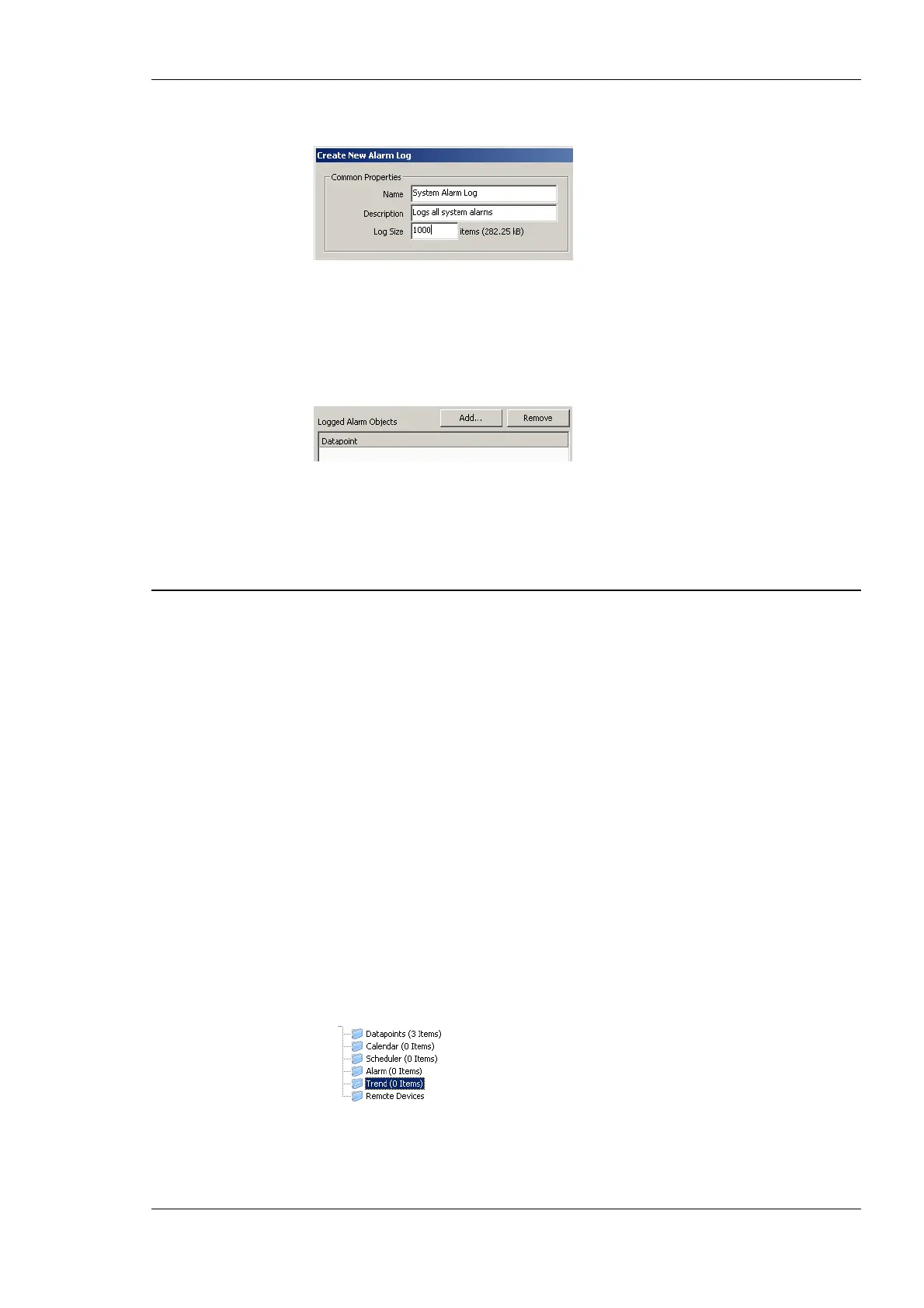
3. In the Create New Alarm Log dialog enter a Name for the alarm log. Optionally enter
a Description.
4. Enter a Log Size, which defines how many transitions are resident in the alarm log.
5. Click on the button Add… on top of the Logged Alarm Objects list.
6. A data point selector dialog opens. Select one or more alarm objects that shall be
logged and click OK. The alarm objects appear in the list.
7. Click Create to create the alarm log object.
6.14 Local Trending
6.14.1 Create a Local Trend
The value of a data point can be logged over time. This is referred to as trend data. To
generate trend data a trend object has to be created. The trend data is stored in a data logger
file. This file can be downloaded via FTP in binary or CSV format (see Section 7.1.2).
Trend objects can generate trend logs for multiple data points and can be operated in one of
three basic modes:
• Interval Mode: In this mode a snapshot of all trended data points is logged into the
data logger file.
• COV Mode: In this mode, each of the trended data points is logged separately, if and
only if its value changes. For analog data points, a specific COV increment can be
configured in the data point configuration properties of the trended data point.
• Trigger Mode: In this mode a snapshot of all trended data points is logged each time a
trigger condition fires. The trigger condition is applied to a trigger data point.
To Create a Trend Object
1. Under the port folder, select the Trend sub-folder to create a trend log object.
2. Right-click and select New Trend … from the context menu.
3. In the Create New Trend Object dialog (shown in Figure 108) enter a name and
optionally a description for the trend log object.



 To Next Page