L-Gate User Manual 80 LOYTEC
Version 3.2 LOYTEC electronics GmbH
creation. The remainder of this section assumes that NVs and the static interface have been
configured already.
Start the L-Gate Configurator in stand-alone mode and connect to the L-Gate via the FTP
method (see Section 6.7.2). In the Configurator use the BACnet network scan to find
BACnet objects in the network (see Section 6.10.1) or import BACnet objects from an
EDE file (see Section 6.10.2). Select the remote BACnet objects, that the L-Gate shall
access and use them on the device to create client mappings on the L-Gate (see Section
6.10.3). Alternatively, you can create BACnet server objects manually (see Section 6.10.5).
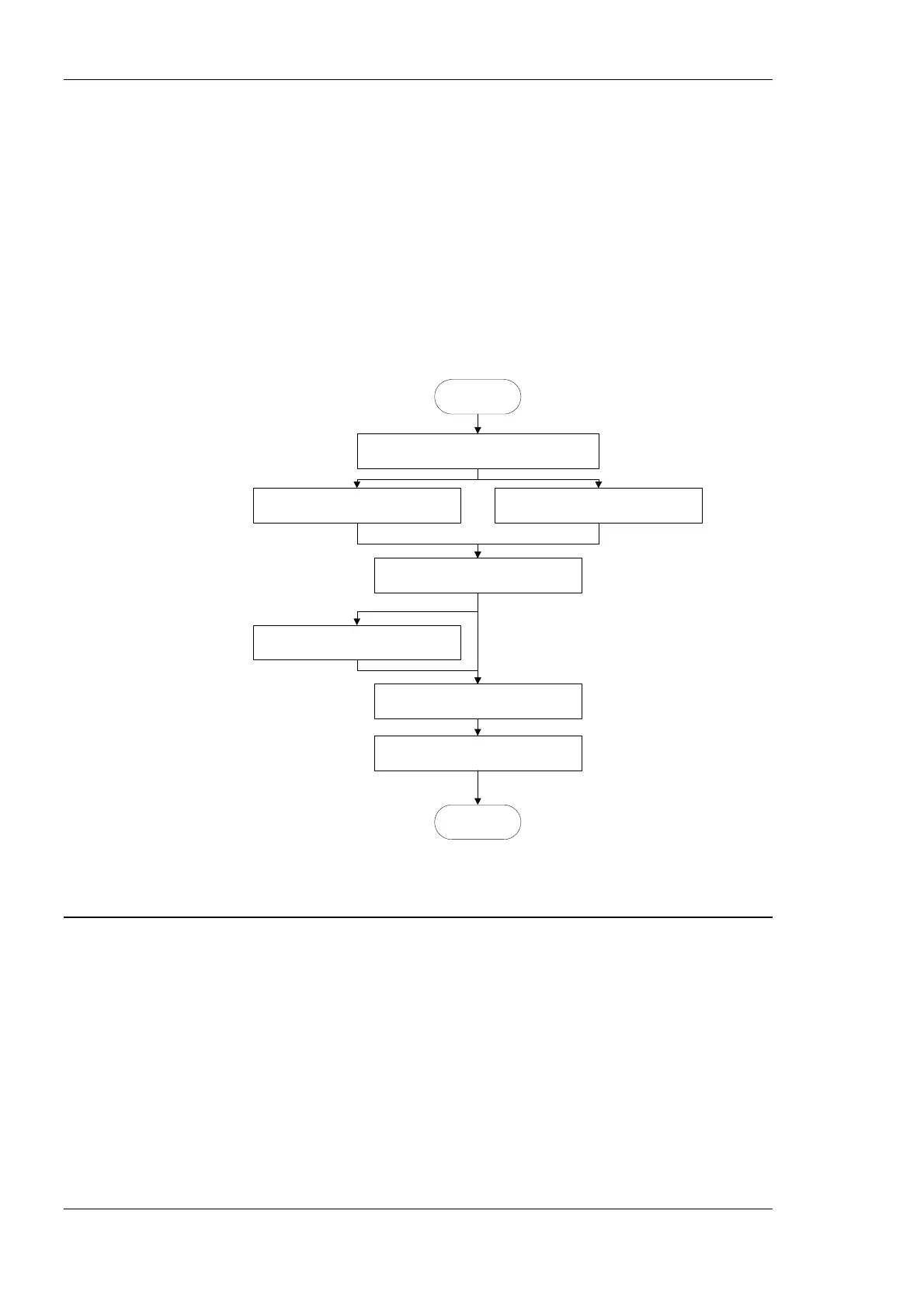
Once the BACnet client mappings or server objects have been created on the BACnet port,
connections need to be created (see Section 6.9.1). This has to be done manually by
selecting the BACnet object and the NV, where this BACnet object shall be exposed to.
Start the Configurator stand-alone
Section 6.7.2
Import BACnet objects from EDE file
Section 6.10.2
START
DONE
Download configuration to L-Gate
Section 6.7.13
Select BACnet objects and use on L-Gate
Section 6.10.3
Create Connections Manually
Section 6.9.1
Optional: Create BACnet server objects
Section 6.10.5
Scan BACnet online from network
Section 6.10.1
Figure 59: Basic design-flow from BACnet.
6.5 Adding L-Gate
To configure an L-Gate in your LonMaker drawing, the device needs to be added to the
LNS database and commissioned. This Section refers to LonMaker TE and describes how
to add an L-Gate to your database.
To Add a Device to LonMaker TE
1. In your LonMaker drawing, drag a device stencil into the drawing. Enter an
appropriate name as shown in Figure 60.



 To Next Page