L-Gate User Manual 103 LOYTEC
Version 3.2 LOYTEC electronics GmbH
6.8.2 Install Unconfigured Devices
CEA-709 devices must be installed by a network management tool (e.g., LNS-based tool)
to be available for communication. To install a device, its domain information must be
written and the device must be set configured, online. If no network management tool is
available, the CEA-709 network scan can be used to install a small number of unconfigured
devices.
To Install Devices
1. Open the CEA-709 network scan dialog and scan for devices as described in Section
6.7.6.
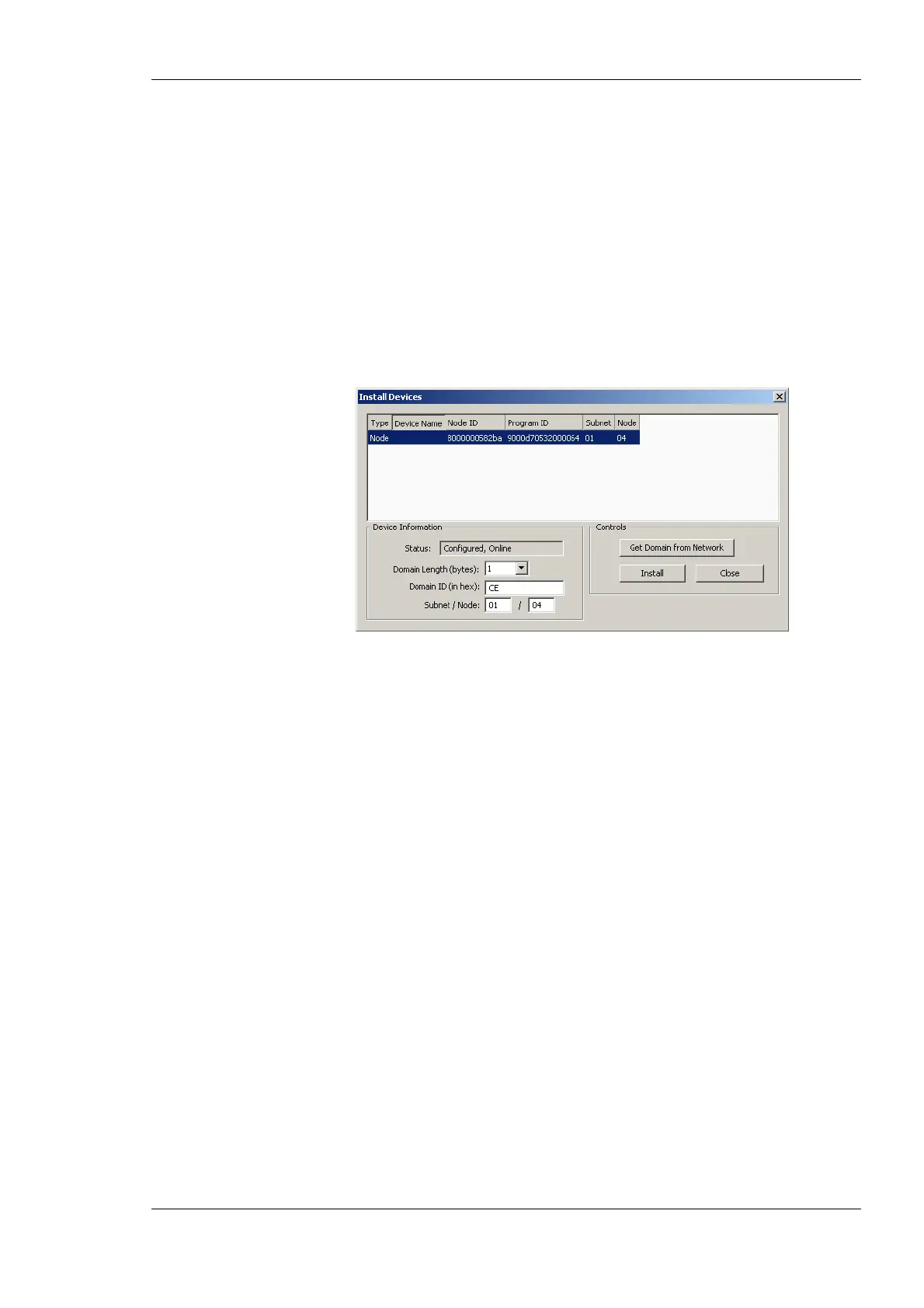
2. Click the Install button. This opens the Install Devices dialog as shown in Figure 91.
Figure 91: Install devices dialog.
3. Select the device to be installed.
4. Enter the domain information or click Get Domain from Network and press a service
pin.
5. Enter a subnet and node address and click Install.
6. Repeat this step for other unconfigured devices on the network.
6.8.3 Using Feedback Data Points
Feedback data points allow reading back the value written out over an output data point. In
L
ONMARK systems getting a feedback value is normally accomplished by creating a
dedicated feedback NV on the device, which can be bound back to the devices that are
interested in the currently active value on an output.
Some nodes, however, do not possess such feedback NVs for certain functions. To support
getting feedback values on such nodes, the Configurator can create feedback data points
based on existing output data points. This is especially interesting for bound output NVs
(static and dynamic alike). The corresponding feedback data point is an input, which uses
the original output NV for polling the target NV. Once the binding is changed the new
target is polled. No additional input NV needs to be created for the feedback value, if the
feedback data point feature is used.
To Create a Feedback Data Point
1. Select an output data point in the data point list of the CEA-709 port folder, e.g.
‘nvoHumid101’.



 To Next Page