L-Gate User Manual 111 LOYTEC
Version 3.2 LOYTEC electronics GmbH
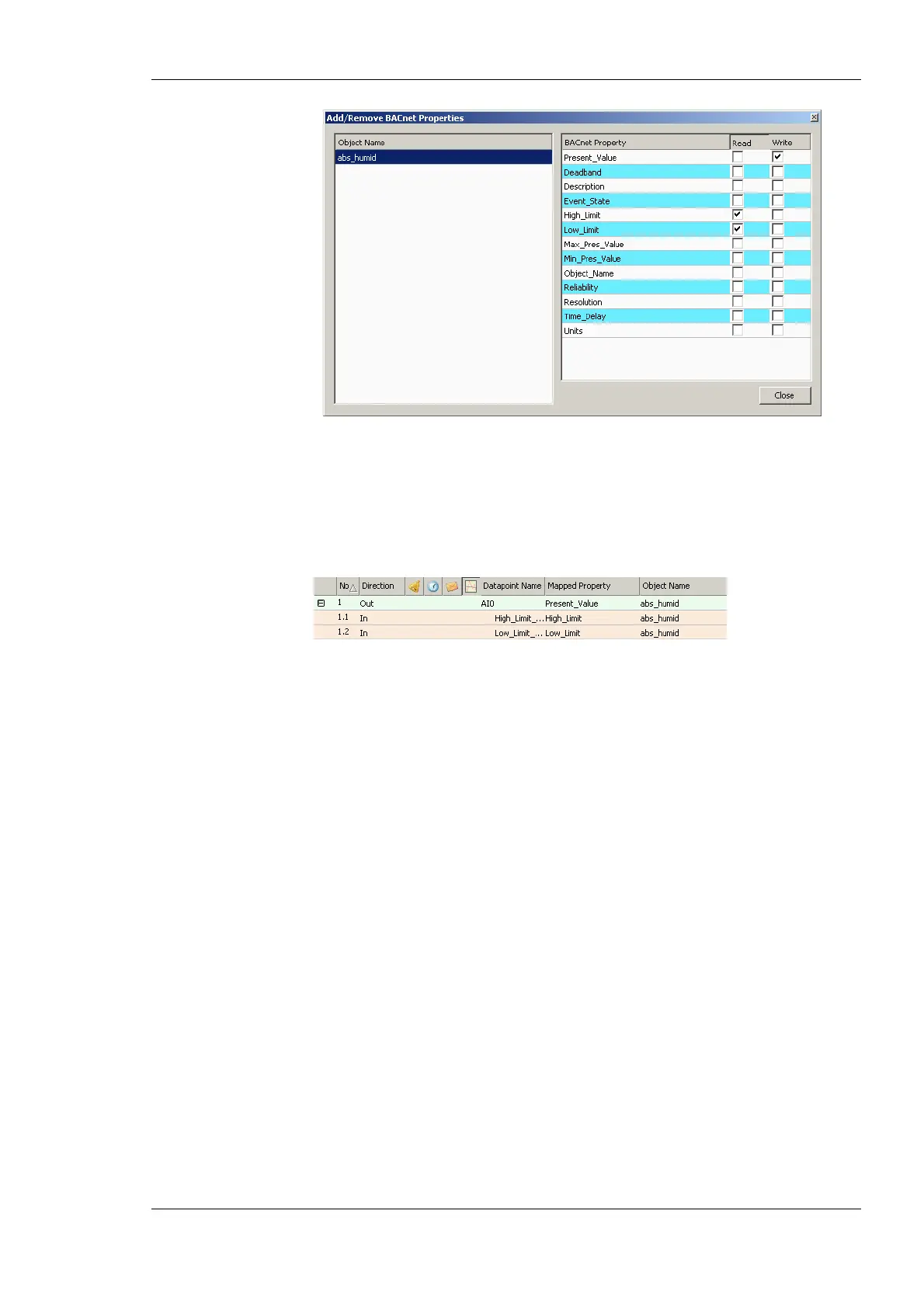
Figure 99: Dialog for adding/removing BACnet properties.
3. Check the additional properties. Checking the Read box will add an input data point,
checking the Write box will add an output data point.
4. Click Close. The selected data point can now be expanded with the plus icon and show
its additional properties as sub-data points.
5. To remove properties perform the same steps and uncheck the corresponding check-
boxes. Alternatively, select the property (or more) and press the Delete key.
6.10.7 Enable International Character Support
By default BACnet objects on the device contain ASCII strings in properties such as object
name, description, active/inactive text, state texts. This is the setting most third-party tools
are interoperable with. To support international character sets, the device can be configured
to expose strings as ISO-8895-1 (for most Western European languages) or UCS-2 (for
Unicode character sets such as Japanese).
To Enable International Character Support
1. In the Configurator software menu go to Settings Æ Project settings …. This opens
the Project Settings dialog.
2. Click on the tab BACnet.
3. Put a check mark either on ASCII (default), UCS-2 (Unicode, e.g., for Japanese), or
ISO-8859-1 (for Western European languages), as indicated by the red rectangle in
Figure 100.
4. Click Ok.
5. Download the configuration to activate the change.



 To Next Page