L-Gate User Manual 126 LOYTEC
Version 3.2 LOYTEC electronics GmbH
6.13.3 Deliver Alarms via E-Mail
Updates in the alarm summary of an alarm object can be used as a trigger to send e-mail.
For setting up e-mails, the account information has to be configured on the device, e.g. on
the Web UI (see Section 4.2.11). Then an e-mail template can be created and the alarm
point attached as a trigger.
To Create an E-Mail Template for Alarms
1. Create or configure an E-Mail template as described in Section 6.11.1.
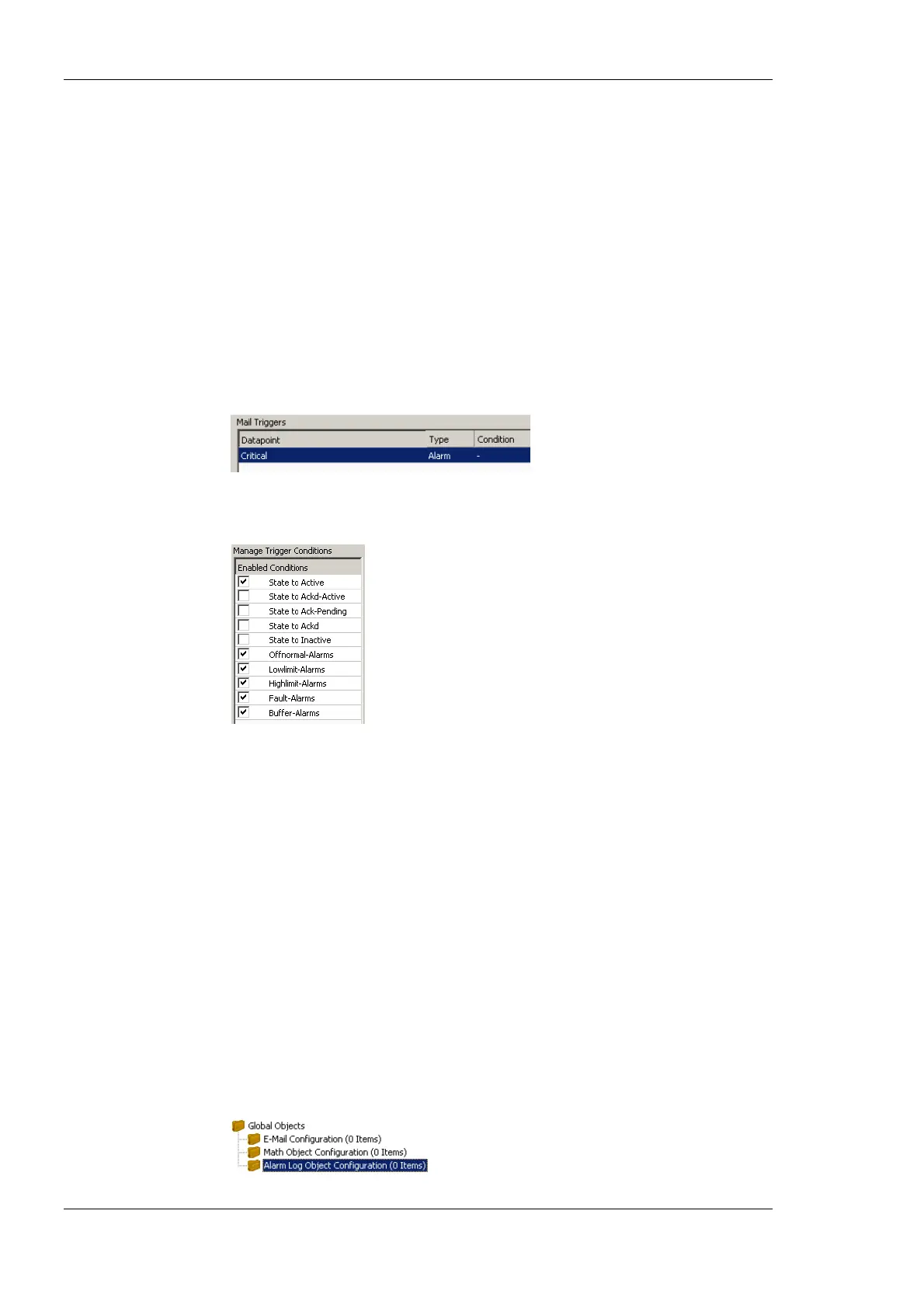
2. Change to the Mail Triggers tab.
3. Click the Add… button and select an alarm data point.
4. In the Mail Triggers list select the added trigger data point.
5. In the Manage Trigger Conditions list put a check mark on alarm conditions that
shall invoke the transmission of the e-mail.
6. Change to the Common E-Mail Properties tab.
7. Add the alarm data point as a data source and insert the place holder into the e-mail
text as described in Section 6.11.1.
6.13.4 Create an Alarm Log
The alarm objects on the device contain an alarm summary (live list) of currently active
and acknowledge-pending alarms. As soon as an alarm becomes inactive and has been
acknowledged, it disappears from the alarm summary. To store a historical log of alarm
transitions an alarm log needs to be created.
An alarm log can log transitions of one or more alarm objects. Its size is configurable. The
alarm log is a ring buffer. As soon as its size limit is reached, the oldest alarm log records
are overwritten by new alarm transitions.
To Create an Alarm Log
1. Under the Global Objects folder, select the Alarm Log Object Configuration sub-
folder.



 To Next Page