L-Gate User Manual 86 LOYTEC
Version 3.2 LOYTEC electronics GmbH
8. After the service pin has been received, LonMaker commissions the replacement
device, creates the dynamic NVs again (if any), and installs the bindings.
6.7 Using the L-Gate Configurator
6.7.1 Starting as an LNS Plug-In
In LonMaker the plug-in is started by right-clicking on the L-Gate device shape or the
Gateway functional block and selecting Configure… from the pop-up window.
In NL-220 the Plug-in is started by right clicking on the L-Gate node, then selecting the
Option LOYTEC L-Gate Configurator in the PlugIns sub menu.
In Alex the Plug-in is started by right-clicking on the L-Gate device and selecting the
LOYTEC L-Gate Configurator in the Starte PlugIn sub menu.
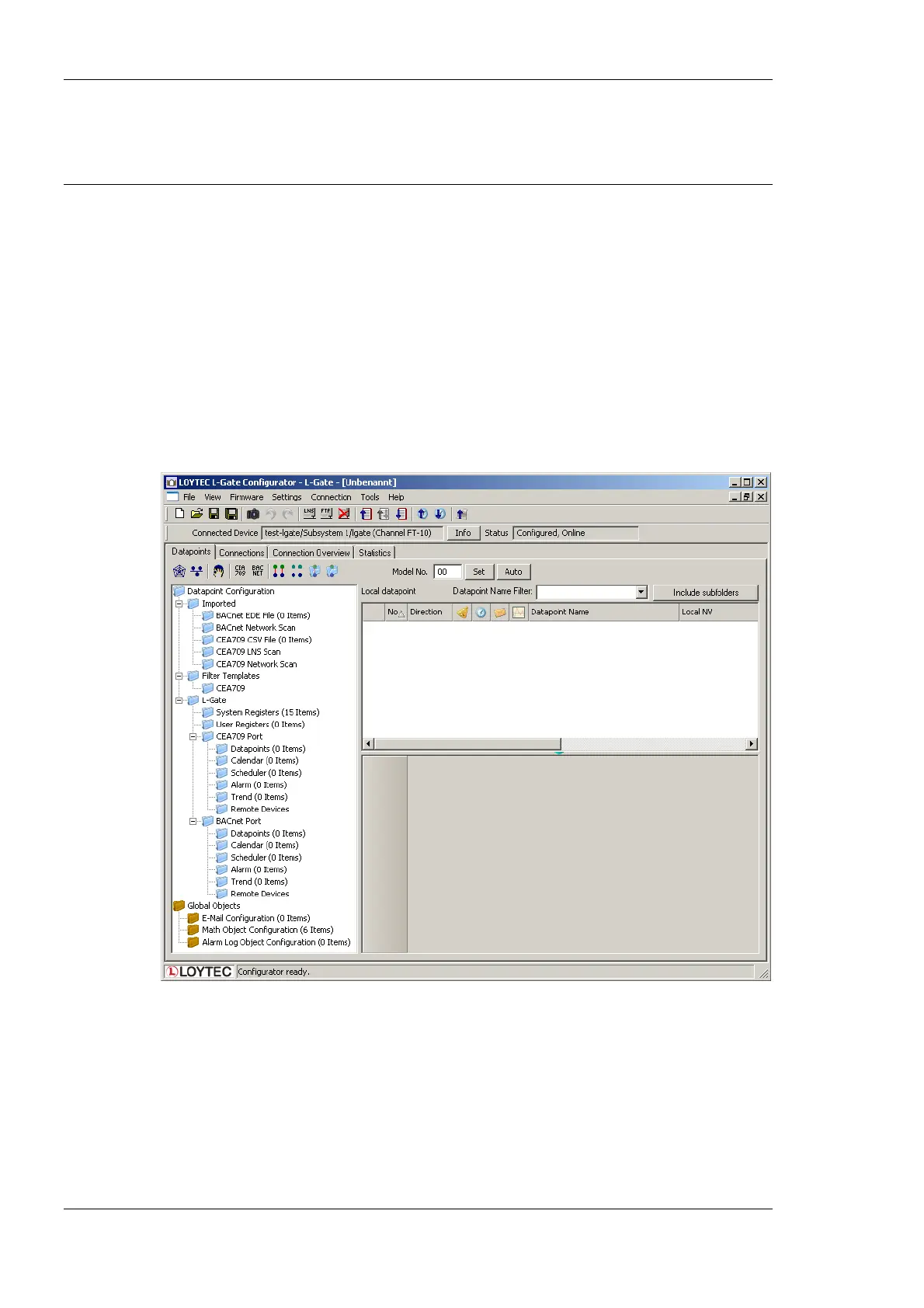
A window similar to what is shown in Figure 71 should appear.
Figure 71: L-Gate Configurator main window.
6.7.2 Starting Stand-Alone
The L-Gate can also be used without LNS-based tools. In this case, the L-Gate
Configurator needs to be started as a stand-alone application. Go to the Windows Start
menu, select Programs, LOYTEC L-Gate Configurator and then click on Configure
L-Gate. This starts the L-Gate Configurator and the main connections screen is displayed.



 To Next Page