L-Gate User Manual 116 LOYTEC
Version 3.2 LOYTEC electronics GmbH
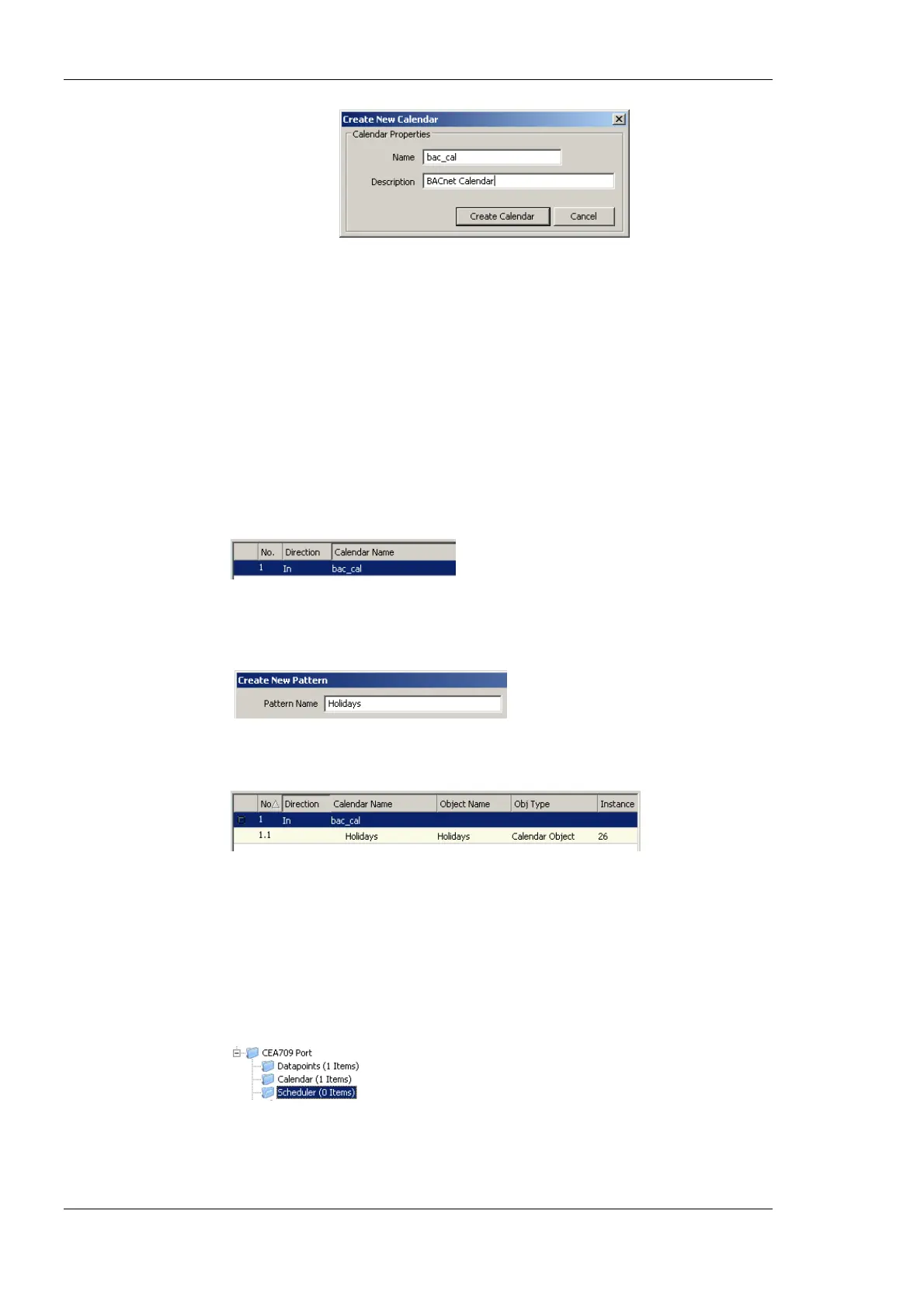
Figure 102: Create New Calendar dialog box.
4. Click Ok. The calendar appears now in the data point list view.
6.12.2 Create Calendar Pattern
When a local calendar is used, it needs to be configured with calendar patterns. A cleandar
pattern represents a class of days such as “Holidays”. The calendar patterns can then be
used in a schedule to define daily schedules for exception days. The available calendar
patterns should be created when the system configuration is engineered. The actually dates
in the calendar patterns can be modified later at run-time.
To Create a Calendar Pattern
1. Select an existing calendar data point.
2. Right-click and select Create Calendar Pattern…
3. Enter a Pattern Name in the Create Calendar Pattern dialog
4. Click Create Pattern. The dialog closes and the calendar pattern appears beneath the
calendar data point.
6.12.3 Create a Local Scheduler
For scheduling data points, a scheduler object must be created. On each port, multiple local
scheduler objects can be created. These local schedulers can then be configured to schedule
data points.
To Create a Local Scheduler
1. Under the port folder, select the Scheduler sub-folder.
2. Right-click in the data point list view and select New Local Scheduler ….
3. Enter a name for the schedule and a description. Note, that the schedule automatically
detects a calendar, if it has previously been created.



 To Next Page