L-Gate User Manual 38 LOYTEC
Version 3.2 LOYTEC electronics GmbH
The effective period defines when this schedule shall be in effect. Leave From and To at
‘*.*.*’ to make this schedule always in-effect. Otherwise enter dates, such as ’30.1.2000’.
To entirely disable a scheduler de-select the Enable Schedule check box.
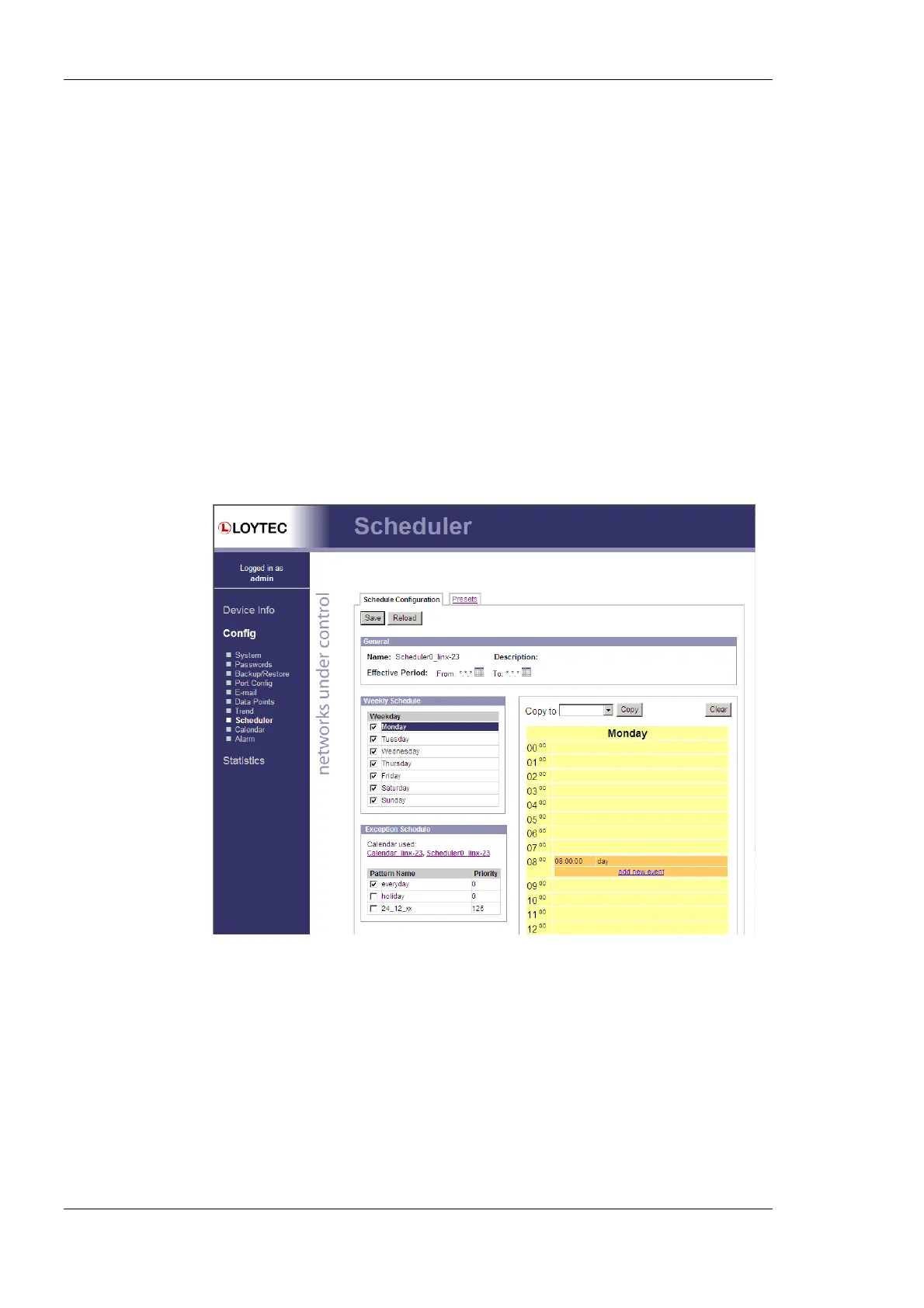
Schedules are defined per day. On the left-hand side, the weekdays Monday through
Sunday can be selected, or exception days from the calendar, e.g. Holidays. Once a day is
selected, the times and values can be defined in the daily planner on the right-hand side. In
the example shown in Figure 28, on Monday the value day is scheduled at 8:00am. The
same principle applies to exception days. Exception days override the settings of the
normal weekday. Put a check mark on those exception days from the calendar, which shall
be used in the schedule. To edit the date ranges of exception days click on the links to the
used calendars, e.g., ‘calendar’ or ‘Scheduler_1’. The ‘Scheduler_1’ is a calendar, which is
embedded into the schedule and not accessible by other schedulers. For more information
on how to set up schedules and calendars refer to Section 6.12.
To define actual values for the names such as day click on the tab Presets as shown in
Figure 29. To define a new value, click on the button Add Preset. This adds a new column.
Enter a new preset name (e.g., ‘day’). Then enter values for the data points in the preset
column. The data point description column displays the short-hand name defined in the
configuration software. This description can also be changed on the Web UI.
Figure 28: Schedule Configuration Page



 To Next Page