L-Gate User Manual 91 LOYTEC
Version 3.2 LOYTEC electronics GmbH
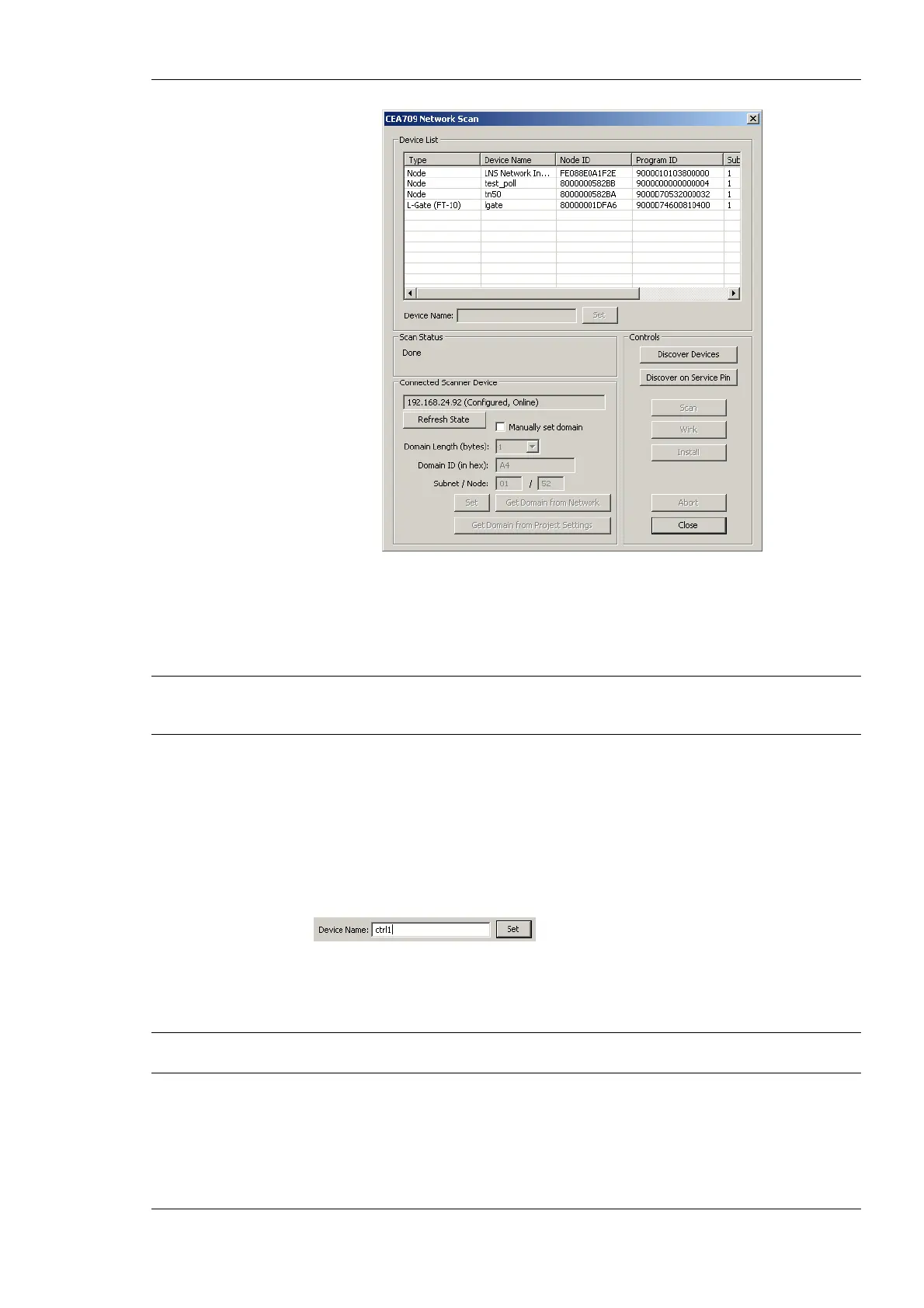
Figure 76: CEA-709 network scan dialog.
4. If the device has not been installed with a network management tool (e.g. LNS-based
tool), select the Manually set domain check-box and click the Set button. This sets
the device configured, online to start the scan.
Note: You need to set the same domain as the devices to be scanned. Click Get Domain from
Network and press a service pin on some other, already installed device to retrieve the
domain information before setting the device online.
5. Click on the button Discover Devices. This starts a network scan. The results are put
in the device list box.
6. Alternatively, click the button Discover on Service Pin. Then press the service pin of
a particular device on the network. This device will be added to the device list.
7. Select a device in the device list. To give the device a usable name, enter the name
below and click on the Set button.
8. Then click the button Scan. This scans the NVs on the selected device and adds them
to the CEA709/852 Network Scan folder as a separate sub-folder for the device as
shown in Figure 77.
Tip! If you are not sure, which device you have selected, click on Wink Device. The selected
device will execute its wink sequence.



 To Next Page