99
C
ONFIGURING SOFTKEYS BLF/LIST KEY
URIparameter must match the list name configured. Otherwise, no values display on the 6930 screen and
the feature is disabled.
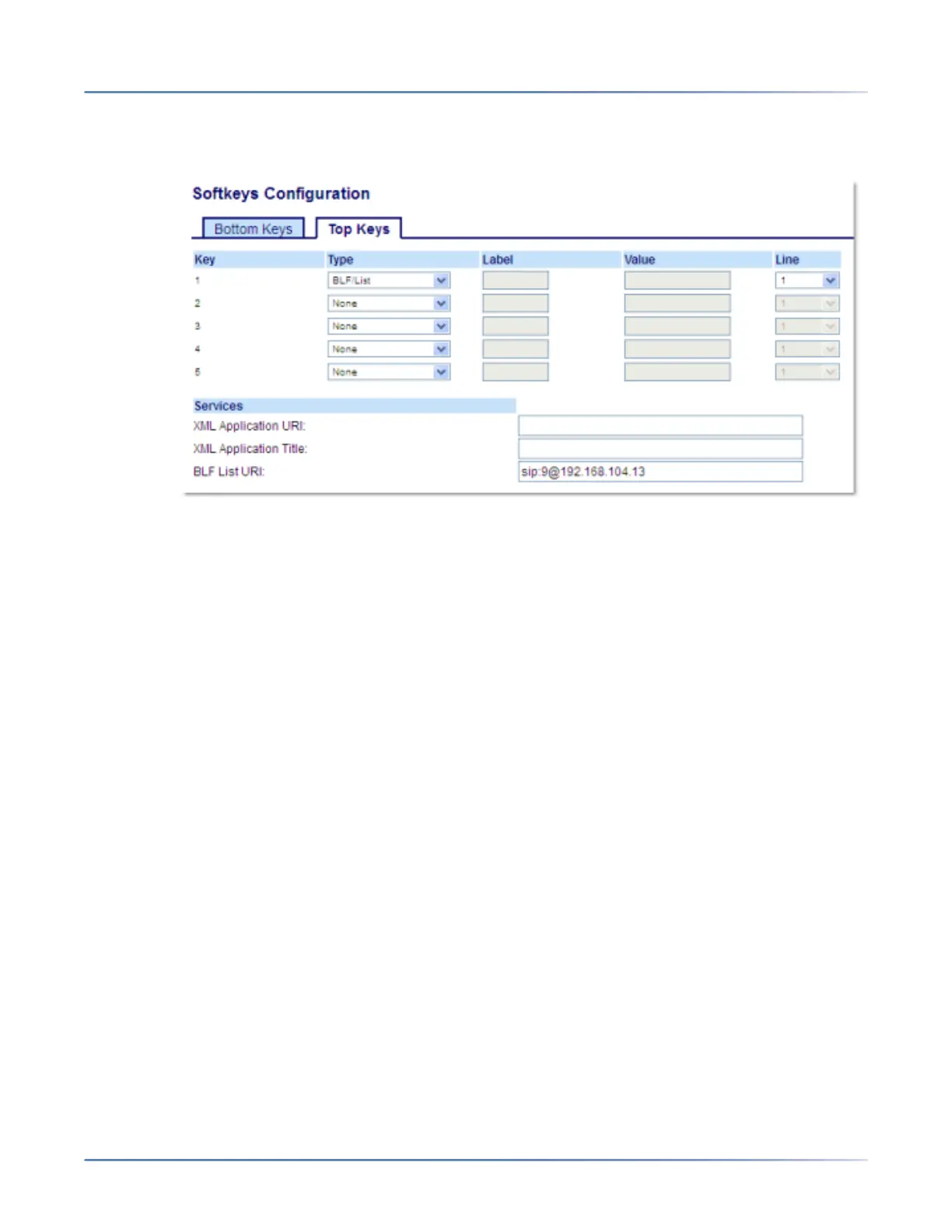
1. Click on Operation > Softkeys and XML.orClick on Operation > Expansion Module <N>.
Softkeys
2. Select from Key 1through Key 44 on the Top keys.
3. In the Typefield, select BLF/List.
4. In the Linefield, select a line number that is actively registered to the appropriate SIP proxy you are
using. Valid values are:
– global
– 1through24
NOTE: The Labeland Valuefield are not required. The BLF/List name is configured in the BLF List
URIfield instead.
5. In the state fields, check (enable) or uncheck (disable) the states you want to apply to this softkey.
6. In the BLF List URIfield, enter the name of the BLF list defined on the applicable Mitel call manager
Busy Lamp field page for your particular user. For example, sip:9@192.168.104.13.
NOTE: Contact your System Administrator for the BLF List URI.
Expansion Module Keys
7. Select from Key 1through Key 84(M695).
8. In the Line field, select a line for which to apply this key. Valid values are:
– global
– 1through 24
NOTE: TheValuefield is not required. The BLF/List name is configured in the BLF List URIfield
instead.
9. In the BLF List URIfield, enter the name of the BLF list defined on the applicable Mitel call manager
Busy Lamp field page for your particular user. For example, sip:9@192.168.104.13.
NOTE: Contact your System Administrator for the BLF List URI.
10. Click Save Settings.




 To Next Page