110
C
ONFIGURING SOFTKEYS SPEED DIAL/MWI
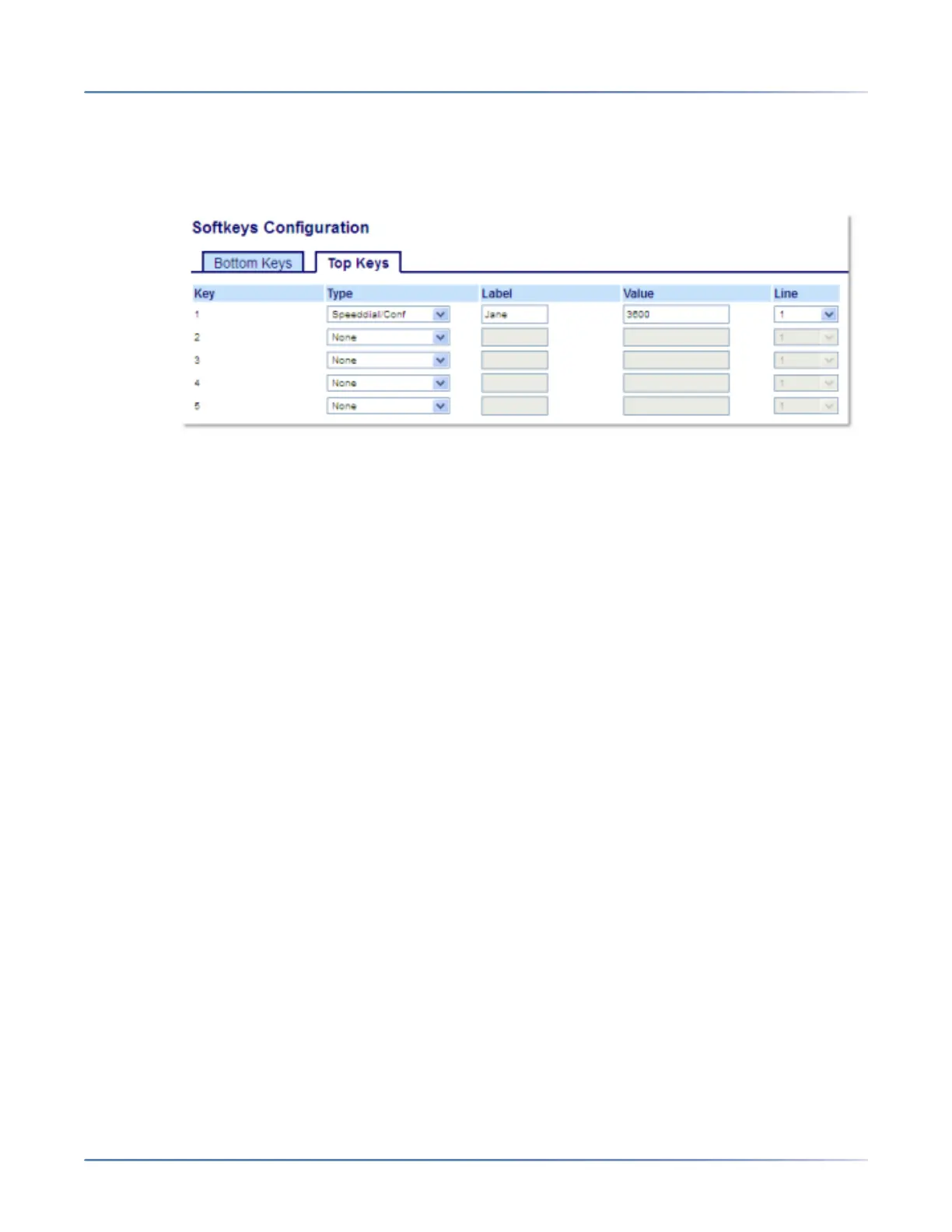
Configuring a Speed Dial/Conf Key Using the Mitel Web UI
1. Click on Operation > Softkeys and XML.orClick on Operation > Expansion Module <N>.
Softkeys
2. Select from Key 1through Key 44 on the Top keys.orSelect from Key 1through Key 24 on the Bottom
keys.
3. In the Typefield, select Speed Dial/Conf.
4. In the Label field, enter a label for the Speed Dial/Conf key.
5. In the Valuefield, enter the speed dial extension or the extension to add to the conference (for
example, 3600).
6. In the Line field, select the line for which you want to use the key functionality.Valid values are:
– global
– 1through24
7. In the state fields, check (enable) or uncheck (disable) the states you want to apply to this softkey.
Expansion Module Keys
8. Select from Key 1through Key 84(M695).
9. In the Typefield, select Speed Dial/Conf.
10. In the Valuefield, enter the speed dial extension or the extension to add to the conference (for
example, 3600).
11. In the Line field, select the line for which you want to use the key functionality.Valid values are:
– global
– 1through24
12. Click Save Settings.
Speed Dial/MWI
Speed Dial/MWINote: Speed Dial/MWI functionality can only be programmed on the top softkeys.




 To Next Page