143
H
ANDLING CALLS CONFERENCING CALLS
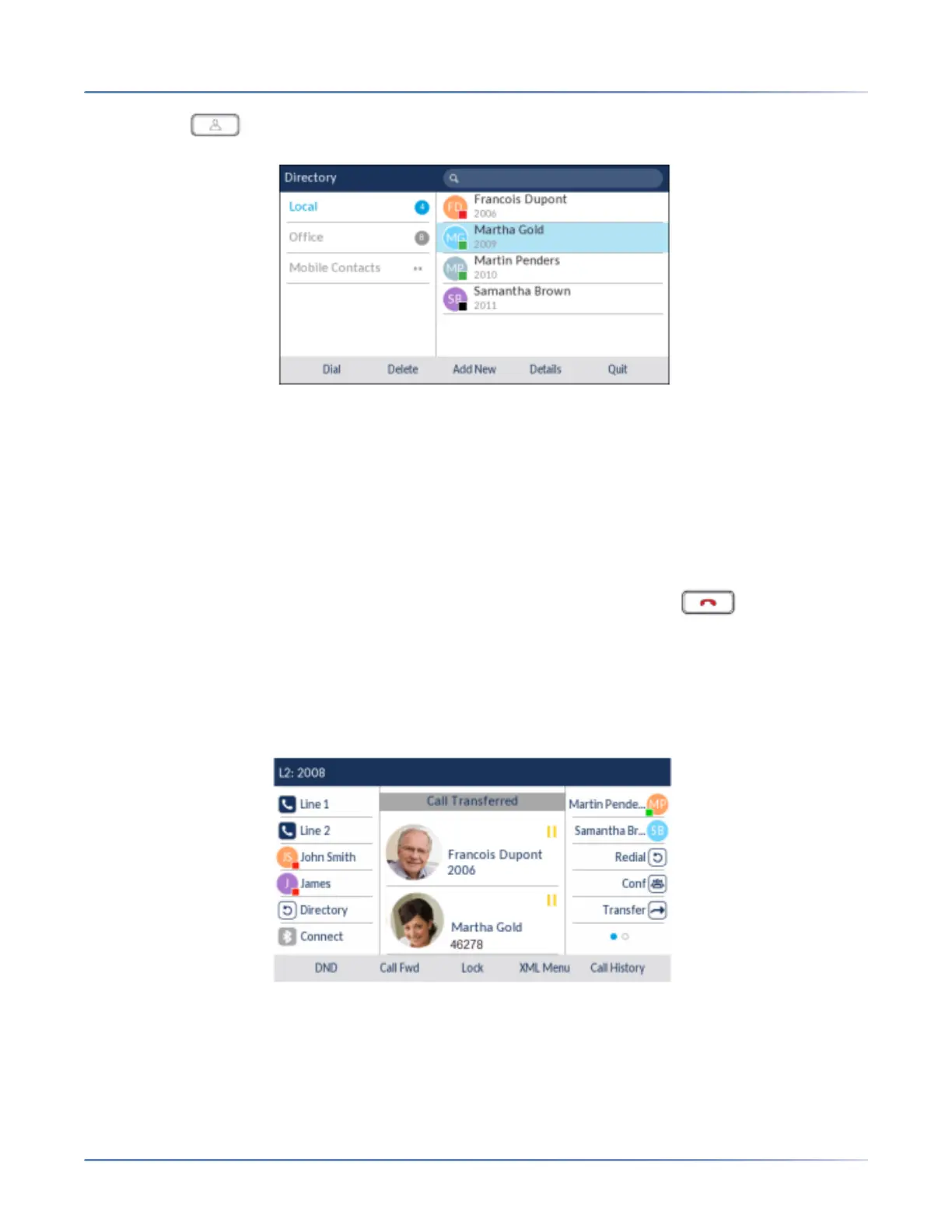
3. Press the (Directory)key or the softkey configured for Directory functionality and highlight a
directory entry (or the desired number if the entry contains more than one number).
NOTE: If you have any additional Directory sources configured, you will need to first navigate to the
desired Directory folder and then highlight the respective entry or number.
4. Complete either a blind or consultative transfer:
a. To complete a blind transfer, press the select button to call the contact and then press the Xfer
softkey before the receiving end answers.
b. To complete a consultative transfer, press the select button to call the contact. Remain on the
line to speak with Party 2 before pressing the press the softkey configured with Transfer func-
tionality or Xfersoftkey again to transfer Party 1 to Party 2.
To cancel the transfer, press the Cancelsoftkey on the display screen or press .
Indication of Transferred Calls
When you transfer an active call, the near-end phone displays a Call Transferredscreen when a call is
transferred and the far-end call is dropped. The figure below illustrates the Call Transferred screen on
the 6930 phone.
Conferencing Calls
You can use the Conf softkey offered on screen when in a connected call to create conference calls or
use a softkey configured with Conference functionality (see “Conference Key” on page 106).





 To Next Page