119
C
ONFIGURING SOFTKEYS PHONE LOCK KEY
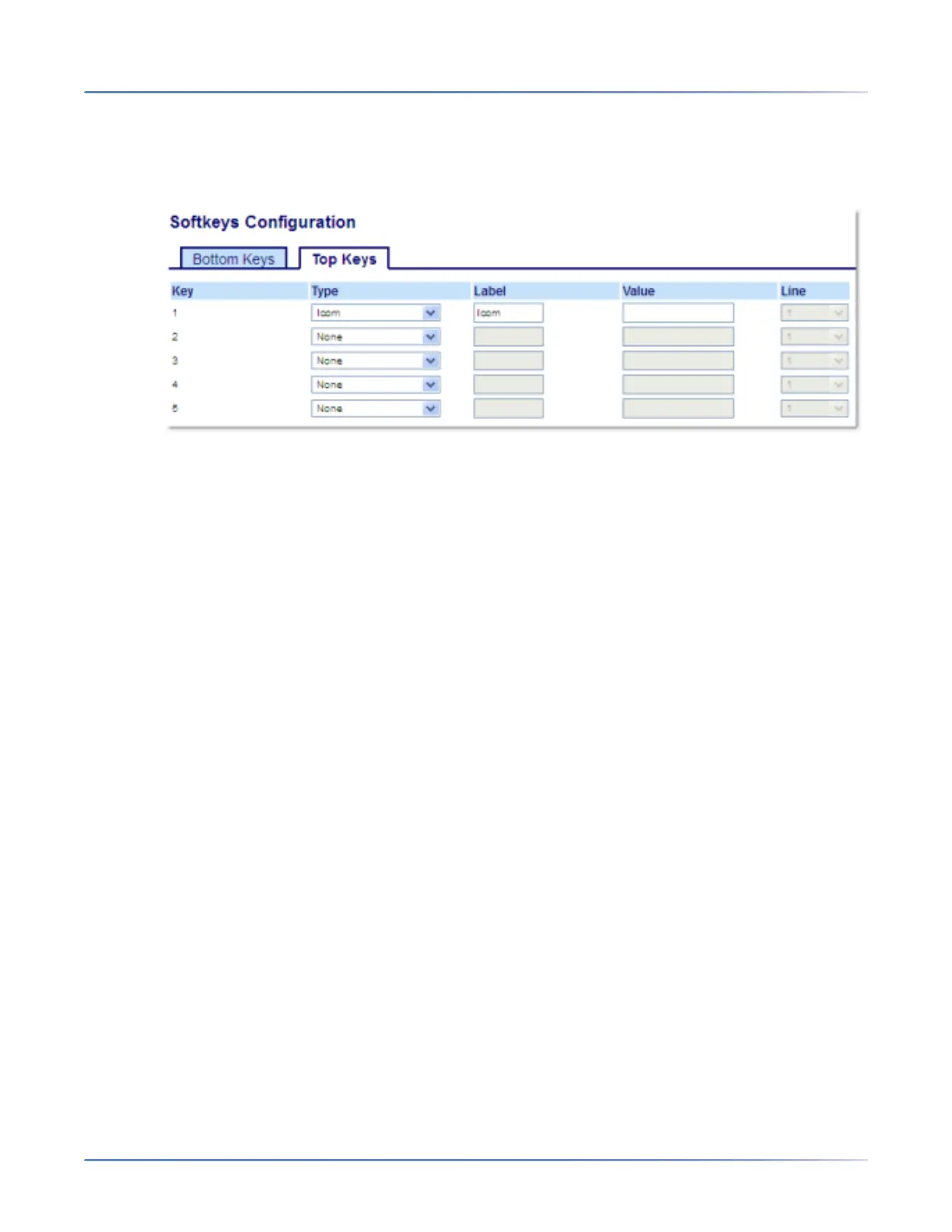
Configuring an Intercom Key Using the Mitel Web UI
1. Click on Operation > Softkeys and XML.orClick on Operation > Expansion Module <N>.
Softkeys
2. Select from Key 1through Key 44 on the Top keys.orSelect from Key 1through Key 24 on the Bottom
keys.
3. In the Type field, select Icom.
4. In the Label field, enter a label to apply to this key.
5. In the Value field, enter the predefined number you wish to be dialed when the Intercom key is
pressed.
NOTE: If no value is defined, you will need to manually enter a number after pressing the Intercom
key.
6. In the state fields, check (enable) or uncheck (disable) the states you want to apply to this softkey.
Expansion Module Keys
7. Select from Key 1through Key 84(M695).
8. In the Type field, select Icom.
9. In the Value field, enter the predefined number you wish to be dialed when the Intercom key is
pressed.
NOTE: If no value is defined, you will need to manually enter a number after pressing the Intercom
key.
10. Click Save Settings.
Phone Lock Key
You can configure a key on the IP phone to use as a lock/unlock key. You assign the function of the key
as Phone Lock.




 To Next Page