123
C
ONFIGURING SOFTKEYS CALL HISTORY KEY
4. Click Save Settings.
Expansion Module Keys
5. Select from Key 1through Key 84(M695).
6. In the Type field, selectDiscreet Ringing.
7. Click Save Settings.
Call History Key
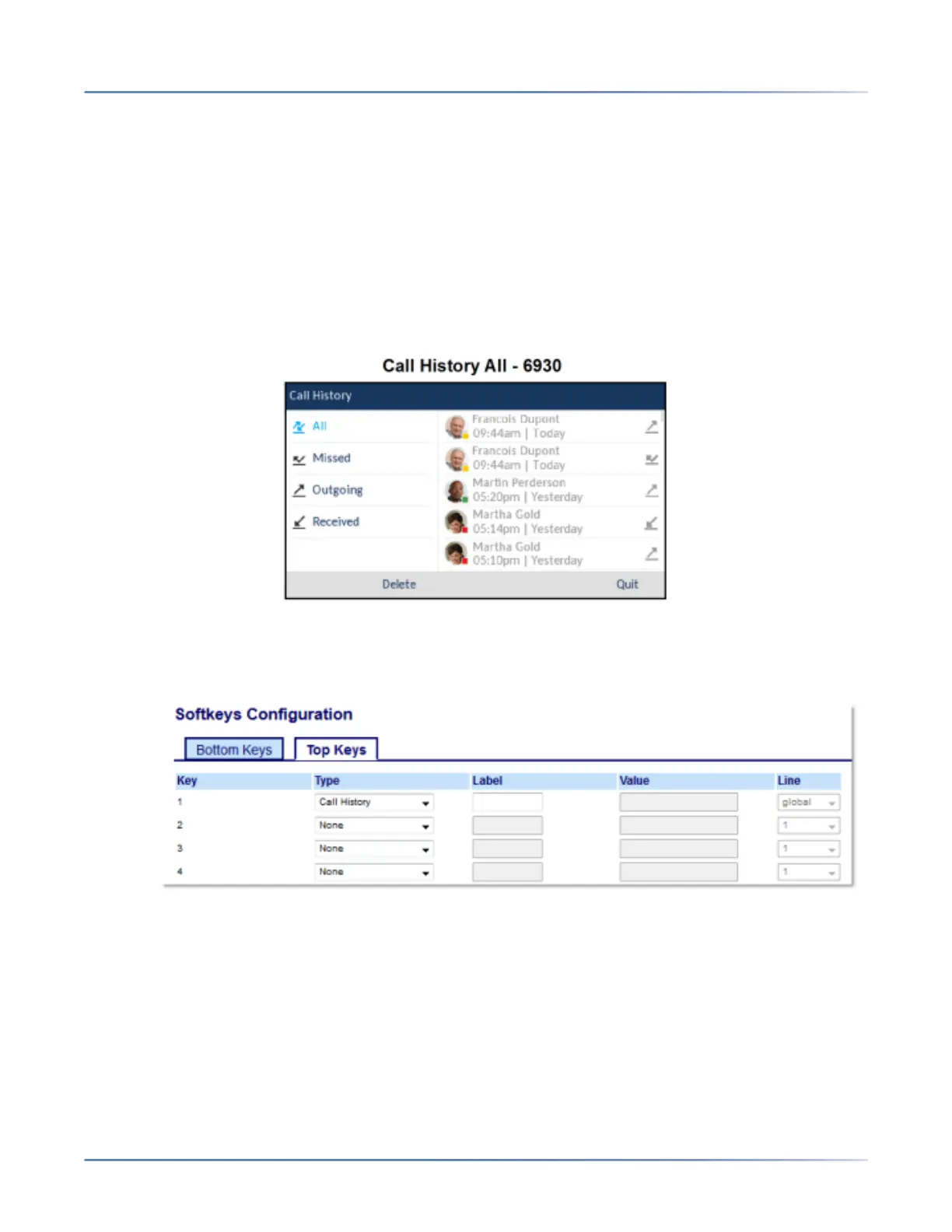
Call History key displays All folder list which includes the list of your missed, outgoing, and received calls.
Configuring a Call History Key Using the Mitel Web UI
1. Click on Operation > Softkeys and XMLorClick on Operation > Expansion Module <N>
Softkeys
2. Select from Key 1through Key 44 on the Top keys.orSelect from Key 1through Key 24 on the Bottom
keys.
3. In the Typefield, select Call History.
4. In the Label field, enter a label to display on the phone for the key (default is "Call History").
5. Click Save Settings.
Expansion Module Keys
6. Select from Key 1through Key 84(M695).




 To Next Page