136
R
ECEIVING CALLS ANSWERING AN INCOMING CALL
Receiving Calls
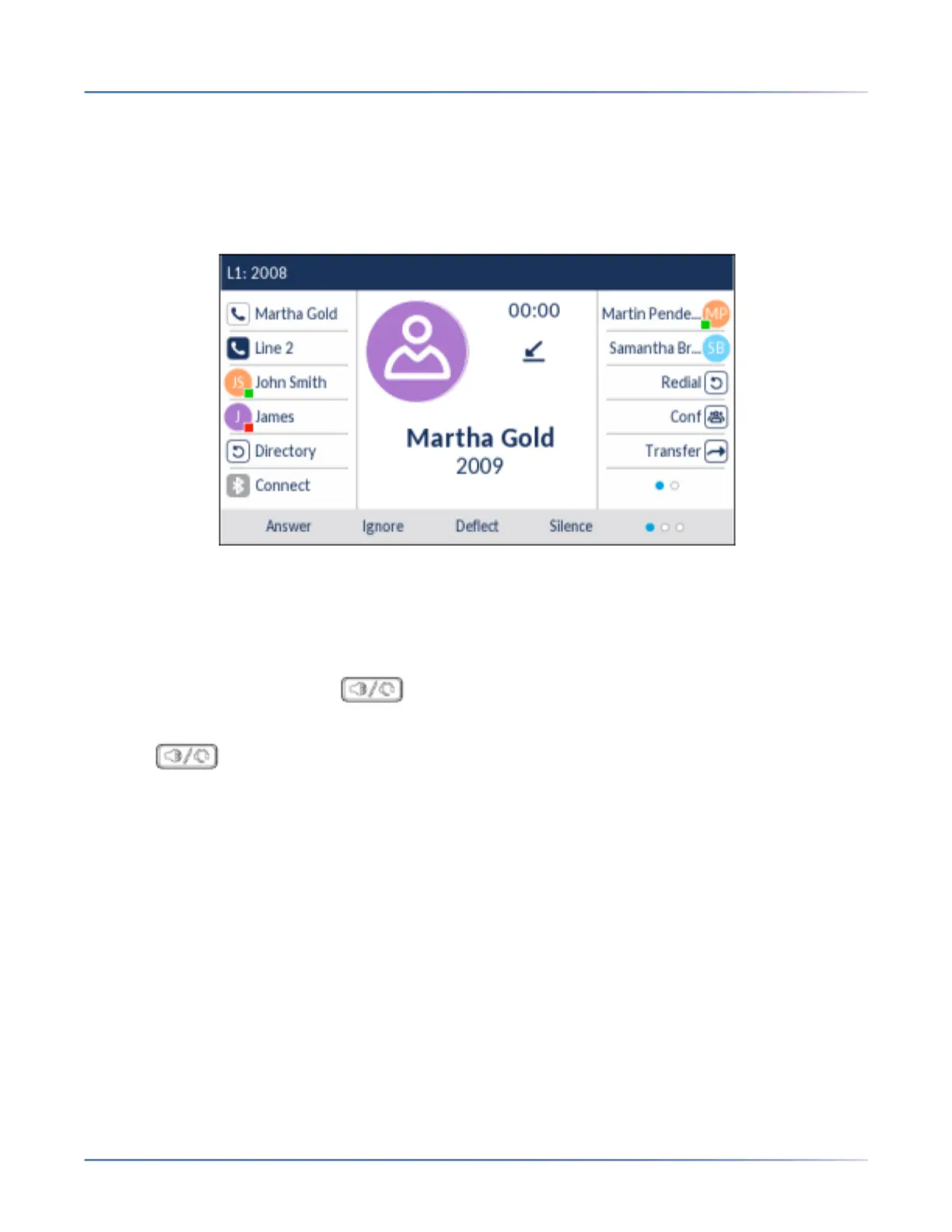
When a call is ringing atyour extension, the inbound callers name, extension, picture ID (if applicable),
and incoming call icon display on the screen. Additionally, the line/call appearance LED flashes quickly
for the incoming call.
NOTE: You can press the Silence softkey when the phone is ringing to immediately silence the ring tone.
Answering an Incoming Call
• For handsfree operation, press , the Answersoftkey, or the line/call appearance button for the
incoming call.
• Press for headset operation or the answer button on your headset (if available).
• Lift the handset for handset operation.
NOTE: The audio mode setting you have selected in Options List >Headset Settings on the IP phone
UIdetermines if the call goes to handsfree or headset operation. For more information, see the
section “Audio Mode” on page 60
If the phone is already connected to a call, pressing the line/call appearance button or Answersoftkey for
the new incoming call automatically places the connected call on hold and answers the new call.
NOTE: If the Goodbye Key Cancels Incoming Call feature is disabled, you can also use the answer button
on your headset (if available) to answer the secondary incoming call. If the Goodbye Key Cancels
Incoming Call feature is enabled, the answer button on your headset will cancel the secondary incoming
call. For more information on the Goodbye Key Cancels Incoming Call feature, see the section “Goodbye
Key Cancels Incoming Calls” on page 184.
To reconnect to a party, press the line/call appearance button for that call or navigate to the call on hold
and press the Pickupsoftkey. If you cannot answer the call, the caller goes to voicemail (if voicemail has
been configured for your extension).





 To Next Page