106
C
ONFIGURING SOFTKEYS BLF/XFER
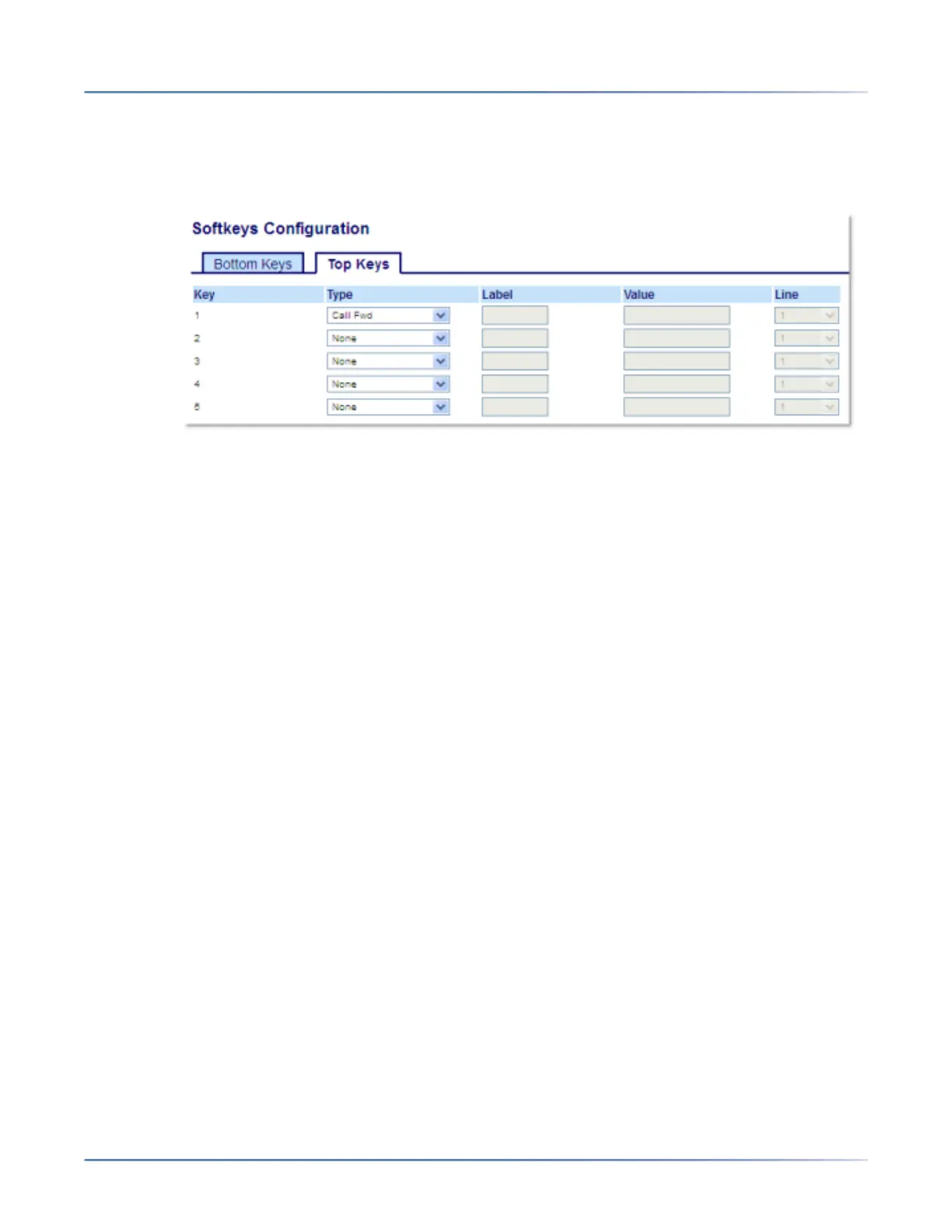
Configuring a Call Forward Key Using the Mitel Web UI
1. Click on Operation > Softkeys and XML.orClick on Operation > Expansion Module <N>.
Softkeys
2. Select from Key 1through Key 44 on the Top keys.orSelect from Key 1through Key 24 on the Bottom
keys.
3. In the Typefield, select Call Fwd.
4. In the state fields, check (enable) or uncheck (disable) the states you want to apply to this softkey.
Expansion Module Keys
5. Select from Key 1through Key 84(M695).
6. In the Typefield, select Call Fwd.
7. Click Save Settings.
BLF/Xfer
NOTE: BLF/Xfer functionality can only be programmed on the top softkeys.
The BLFkey allows one or more extensions to be monitored, and once there is any state change with
those extensions, the key shows the status of the monitored lines. The Transferkey allows a call to be
transferred to other recipients blindly or consultatively. The BLF/Xferkey combines the BLFand Transfer
keys' functionality together allowing the user to transfer calls or use BLF with one key.
NOTE: It is recommended that you enable the Switch UI Focus to Ringing Lineparameter when using
the BLF/Xfer feature. For more information about this parameter, see “Switch UI Focus to Ringing Line”
on page 178.
BLF/Xfer Key Requirements and Functionality
• BLF/Xfer and BLF: A BLF/Xferkey can be configured for subscribing to an extension and monitor the
status of the extension, similar to the BLFkey functionality. Changes of the state of the monitored
extension are indicated by the key’s graphical button image as well as the key’s LED.




 To Next Page