178
M
ANAGING CALLS DND AND CALL FORWARD
3. If configuring a forwarding number for the No Answer state, navigate to the No. Ringsfield and press
the left and right navigation keys to change the desired number of rings.
4. Using the downnavigation key, move to the On checkbox beside the respective Call Forward mode
and press the select button to enable the Call Forward mode.
5. Press the Savesoftkey to save your changes.
NOTE: In Phone mode, the configuration applies to all the accounts on the phone.
Call Forward in Custom Mode
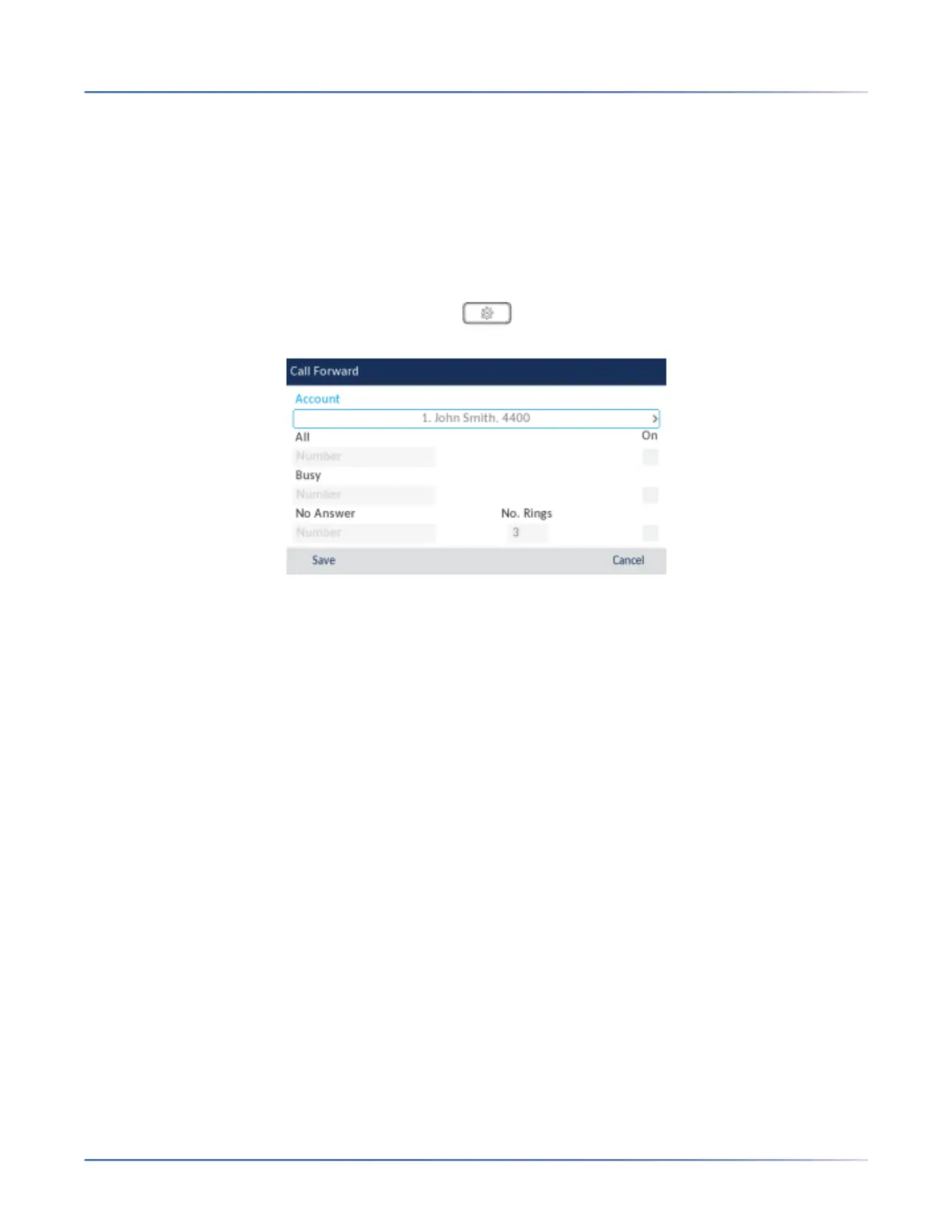
1. Press the configured Call Fwdsoftkey or press , navigate to theCall Forward option and press
the select button or Select softkey. The Call Forward screen displays.
2. Press the left and right navigation keys to change to the desired account.
NOTE: Select All Accounts if you want your changes to be made to all the accounts configured on
the phone.
3. Enter forwarding numbers using the dialpad keys for any of the following states:
– All: Forwards all incoming calls for the respective account to the specified number.
– Busy: Forwards incoming calls to a specified number if DND has been enabled for that account OR
if the account is currently engaged in another call.
– No Answer: Forwards incoming calls to a specified number if the call has not been answered for the
specified number of rings.
NOTE:
i. Pressing the down navigation key moves the selection to the next field/checkbox.
ii. If All and Busy and No Answer are all enabled (and/or if the account has DND enabled), the
All settings take precedence over Busy and No Answer.
iii. Pressing the CopyToAll key copies the call forward number of the Call Forward mode in
focus to every Call Forward mode of that account. For example, if you have the cursor
pointing at the All state and has a call forward phone number configured, pressing the
CopytoAllkey assigns the same phone number to the Busy and No Answer states as well.
4. If configuring a forwarding number for the No Answer state, navigate to the No. Ringsfield and press
the left and right navigation keys to change the desired number of rings.
5. Using the downnavigation key, move to the On checkbox beside the respective Call Forward mode
and press the select button to enable the Call Forward mode.
6. Press the Savesoftkey to save your changes.





 To Next Page