Network and Remote Operation
R&S
®
FSPN
307User Manual 1179.4363.02 ─ 01
● If activated, a bar showing the network address of the R&S FSPN will appear at
the top edge of the screen. You can use this bar to reduce, minimize or close
the window.
● If deactivated, the only way you can return to the controller desktop from the
R&S FSPN screen in full screen mode is to select "Disconnect" from the "Start"
menu.
10.4.7.3 How to Start and Close the Remote Desktop
To set up a connection to the R&S FSPN
1. In the "Remote Desktop Connection" dialog box (see Chapter 10.4.7.2, "How to
Configure the Controller", on page 304), open the "General" tab.
2. In the "Computer" field, enter the IP address of the R&S FSPN.
In the "User name" field, enter instrument to log in as an administrator, or Normal
User to log in as a standard user.
In the "Password" field, enter 894129.
3. To save the connection configuration for later use:
a) Select the "Save As" button.
The "Save As" dialog box is displayed.
b) Enter the name for the connection information (*.RDP).
4. To load an existing connection configuration:
a) Select the "Open" button.
The "Open" dialog box is displayed.
b) Select the *.RDP file.
5. Select the "Connect" button.
The connection is set up.
6. If the "Disk drives" option is activated on the "Local Resources" tab, a warning is
displayed indicating that the drives are enabled for access from the R&S FSPN.
Select "OK" to confirm the warning.
7. After a few moments, the R&S FSPN screen is displayed.
If a dark screen appears or a dark square appears in the upper left-hand corner of
the screen, you must restart the R&S FSPN in order to see the modified screen
resolution.
●
Press the key combination [ALT] + [F4].
●
The R&S FSPN firmware is shut down, which may take a few sec-
onds.
●
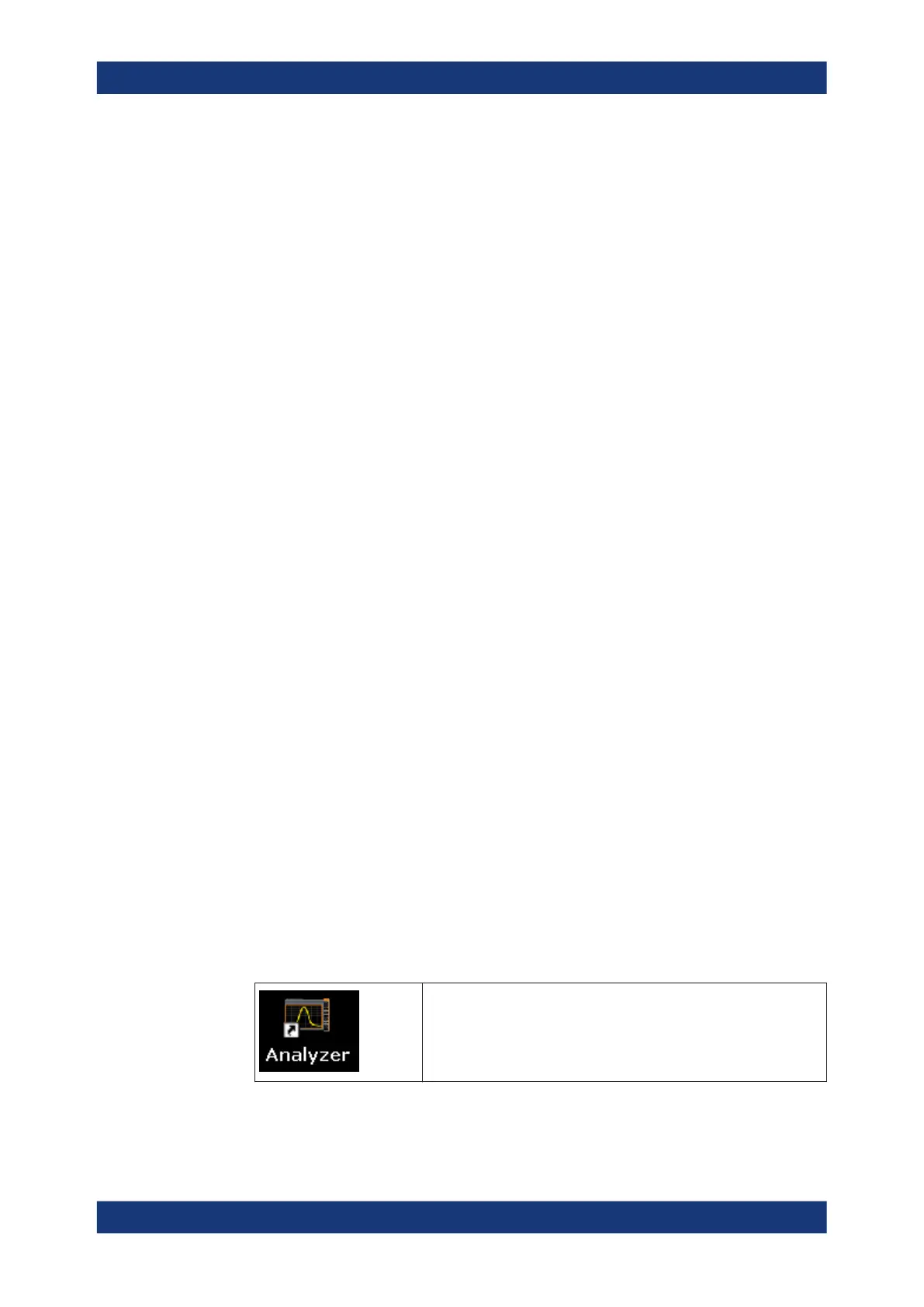
On the desktop, double-tap the "Analyzer" icon.
How to Set Up a Network and Remote Control


 To Next Page