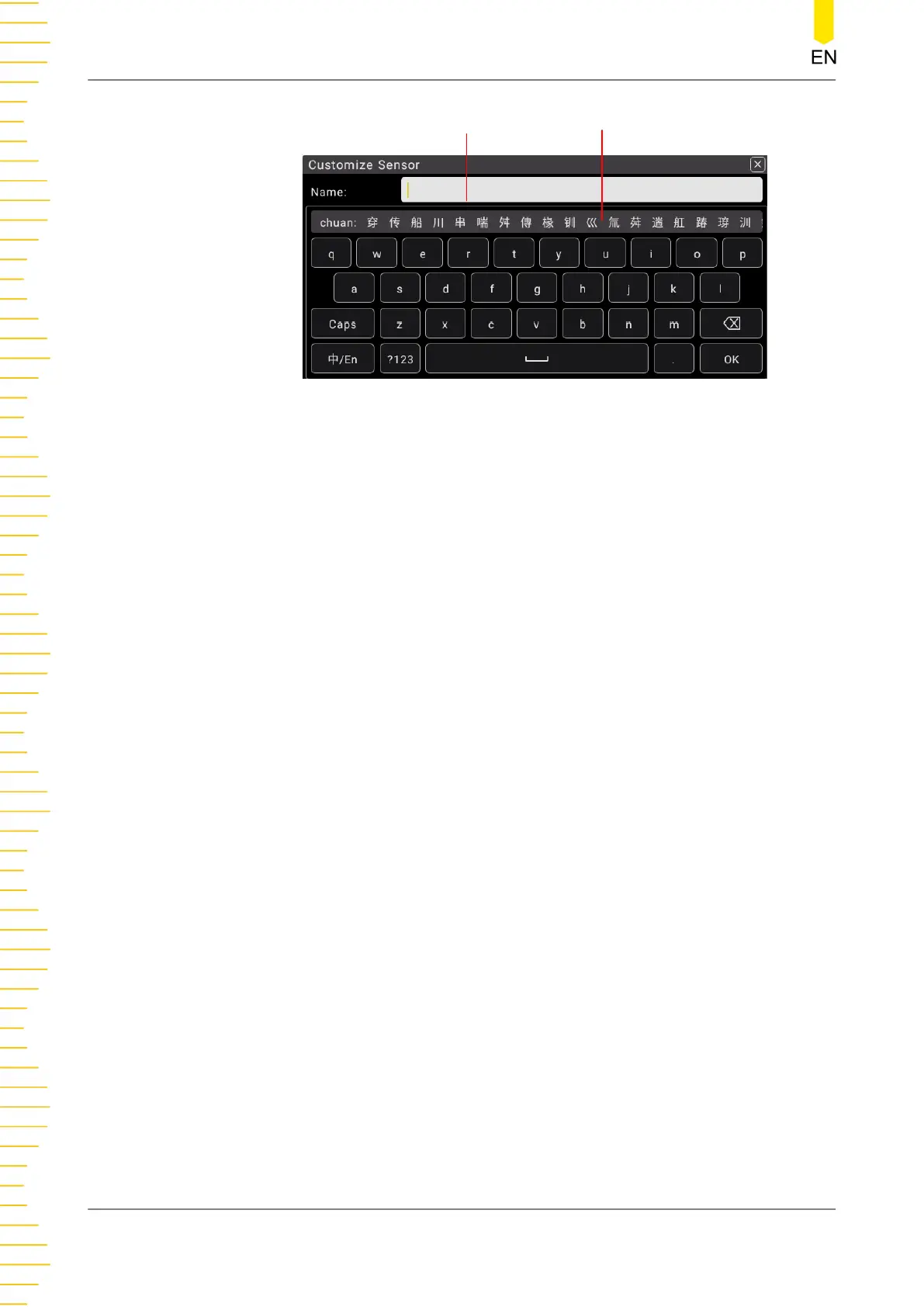
Input Area
Chinese character selection area
Figure 4.12 Chinese Input Interface
1. Select Chinese input method
First check the Chinese and English Characters type. If it shows "中/En", then
go to Step 2; if it shows "En/中", click or tap the input method switchover key
to switch to "中/En" (Chinese input method).
2. Clear the name input area
If there is no character in the "Name Input Area", please go to the next step. If
there are characters in the "Name Input Area", click or tap the Backspace key
to delete all the characters denoted "Name Input Area" in order.
3. Input Chinese characters
Click or tap the characters in the virtual keypad to input Pinyin into the input
area, then the characters to be selected will be displayed in the Chinese
character selection area. Slide to view more Chinese characters for you to
choose. Select the desired Chinese character, and then the selected character
will be displayed in the input area.
4. Modify or delete the unwanted characters that have been input
During the name input process, you can modify or delete the unwanted
character if necessary. To delete the characters that have been input, click or
tap the Backspace key in the virtual keypad to delete the characters. To
modify the input characters, delete the unwanted characters and input the
desired characters again.
5. Confirm the input
After completing the input operation, click or tap OK.
Input a Value
When setting or modifying a parameter, use the pop-up numeric keypad to input an
appropriate value.
Quick Start
DM858 Series User Guide
26
Copyright ©RIGOL TECHNOLOGIES CO., LTD. All rights reserved.



 To Next Page