Click or tap the ON/OFF button for the Overwrite menu to enable or disable the
overwriting function. When enabled, the existing file in the specified file path will
be overwritten by the newly saved file that has the same filename as the existing
one.
• Save
Click or tap Save to save the current image. Then the image is saved based on
the current settings and the current saving interface exits automatically.
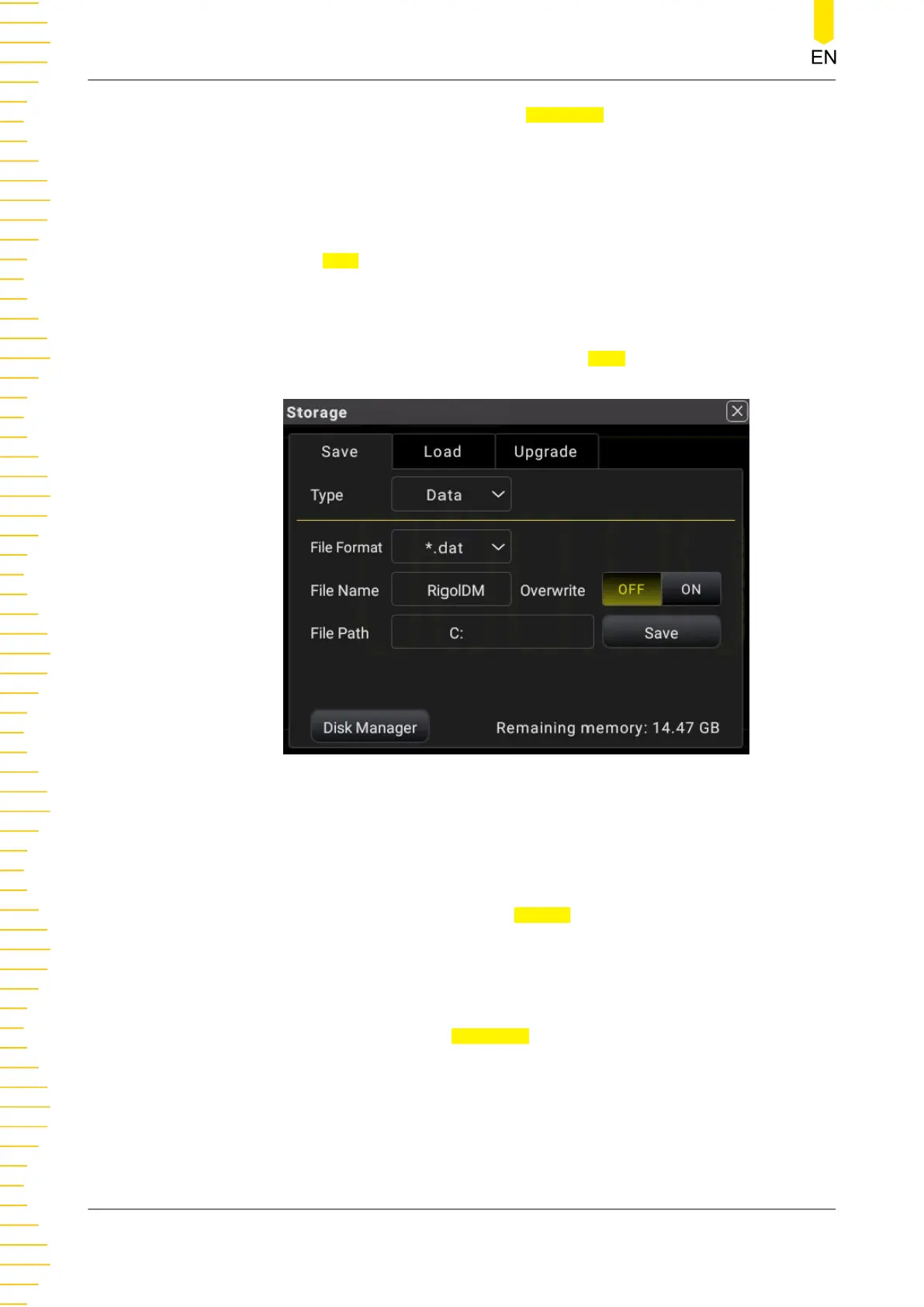
Data Saving
In
Figure 5.77
, click or tap the drop-down button of Type to select "Data". The data
parameter setting is displayed, as shown in the figure below.
Figure 5.78 Data Saving
It is used to save the current measurement data.
• Format
Click or tap the drop-down button of
Format to select "*.dat" or "*.csv" from
the drop-down list. Then the data will be saved to the internal or external
memory in the specified format.
• Set the file name
Click or tap the input field of
File Name to input the file name to be saved with
the pop-up virtual keypad. The length of the file name shall not exceed 8
characters.
• Set the file path
Front Panel Operation
DM858 Series User Guide
112
Copyright ©RIGOL TECHNOLOGIES CO., LTD. All rights reserved.



 To Next Page