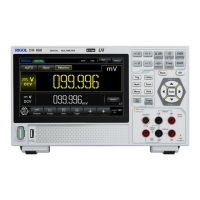
16. Secondary (2ND) Measurement Result Display
Displays the measurement result of the 2ND measurement item when the 2ND
measurement is enabled.
17. Secondary (2ND) Measurement Item
Displays the secondary (2ND) measurement item. When you enable the 2ND
measurement, click or tap the label, then the 2ND measurement menu is
displayed.
4.5 Touch Screen Gestures
The instrument's capacitive touch screen makes operation and configuration easy and
flexible. It features great convenience, high flexibility, and great sensitivity. The actions
supported by the touch screen controls include dragging and tapping.
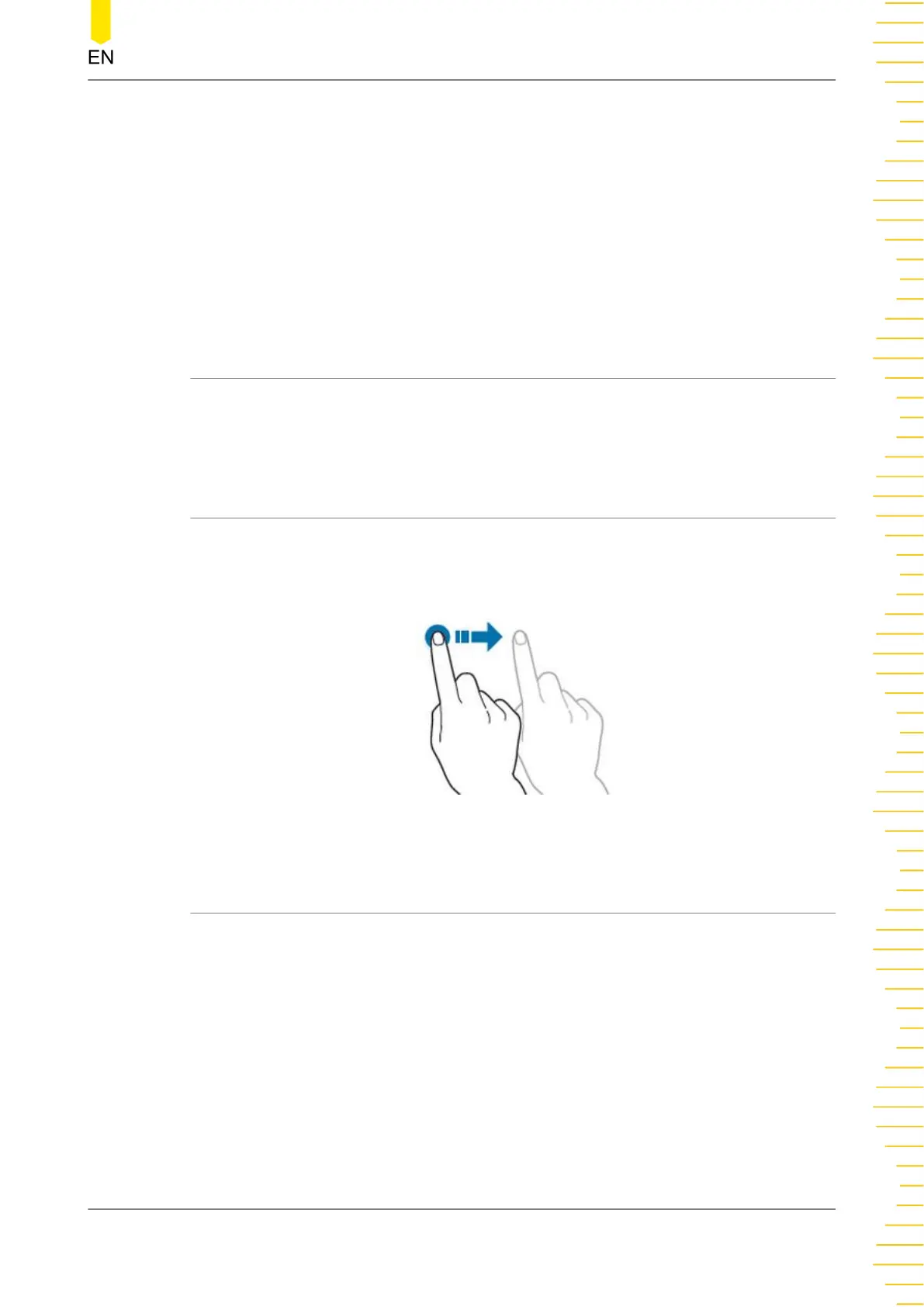
4.5.1 Drag
Use one finger to select the object, and then drag the object to a destination place, as
shown in
Figure 4.9
. You can also drag the window controls to change the window
position (e.g. numeric keypad).
Figure 4.9 Drag Gesture
4.5.2 Tap
Use one finger to tap the symbol or characters on the screen slightly, as shown in
Figure 4.10
. With the Tap gesture, you can perform the following operations:
• Tap the menu displayed on the screen to operate on the menu.
• Tap the function navigation icon at the lower-left corner of the touch screen to
enable the function navigation.
• Tap the displayed numeric keypad to set the parameters.
• Tap the virtual keypad to set the filename.
Quick Start
Copyright ©RIGOL TECHNOLOGIES CO., LTD. All rights reserved. DM858 Series User Guide
23



 To Next Page