• Click or tap the value or unit in the virtual numeric keypad to complete the input.
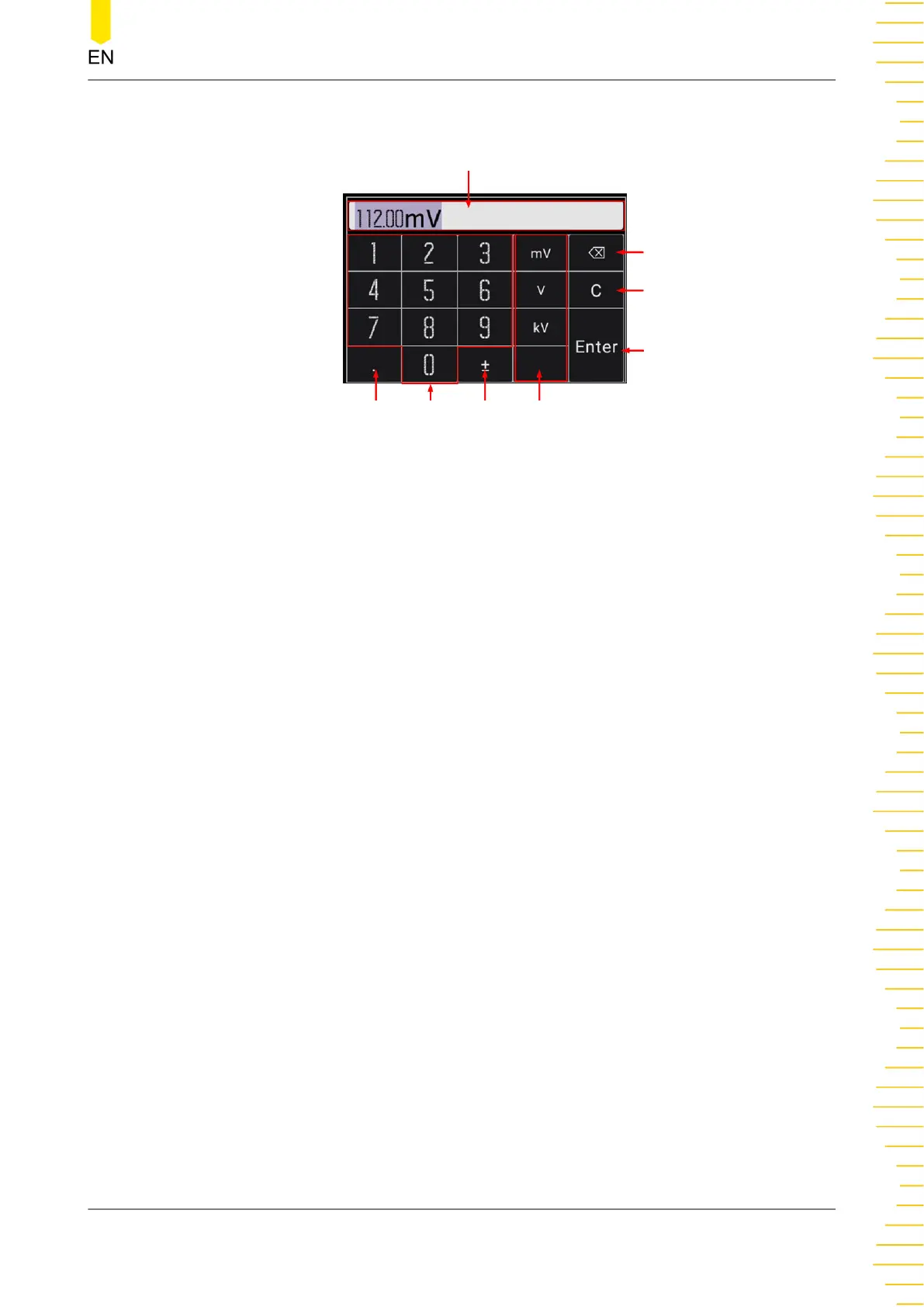
Input Area
Number
Key
Decimal
Point
Plus or
minus sign
Unit(Optional)
Enter
Clear
Delete
Figure 4.13 Numeric Keypad Input Interface
After you input all the values and select the desired units, the virtual numeric keypad
is turned off automatically. This indicates that you have completed parameter setting.
In virtual the numeric keypad, you can perform the following operation:
1. Input Area
Click or tap the desired number and the desired value is input in this area.
2. Number Key
There are 10 numbers in the numeric key area. Click or tap the number to input the
desired value.
3. Decimal Point
- To input a decimal number less than 1, input the decimal point first and then
add a number.
- To input a real number with decimals, input an real number first and then add a
decimal point. The number of zero digits is automatically added after the
decimal point according to the rules of the specified parameter.
- The dot can be added to the specified position when you input a value that is
not an integer.
- It is not allowed to input several decimal points.
4. Plus or minus sign (±)
Quick Start
Copyright ©RIGOL TECHNOLOGIES CO., LTD. All rights reserved. DM858 Series User Guide
27



 To Next Page