Roche Diagnostics
Operator’s Manual · Version 3.0 41
Multiplate® analyzer 2 Installation
Setting up the software
9
Choose the OK button in the Region and Language window.
10
Restart the analyzer.
s
Troubleshooting system language issues
The keyboard is different from the
system language
The Windows 7 MUI version supports the following languages:
During logon the currently activated language is displayed in the top left corner of the
screen (for example EN). By pressing <ALT>+<SHIFT> you can cycle through the
installed languages to match the keyboard layout of your analyzer.
If it is not possible to change the input language so that it matches the keyboard
language, here are the keyboard translations for user names and passwords:
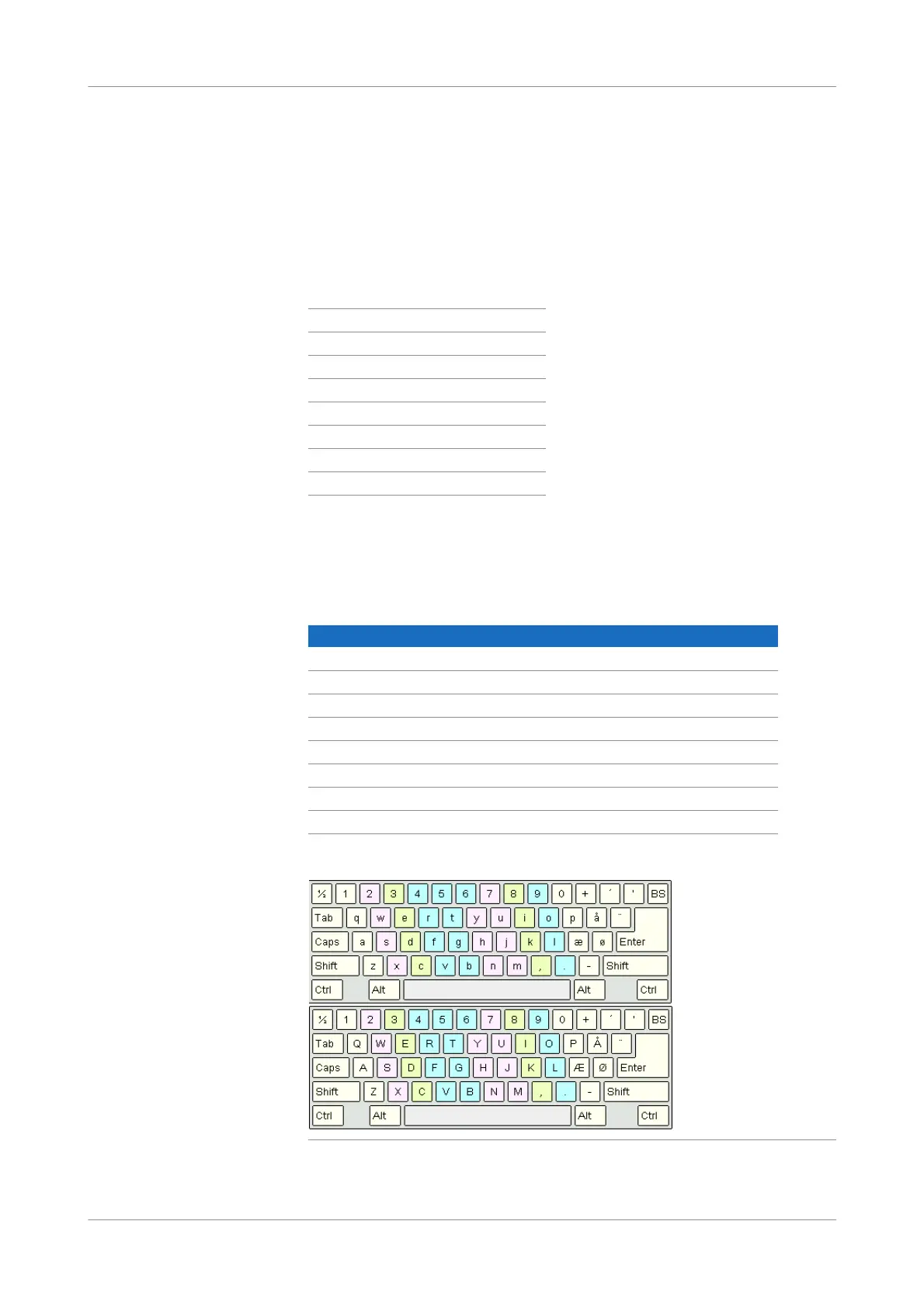
Keyboard layouts
Figure 2-21 Danish keyboard layout
DA
Danish
DE
German
EN
English
ES
Spanish
FR
French
IT
Italian
PL
Polish
SV
Swedish
Keyboard Multiplate LabAdmin labadmin
DA Danish m u l t i p l a t e L a b A d m i n l a b a d m i n
DE German m u l t i p l a t e L a b A d m i n l a b a d m i n
EN English m u l t i p l a t e L a b A d m i n l a b a d m i n
ES Spanish m u l t i p l a t e L a b A d m i n l a b a d m i n
FR French , u l t i p l q t e L q b Q d , i n l q b q d , i n
IT Italian m u l t i p l a t e L a b A d m i n l a b a d m i n
PL Polish m u l t i p l a t e L a b A d m i n l a b a d m i n
SV Swedish m u l t i p l a t e L a b A d m i n l a b a d m i n
Table 2-2 Login information in the various languages using the English keyboard language



 To Next Page