Roche Diagnostics
Operator’s Manual · Version 3.0 49
Multiplate® analyzer 2 Installation
Installing the printer
2
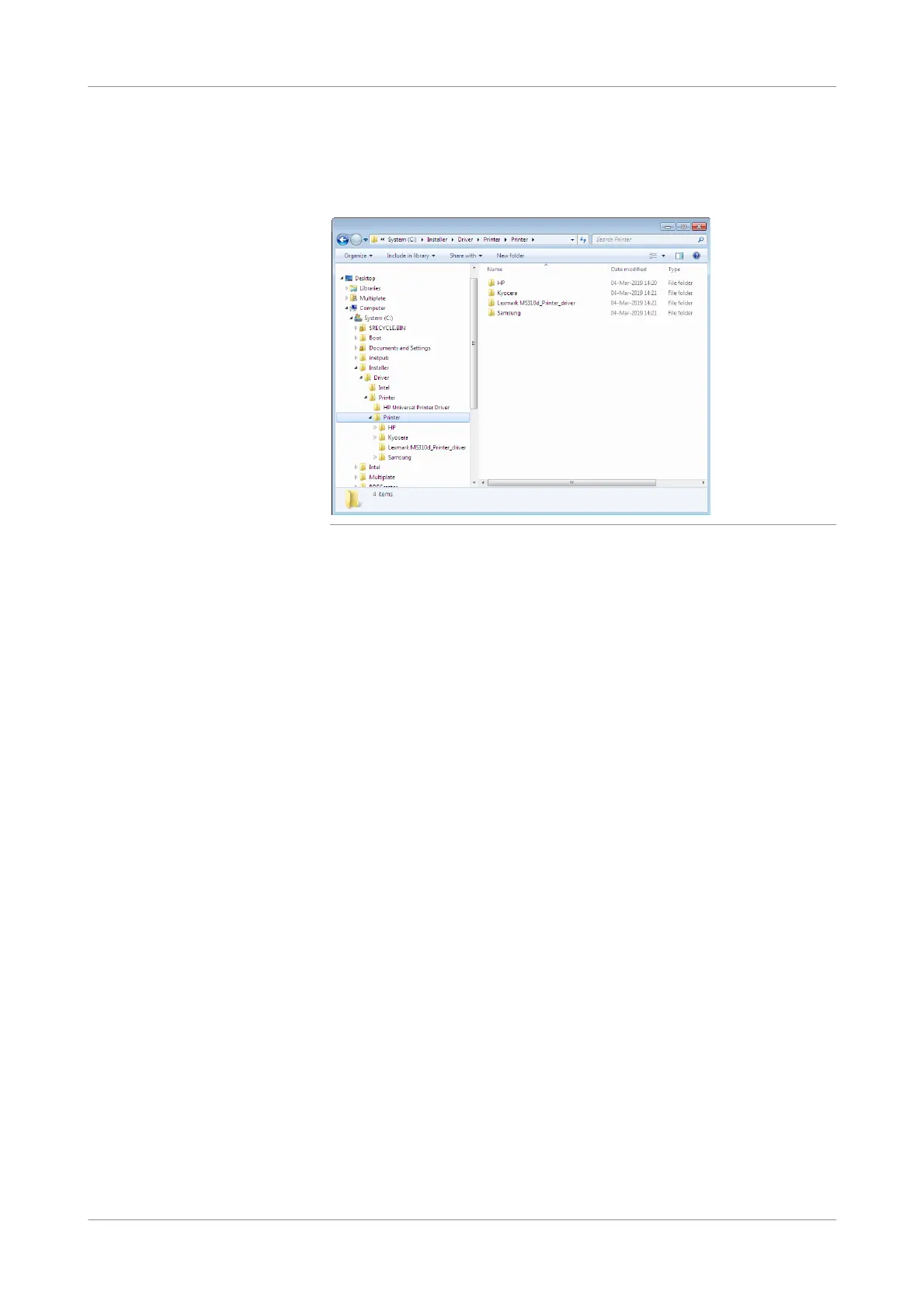
Open Windows Explorer and navigate to C:\Installer\Driver \Printer.
3
Create a new sub-folder and name it according to the printer name to be installed
and copy the appropriate printer driver file inside the folder.
Figure 2-33 Location of the printer driver file on the analyzer
4
Eject and remove the USB storage device from the analyzer.
s
Installation of the printer
Before starting the installation, uninstall other printers installed on the analyzer and
make sure that the intended printer is not already installed. If the printer is already
installed and you want to reinstall it, uninstall the existing driver.
p To install the printer
1
Open Windows Explorer and navigate to C:\Installer\Driver \Printer. Double-
click the printer driver files (*.exe) to start the installation.
Wait with the connection of the printer until you are asked to do this.
2
If the Security Warning window is displayed, confirm it by choosing the Run
button.
If the files are extracted, wait until extraction is finished.
3
The window displayed next depends on your printer and driver type. Do one of
the following:
o If a Getting Started Guide with animated installation instructions is
displayed, follow that guide step by step.
or,
o If a License A greement window is displayed, accept it, choose the Next
button and confirm the suggested location to save the files by choosing the
Next button.
or,
o Otherwise, directly go to step 4.



 To Next Page