Roche Diagnostics
124 Operator’s Manual · Version 3.0
5 Operation Multiplate® analyzer
Performing a measurement
Saving a screenshot
Use this function to save an image of the current screen. You do this for example
when the measurements are complete, or you might want to generate a screenshot of
the device status in a case where there is something wrong with a measurement and
then send it to your Roche Service representative for analysis.
q
o Do not use the clear function before saving the screenshot, this would lead to a
screenshot without results.
o Each time when results are printed, a screenshot is saved.
o To be able to enter a file name for the screenshot, enable the function Edit
screenshot name in Configuration > Edit analyzer configuration.
p To save a screenshot
1
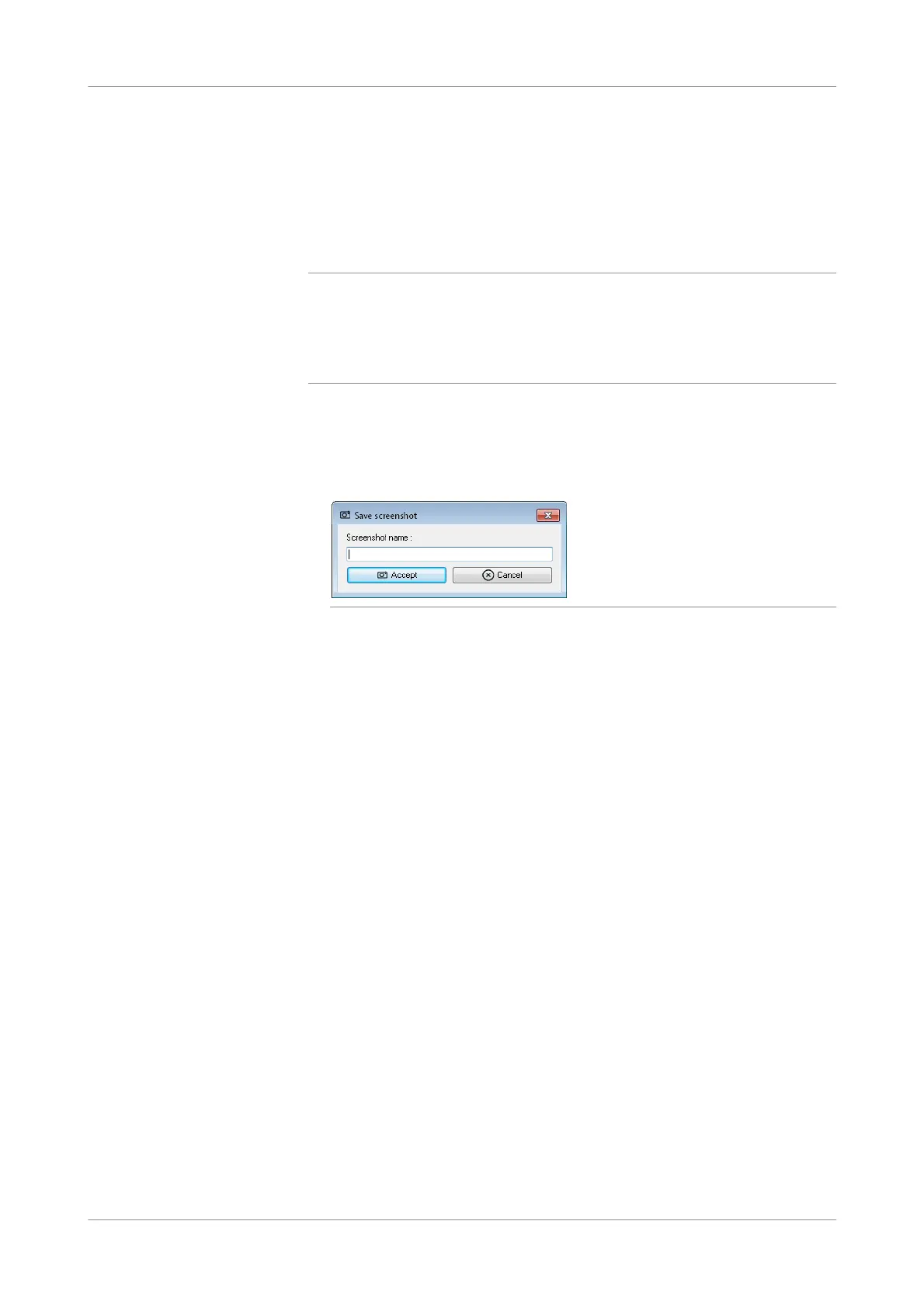
Choose the Screenshot button in the main screen.
A window for entering a file name is displayed.
Figure 5-35 Save screenshot window
2
Enter the file name.
The entered name is added to the standard image name (date and time when the
screenshot was taken).
3
Choose the Accept button to save the file.
An image file is saved to the data folder: C:\Multiplate\Data\Screenshots.
u See also Screenshots (p. 131).
s



 To Next Page