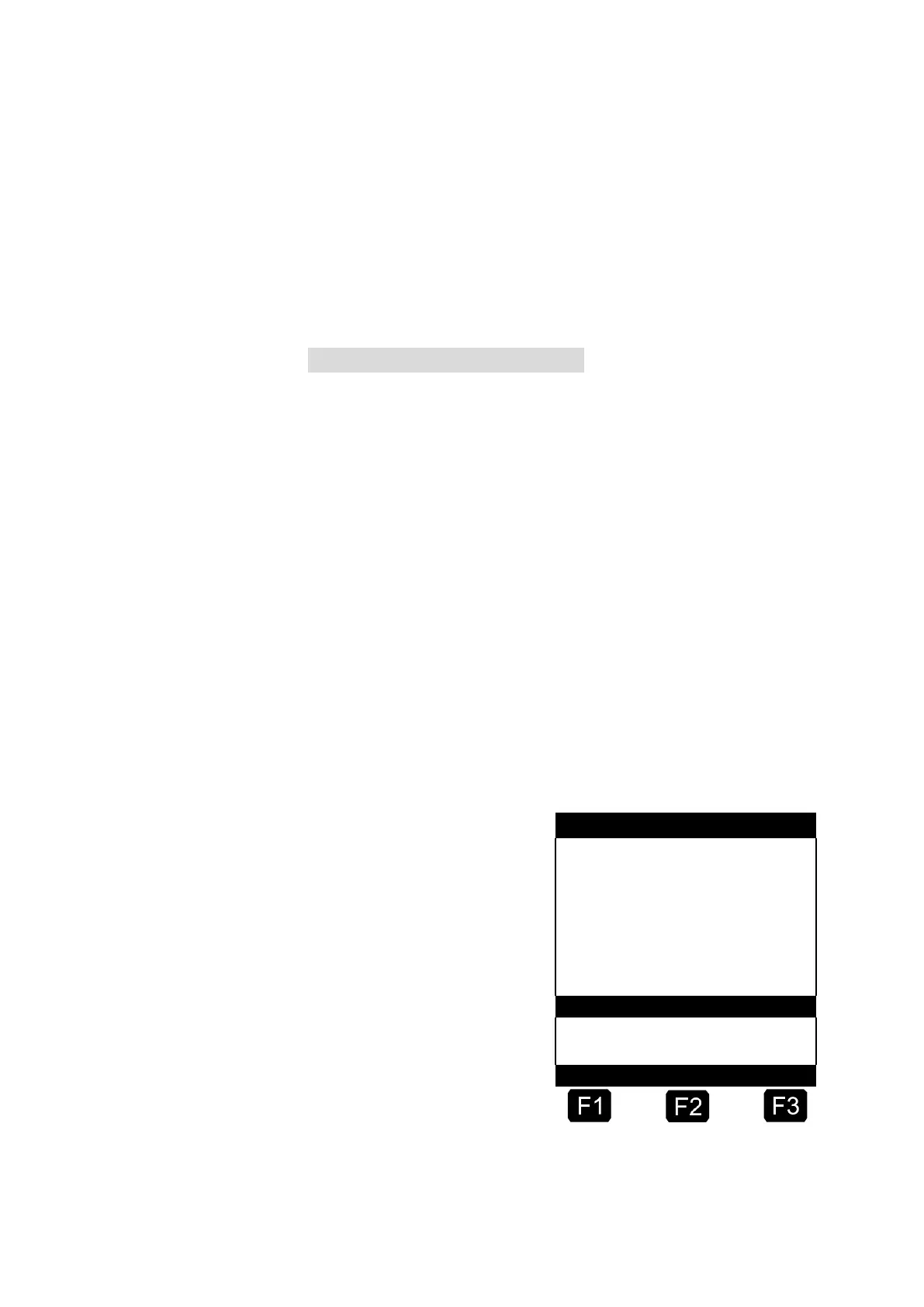
You select the next product.
The next product has to be identified. You can also change to a
packed good (additive). The product code of the desired product is
entered as described in "Select a new product" / p. 24.
If you answer by pressing <F2> for 'No'
Print out a delivery note or an invoice.
9. Delivery notes and invoices
If the “Invoice” option has not been released, a delivery note is
automatically printed. Otherwise you can select one of the following
options:
When 'Delivery Note' is selected (<F2>), a delivery note is printed
immediately.
When 'Invoice' is selected (<F1>), you have the option between
private customers “Domestic” (including VAT) and commercial
customers “Non-Domestic” (excluding VAT).
Confirm your selection with <Enter>.
One after the other the delivered products are now displayed,
so that you can either confirm or correct the product prices
attributed.
Confirm each correction with <Enter>.
Then the next possible input is selected (e.g. Customer No.)
and marked by pointed brackets (>...<).
If you have made an
input mistake you can
overwrite the faulty
value by entering a
new value, or you can
delete the character to
the left of the cursor
by pressing <F2>
(‘Clear’).
When all entries are correct:
Press the <Print> key.
Then the next product
(if registered) is
displayed for confirmation.




 To Next Page