Chapter 5 - Working With Scan Modes Using Color and Power Doppler Image Controls
Terason t3000 / Echo Ultrasound System User Guide 124
This message does not display when you send images to a DICOM server, only when you
save images on the local computer.
If you do not want to see this message when you save Color Doppler images with high
persistence settings, you can select the check box in the message above before you click
OK to clear the message.
You can also use
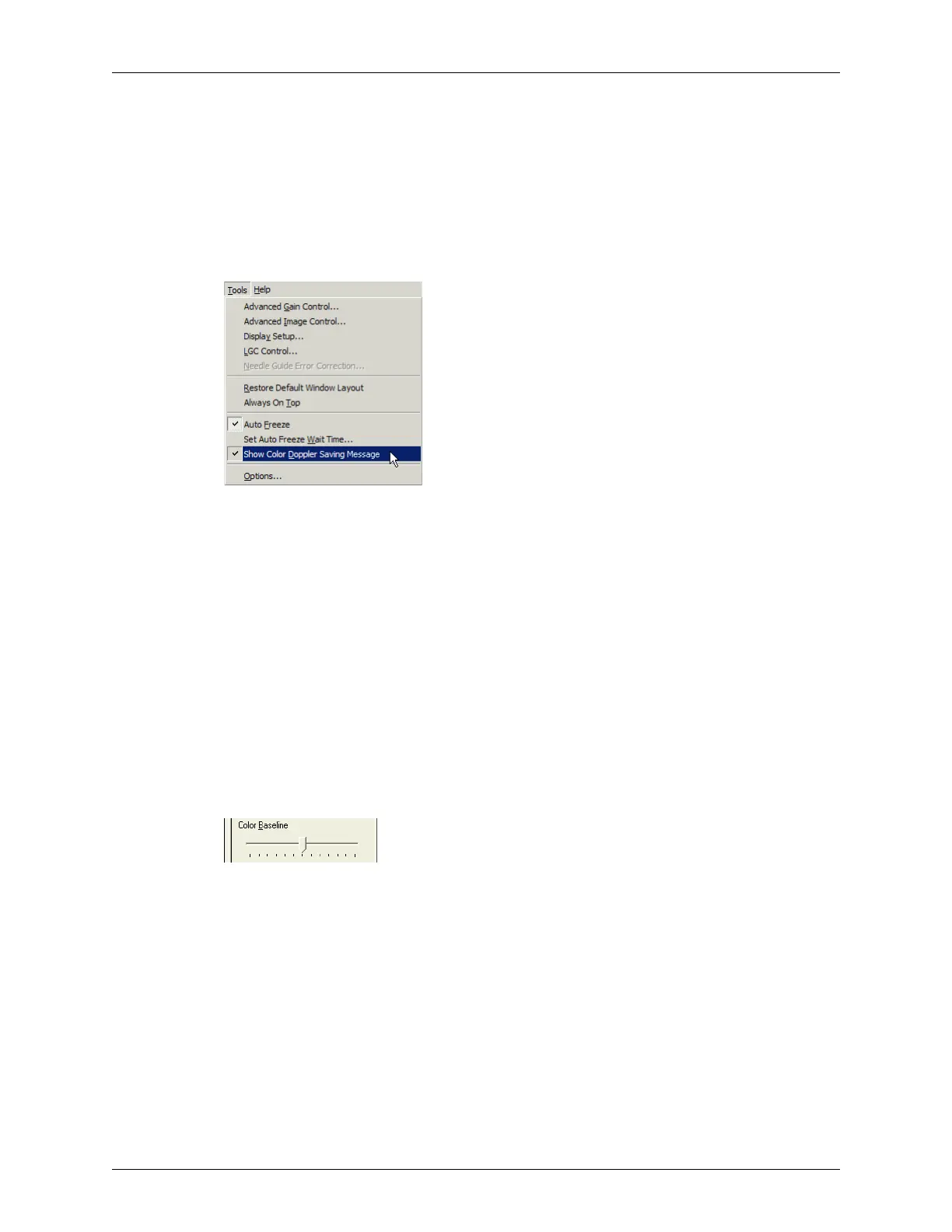
Show Color Doppler Save Message on the Tools menu to enable or disable
the message. In the figure below, the message is enabled.
Tools Menu
Click the Show Color Doppler Saving Message menu item to toggle its setting between
enabled (check mark) and disabled (no check mark).
Adjusting the Color Baseline
In general, color baseline adjustments are unnecessary. The baseline refers to the zero
baseline within the Color Doppler image. To adjust it, move the baseline down to display
more positive flow (forward) and move the baseline up to display more negative flow
(reverse). This adjustment can be used to prevent aliasing in either direction.
This image control works with Color Doppler and Directional Power Doppler scan modes.
It does not work with the Power Doppler scan mode.
To move the color baseline up, drag the slider to the right. To move the color baseline
down, drag the slider to the left.
Color Baseline Control
You can also adjust the color baseline by clicking on the slider (a blue box displays around
the slider) and using the left and right arrow keys.
You can see the effect of your change on the color reference bar. If the bar is not visible,
select View
> Image Display Properties > Reference Bar to add it to the image display.



 To Next Page