Chapter 2 - Installing Software Installing the FireWire Terason Transducer Driver
Terason t3000 / Echo Ultrasound System User Guide 42
Installing the FireWire Terason Transducer Driver
If you purchased the laptop from Terason, all the required drivers are already installed and
you need not perform the procedure in this section. If you installed the Terason software
on a computer or laptop purchased from another source, the steps you must take vary,
depending on the system configuration of the specific computer.
If you start the Terason software and do not see any messages about the Terason
transducer, the driver software is already installed and you need not perform this
procedure. Complete this procedure only if you see a “
Digital Signature Not Found” or “New
Hardware Found” message.
When the Terason transducer is connected to your PC, you may have to install the device
driver for the operating system to recognize the new hardware. After you plug in the
Terason transducer for the first time, make sure your computer is turned on, and wait
approximately one minute.
Use these guidelines to determine how to install the driver:
• If you do not see any messages about the Terason transducer, the driver is already
installed, and you can skip this procedure
• If you see a
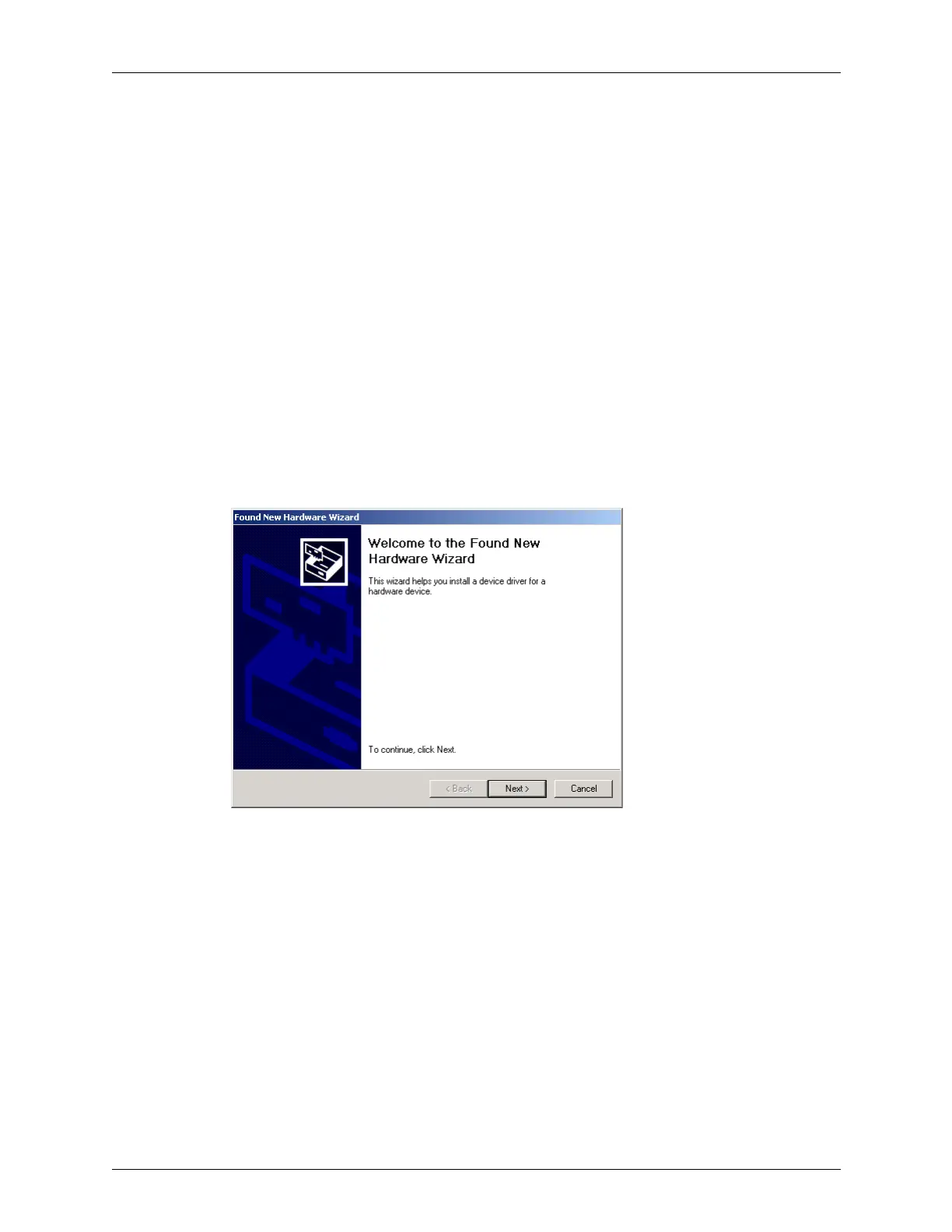
Found New Hardware message box, start with Step 1, below.
Found New Hardware Wizard
Complete these steps to install the driver (starting from the Found New Hardware
window):
1. Click
Next>.
The New Hardware Wizard window changes to allow you to install hardware device
drivers.



 To Next Page