Chapter 1 - About the Terason Ultrasound System About the Terason Main Screen
Terason t3000 / Echo Ultrasound System User Guide 33
Terason Explorer Window
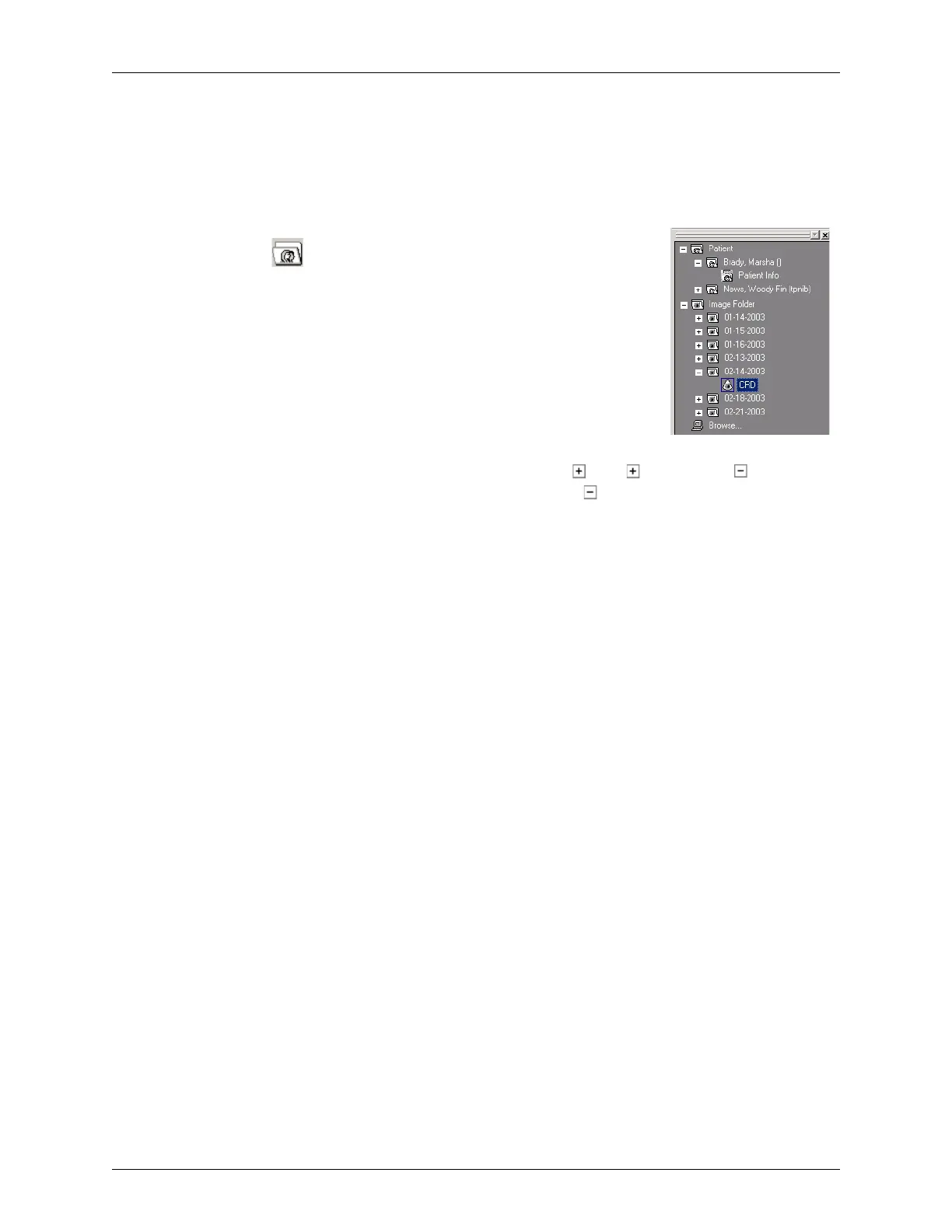
The Terason Explorer window lets you find patient or image files. This window shows
the directory structure of the Patient and Image folders that store all patient information
files and saved images and image loops.
To open the Terason Explorer window, click the Explorer
button .
The files listed in Terason Explorer window are stored at the
following default location on your computer’s hard disk:
C:\Program Files\Teratech\Terason 3000
This directory includes the following folders:
• Patient
•Image
To expand a folder and view its contents, click the . The changes to a and shows a
list of files. To hide the contents of a folder, click the . You can also double-click a folder
name to open or close it. For information on using the Terason Explorer window to locate
patient and image files, see Finding Files in the Terason Explorer on page 136.
Image Display, Patient Info, and Review Windows
These windows use the same space on the computer screen. Click a tab to open that
window. The tab for the Image Display window shows the name of the connected
transducer (
4V2 in the example). You might see any Terason transducer model as the name
of this tab (if that transducer is connected). If you have more than one transducer
connected to the computer, there is a tab for each transducer.
The Image Display window consists of the 2D window above the Time Series window (if
the selected scan mode generates a Time Series window). The 2D window displays in all
scan modes; the Time Series window displays only when scanning in M-Mode, PWD
mode, CWD mode, or Triplex mode.
To use these windows, see:
• Working With Scan Modes on page 89
• Setting Up Patient Information on page 56
• Finding Stored Images and Loops on page 136
• Finding Files in the Review Window on page 139
Toolbars
The toolbar at the bottom of the Terason main screen provides quick access to menu items.
For example, there are buttons for selecting scan mode without using the Modes menu,
and for saving images and loops. See Toolbar Reference on page 313 for a quick
description of each toolbar control.



 To Next Page