Chapter 6 - Working With Image Files Printing Images
Terason t3000 / Echo Ultrasound System User Guide 148
If you only want to print some of the images, hold the Ctrl key down and click the images
you want to print. The Terason software draws a blue line around selected images, and
when you click the Print button, the software prints only the selected images.
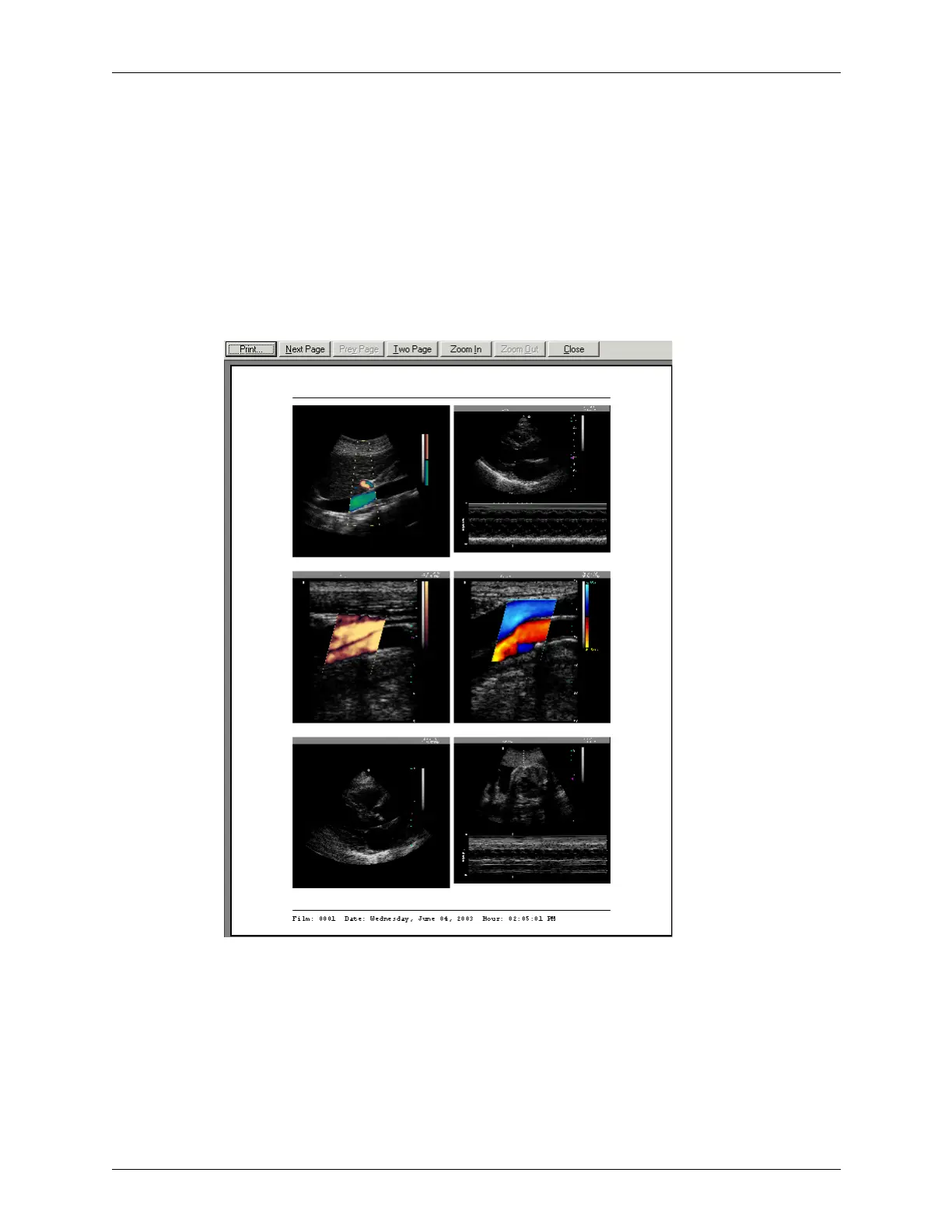
Printing from the Print Preview Window
Print Preview on the File menu lets you see the expected printout for the image or images
in the Image Display or Review window, whichever window is active.
When you select
File > Print Preview, the Terason software opens the Print Preview
window.
Print Preview Window (Selected with Review Window Active)
Click the Print button at the top to send the job to your default printer.
This example shows the Print Preview window opened with the Review window active
and showing a folder containing seven images, using the six images per page layout.



 To Next Page