Chapter 6 - Working With Image Files Storing Images and Loops
Terason t3000 / Echo Ultrasound System User Guide 133
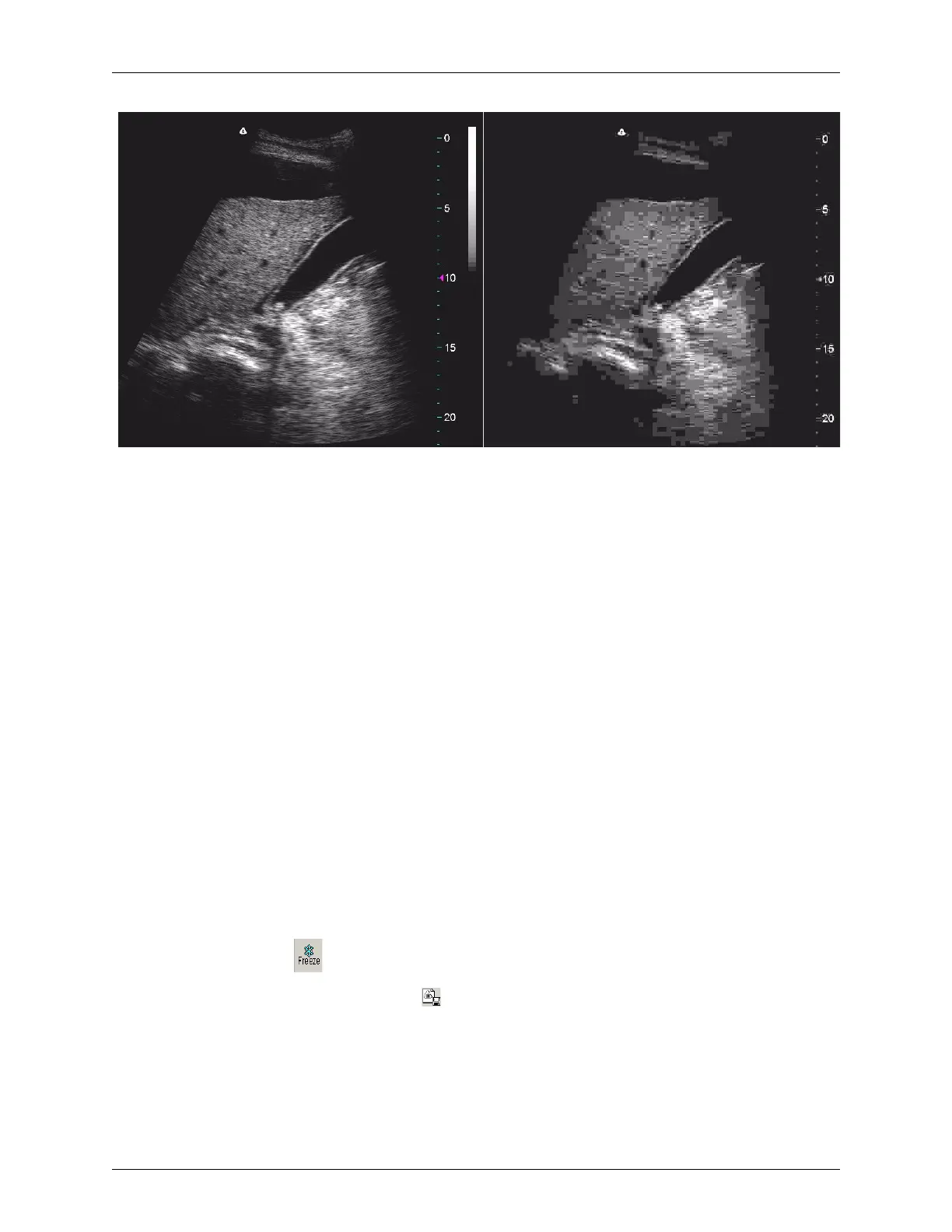
Scan Uncompressed (Left) and JPEG Compressed (Right)
The compressed scan shows squares throughout. If you see squares like these, or an
occasional block, interpret them as JPEG artifacts.
Saving Images and Loops
Images and loops are saved to the Patient directory in the appropriate patient folder, or in
the Image directory, if not associated with a patient.
When you save a file, the image or loop is assigned a filename based on the exam type and
any additional text. For example, if you are saving an image with a Cardiac exam type,
and added the text, “new exam”, the default filename would be “CAR NEW
EXAM.ULT.”
For Split Screen mode, you can save the Split Screen image (as a single frame showing
both screens) when you save to the DICOM, TIF, JPEG, or BMP file formats. If you save
to the Terason format (ULT), only the active screen is saved.
You can save the Split Screen image as a loop file using the DICOM or AVI formats.
When you do, the Terason software saves the active screen as an image loop, and the other
screen as a single frame. When you save a Split Screen image to the Terason format
(ULT), only the loop in the active screen is saved. The frame data for the other screen is
discarded.
To save an image or loop with a default name, complete these steps:
1. Click if viewing a live image.
2. To save an image, Click (Save Image).
You can also use one of these methods to save an image:



 To Next Page