Chapter 6 - Working With Image Files Storing Images and Loops
Terason t3000 / Echo Ultrasound System User Guide 134
• Press the F8 key
• Select File > Save Image (ULT)
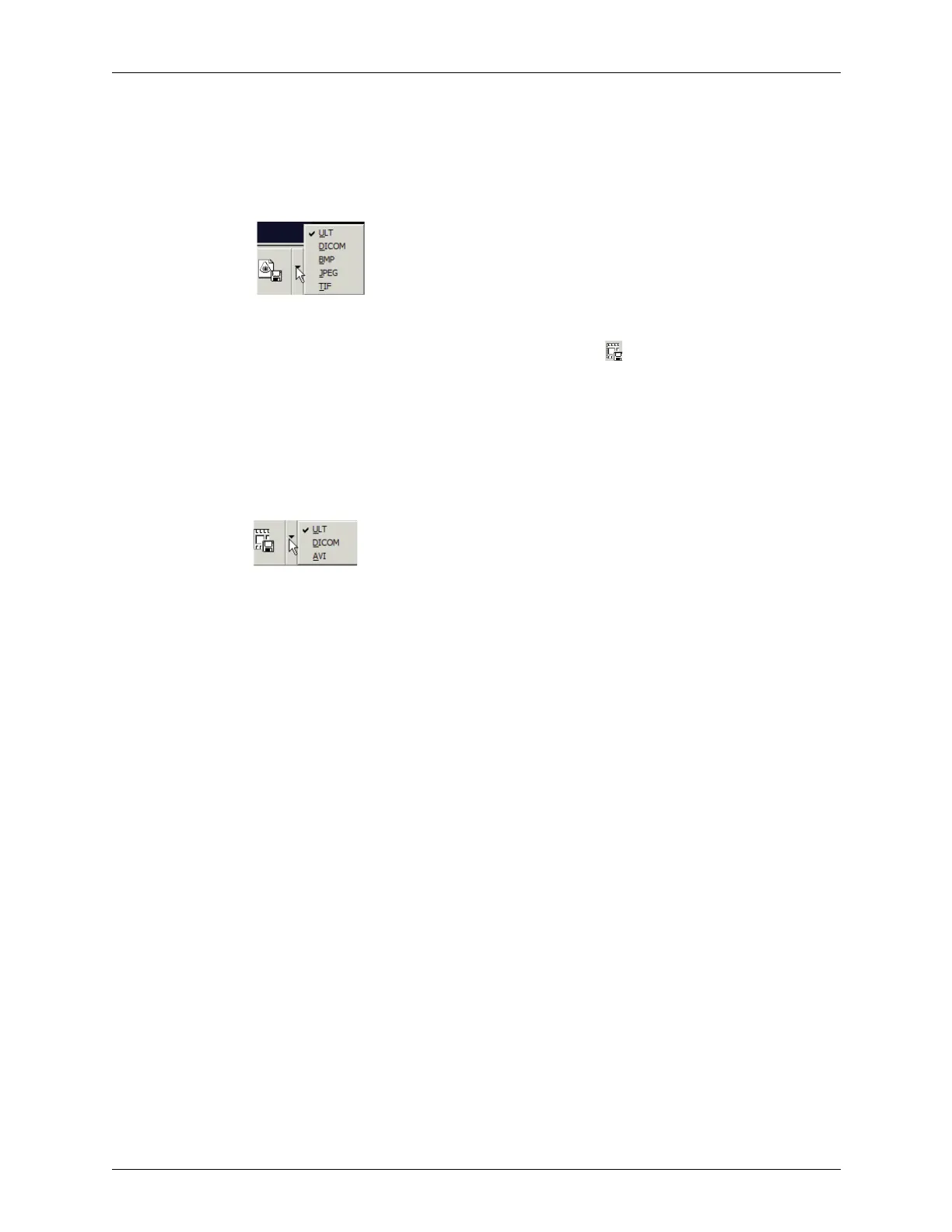
3. To save the file as a different format, click the arrow on the Save Image button and
click a file type:
You can also select
File > Save Image As and click a file type
4. To save an image loop, click the Save Loop button .
You can also use one of these methods to save a loop:
• Select
File > Save Loop (ULT)
• Press F9
5. To save the loop as a different format, click the arrow on the Save Loop button and
click a file type:
You can also select
File > Save Image As and click a file type
The application displays a message indicating that the image or loop is being saved.
The Save and Save Loop icons may look different if you changed the default format (see
Setting Image Save and Print Defaults on page 243).
Saved files are located in this folder in the computer’s file system:
C:\Program Files\Teratech\Terason 3000
The Terason software uses the Patient folder to store all images when the patient is known
(patient information was loaded as part of the exam). Within the Patient folder, the
Terason software creates a folder for each patient. Each patient’s folder contains their
patient info file, and one or more dated folders that contain saved images for the indicated
date.
If you did not load patient information for an exam, the Terason software uses the Image
folder to store files. This folder contains one or more dated folders, and each folder
contains all of the saved images for all unidentified patients on that date.
To save a file to a destination other than the Patient folder (for files that are associated with
patient data) or the Image folder (for files without patient data), you must use the Export
item on the File menu (see Exporting a File, below).
You can view the contents of these folders in the Terason Explorer window as described in
Finding Files in the Terason Explorer on page 136.
If you open an image file and then save it again, the Terason software creates a new file; it
does not overwrite the original file. To overwrite the original file, use the Export item on
the File menu option and select the original file before you click the Save button.



 To Next Page