Chapter 2 - Installing Software Licensing the Terason Software
Terason t3000 / Echo Ultrasound System User Guide 52
Extending the Evaluation Period
If your evaluation period expires and Terason has agreed to extend the evaluation period,
you must enter a new unlock code. To do so, complete these steps:
1. Contact Terason Technical Support at 1-866-837-2766. During this procedure, you
must give a serial number to Technical Support and receive a new unlock code.
2. Start up the Terason software using either of these methods:
• Double-click the shortcut icon on your computer desktop
• Click the
Start button, highlight Programs > Terason > Terason.
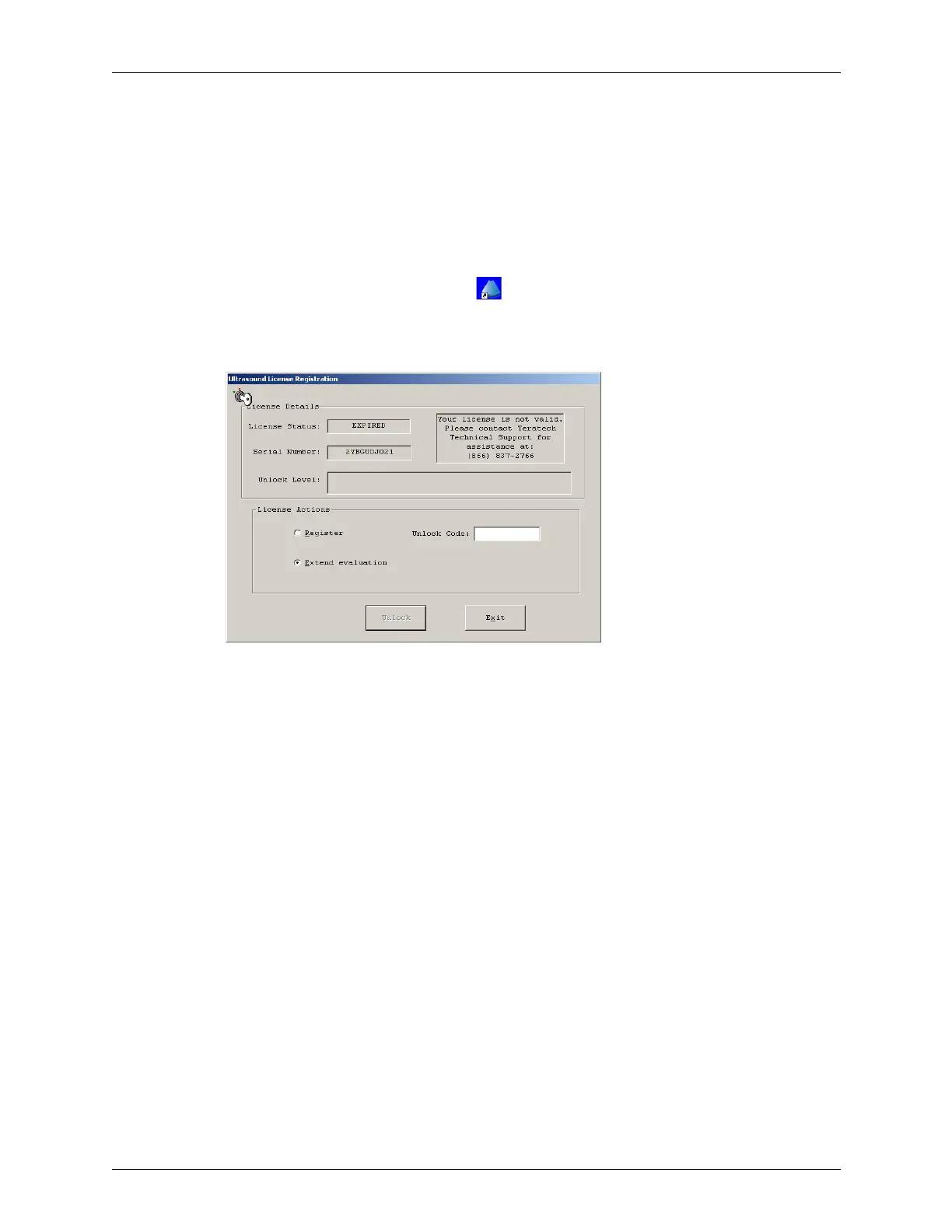
The Ultrasound License dialog opens.
Ultrasound License Dialog Box
3. Click in the option box for Extend Evaluation.
4. Read the new Serial Number to Terason Technical Support. Technical Support will
give you a new 10-digit unlock code.
5. Type the unlock code into the text field and click Unlock. The Terason software
updates the status to Evaluation.
6. Click Continue Ultrasound. The Terason software starts up.
Transferring the License
You can transfer the Terason software license from one computer to a second computer. In
this section, “first” refers to the computer where the software was initially installed and
“second” refers to the computer to which you will transfer the license.
Before you start this procedure, you must determine the serial number of the destination
PC. This number is not the serial number on the PC, but an application serial number
assigned by Terason.
To transfer the license, complete these steps:
1. On the second computer, install the Terason software as described in Installing
Terason Software on page 37.



 To Next Page