Chapter 10 - Working With DICOM Using DICOM Worklist
Terason t3000 / Echo Ultrasound System User Guide 232
b. To add a search parameter to the Selected Fields: list, click its name in the Available
Fields: list, then click
Add > >.
c. To remove a search parameter from the Selected Fields: list, click its name in the
Available Fields: list, then click
< < Remove.
d. Click
OK.
9. When all the fields are populated with the correct data, click
OK.
The new or modified query is saved, and is available in the Broad Query: menu of the
Worklist window.
Making a Query
You can make a broad query that searches all the patient records and returns all the patient
info sets that match the criteria, or a patient-specific query that searches for a specific
patient’s info set. A patient-specific query can use the same criteria as a broad query,
returning only those info sets that match both the criteria in the broad query and some data
specific to the patient.
Making a Broad Query
To make a broad Worklist query:
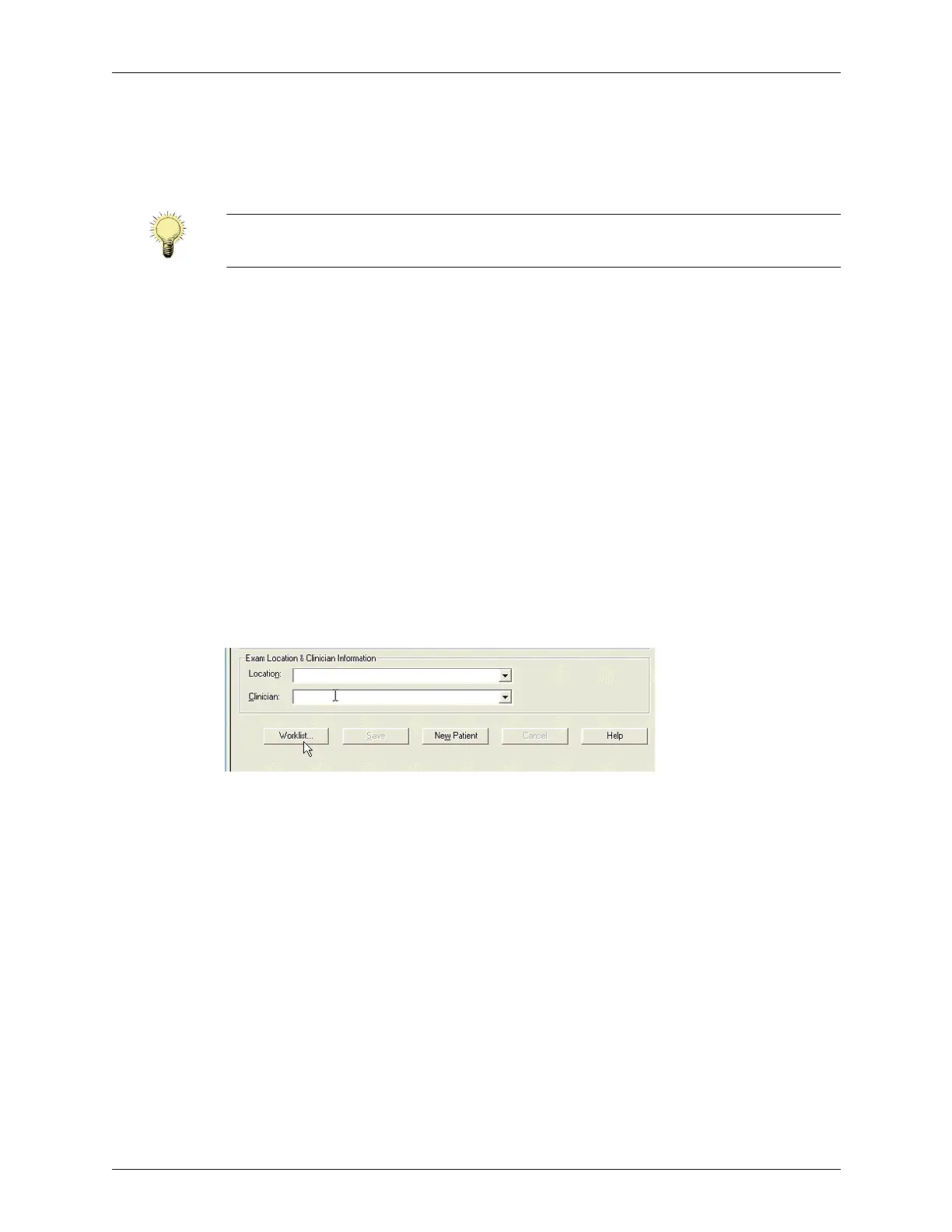
Patient Info Window
1. In the Patient Info window, click Worklist.
The Worklist window opens.
Note: Parameters listed in red are defaults that cannot be removed from the Selected
Fields: list.



 To Next Page