Chapter 6 - Working With Image Files Finding Stored Images and Loops
Terason t3000 / Echo Ultrasound System User Guide 140
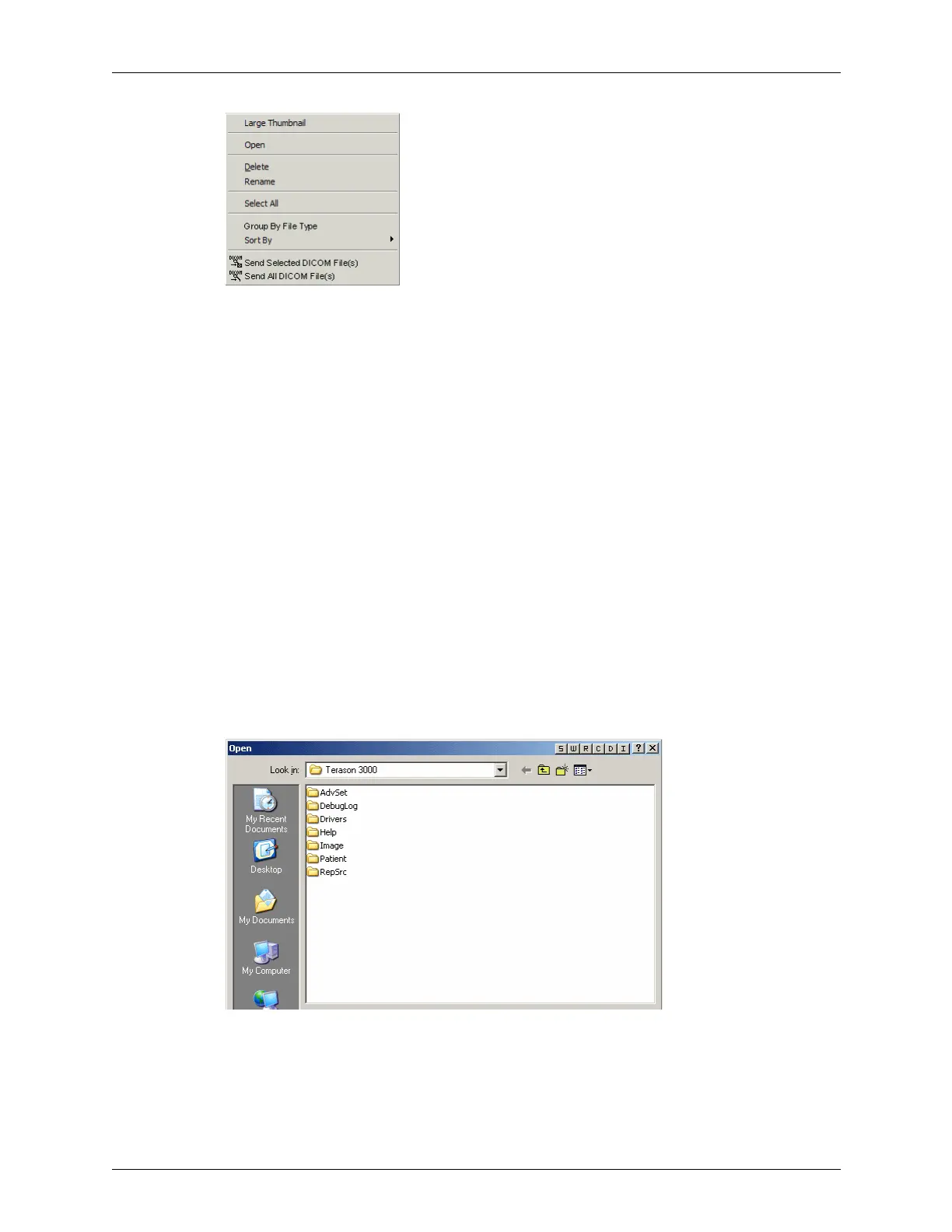
Shortcut Menu for the Review Window
The Delete item in the shortcut menu deletes selected images from the folder. Make sure
you do not need an image before you delete it.
The
Group By File Type and Sort By items let you change the order in which the thumbnails
display in the window. By default, this window shows files sorted by Creation Time
(earliest first).
Group By File Type sorts the files based on file type. You can also choose
Sort By and then Name (sorts them alphabetically) or Creation Time (earliest first).
If you use Windows Explorer to rename or delete files, you can select
Refresh from the
shortcut menu (or
View > Refresh) to update the thumbnails displayed in the Review
window.
Browsing to Find Files
Terason recommends that you save all patient and image files in the default folders.
However, if you have archived images, or if the images are stored elsewhere for any
reason, you can still use the Terason Explorer or the File menu to locate those files.
To locate files that were not saved in the Terason default folder, complete these steps:
1. Double-click
Browse in the Terason Explorer window, or select File > Open. The
default folder or the last folder viewed opens in the Open dialog box.
Browsing for a File
2. Use the Windows navigation tools to find the image you need.
3. Click the file name to highlight it.
4. Click
Open.



 To Next Page