Chapter 4 - Acquiring Images Determining Image Status
Terason t3000 / Echo Ultrasound System User Guide 72
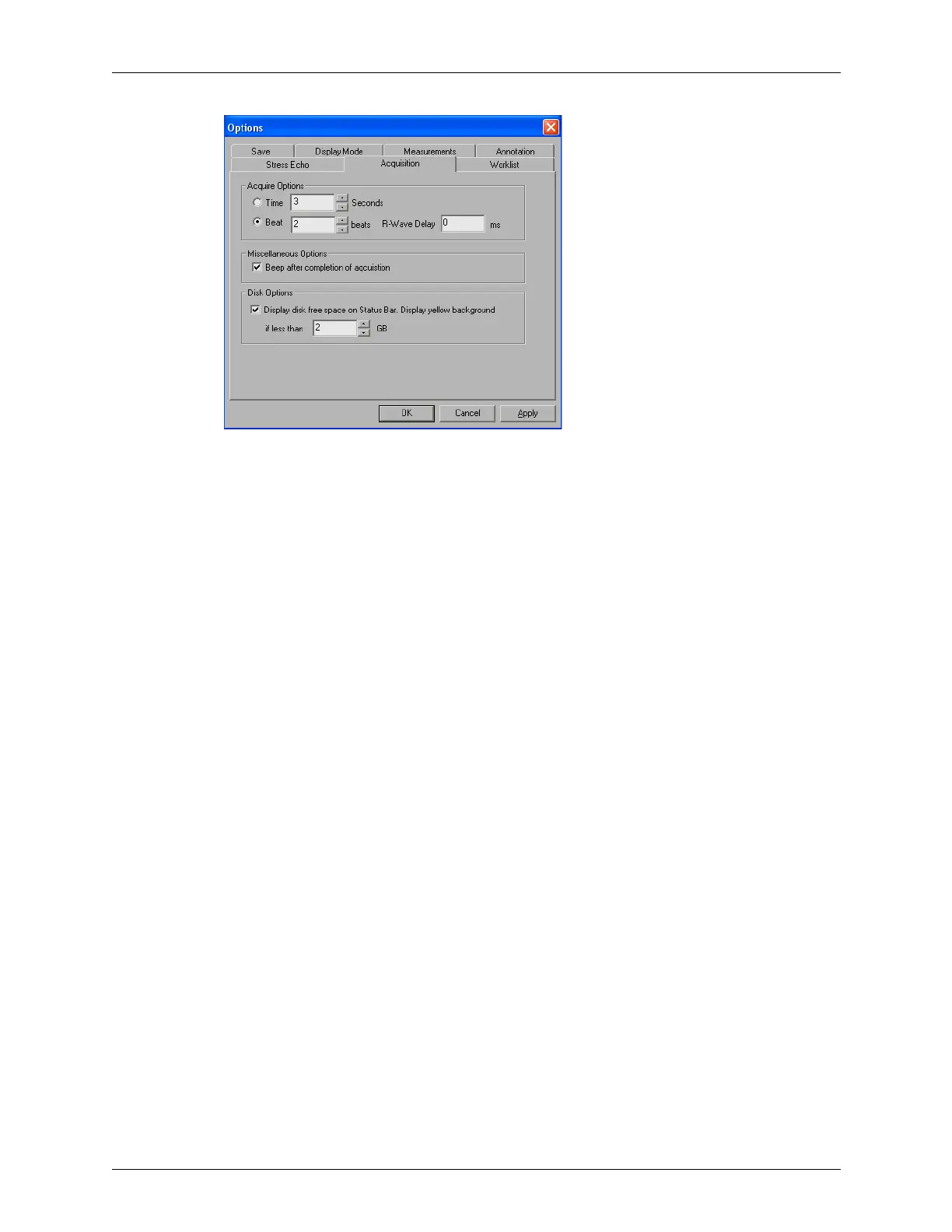
Acquisition Tab on Options Window
When the Beat radio button on the Acquisition tab of the Options window is selected (as
shown above), and the system detects an ECG signal, the acquired loop is a number of
heartbeats. The default is 2 beats, but this is adjustable between 1 and 10 beats on the
Acquisition tab. If no ECG signal is detected, the acquired loop is the length set in the
Time field, even if the Beat radio button is selected.
You can apply an R-wave delay in the Acquire window. You can also enable a beep that
sounds when the acquisition is complete.
Loops acquired in this way cannot be saved as .ult files. The default format for these loops
is .dcm, however, they can also be saved as any of the other available formats except .ult.
Use the Save Loop File Type menu on the Save tab (
Tools > Options > Save) to choose a
different file format. (If .ult is selected, the system saves prospectively acquired loops as
.dcm.)
Saving Retrospective Loops
During live imaging, clicking the Freeze button then the Save Loop button tells the system
to acquire a loop of the frozen scan. The loop displays in the Thumbnail window at the left
of the Main Screen. The default length of the loop is 3 seconds, but this is adjustable
between 1 and 10 seconds on the Acquisition tab of the Options menu (
Tools > Options >
Acquisition
).
Retrospective loops are modified in the same way as prospective loops. They can be saved
as .ult files, or as .dcm or .avi files.
Determining Image Status
The Terason software continually displays an image status message at the bottom right of
the main window, next to the frame rate (if displayed) for the Image Display window. In
the example below, the message shows beneath the Modes toolbar. There is also a bar next
to the status message. When this bar is green, the image is live. When the bar is gray, the
image is frozen.



 To Next Page