Chapter 1 - About the Terason Ultrasound System About the Terason Main Screen
Terason t3000 / Echo Ultrasound System User Guide 32
About the Terason Main Screen
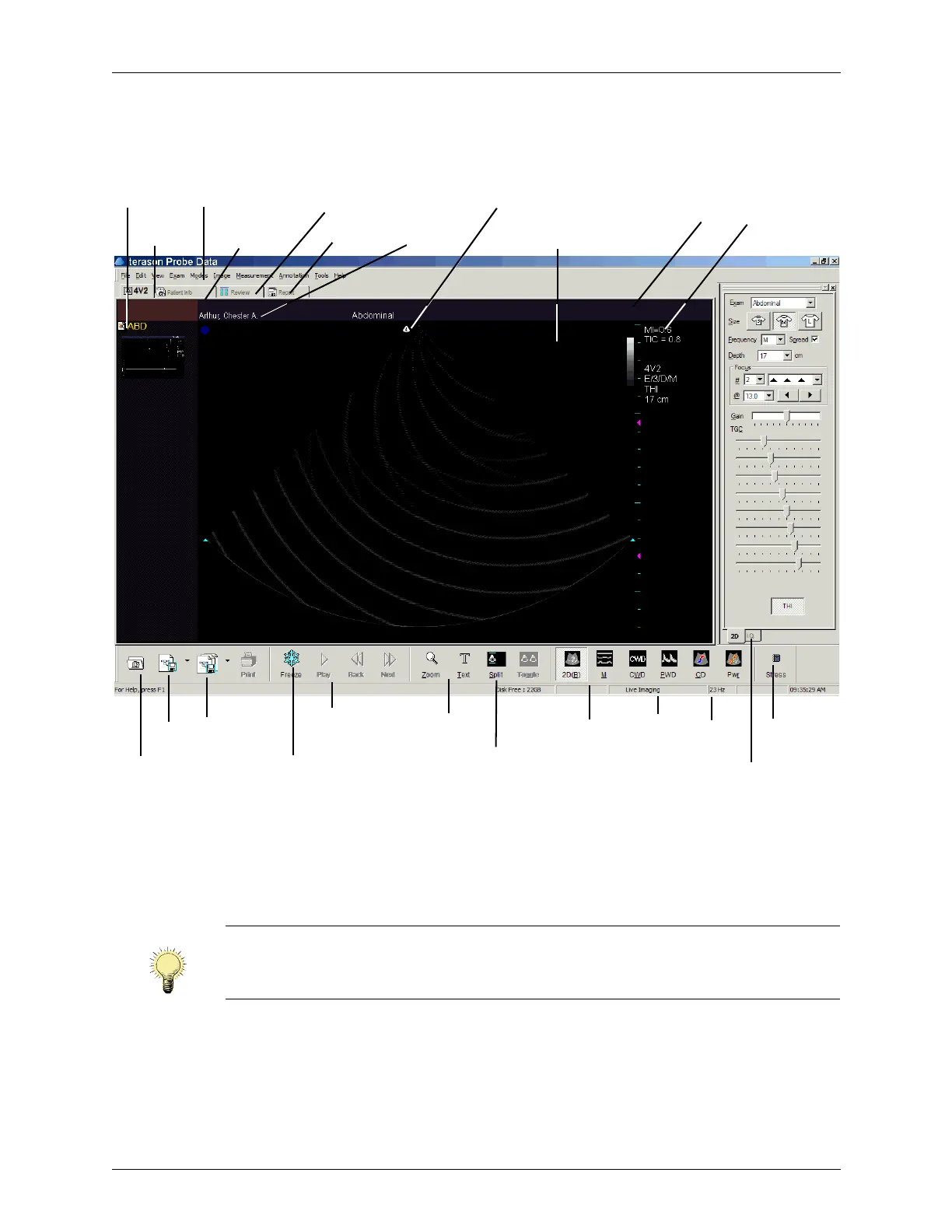
When you start the Terason software, the main screen displays.
Terason Main Screen
If a control, button, or menu shows in gray, it usually means that the function is not
available for the current circumstances. For example, you cannot use the save, print, or
playback tools with a live image, so those items are gray. You can add additional toolbars
to the window using
View on the Toolbars menu.
For complete descriptions of the menus and toolbars available in the Terason software, see
Appendix B - Menu and Toolbar Reference.
Note: The gray-unavailable condition does not apply to the tabs at the bottom of the
Image Control window; visible tabs are always available. The tabs are gray when
they are not selected.
Thumbnail
Window
Patient Info
Window
Image Control/
Measure tabs
File
Toolbar
Menubar
Review
Window
Image Display
Window
Patient
Data
Exam
Date
Explorer
Button
Split View
button
Frame
Rate
Image
Display
Status
Tools
Toolbar
Playback
Toolbar
Live/Freeze
Button
Scan
Mode
Tool b a r
Report
Window
Orientation Logo
Acquire
Button
Stress
Button
MI & TI
display
Connected
Transducer



 To Next Page