Opening an Exam Chapter 8 - Working With Exams
Terason t3000 / Echo Ultrasound System User Guide 215
Opening an Exam
When you select an exam, the Terason software loads the preset values for that exam,
determined by the transducer, the patient size, and the selected scan mode. If you select a
different patient size or scan mode, the Terason software updates the preset values.
You cannot open an exam when viewing a frozen or saved image. If the Image Display
window is frozen, you must click
Live before you can change the exam.
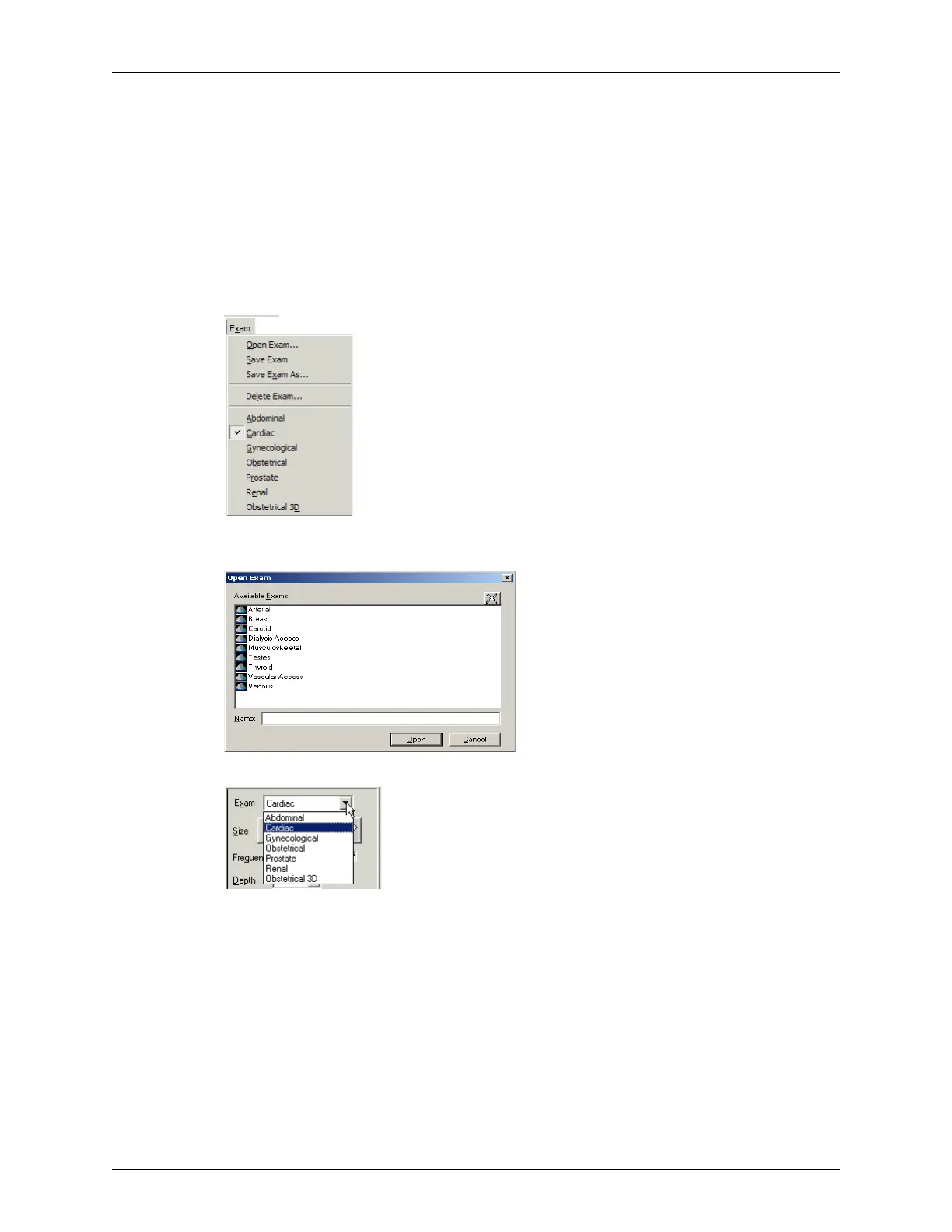
You can open an exam using any of these methods:
• Select the exam from the Exam menu (the checked exam indicates the open exam).
• Select
Exam > Open Exam, click an exam, and click Open.
• Select an exam type from the pull-down menu on the 2D Image Control tab.
Creating Custom Exams
In addition to using the provided preset exams, you can create custom exams. Custom
exams include your own specific modifications to the preset image control setting
parameters. You can then load the custom exam and skip setting the image control
parameters. You can customize any exam to include your specific control settings.
• You cannot change the default settings for a system exam. However, you can edit the
image control settings of a system exam, then save it with a different name.



 To Next Page