Chapter 10 - Working With DICOM Using DICOM Worklist
Terason t3000 / Echo Ultrasound System User Guide 233
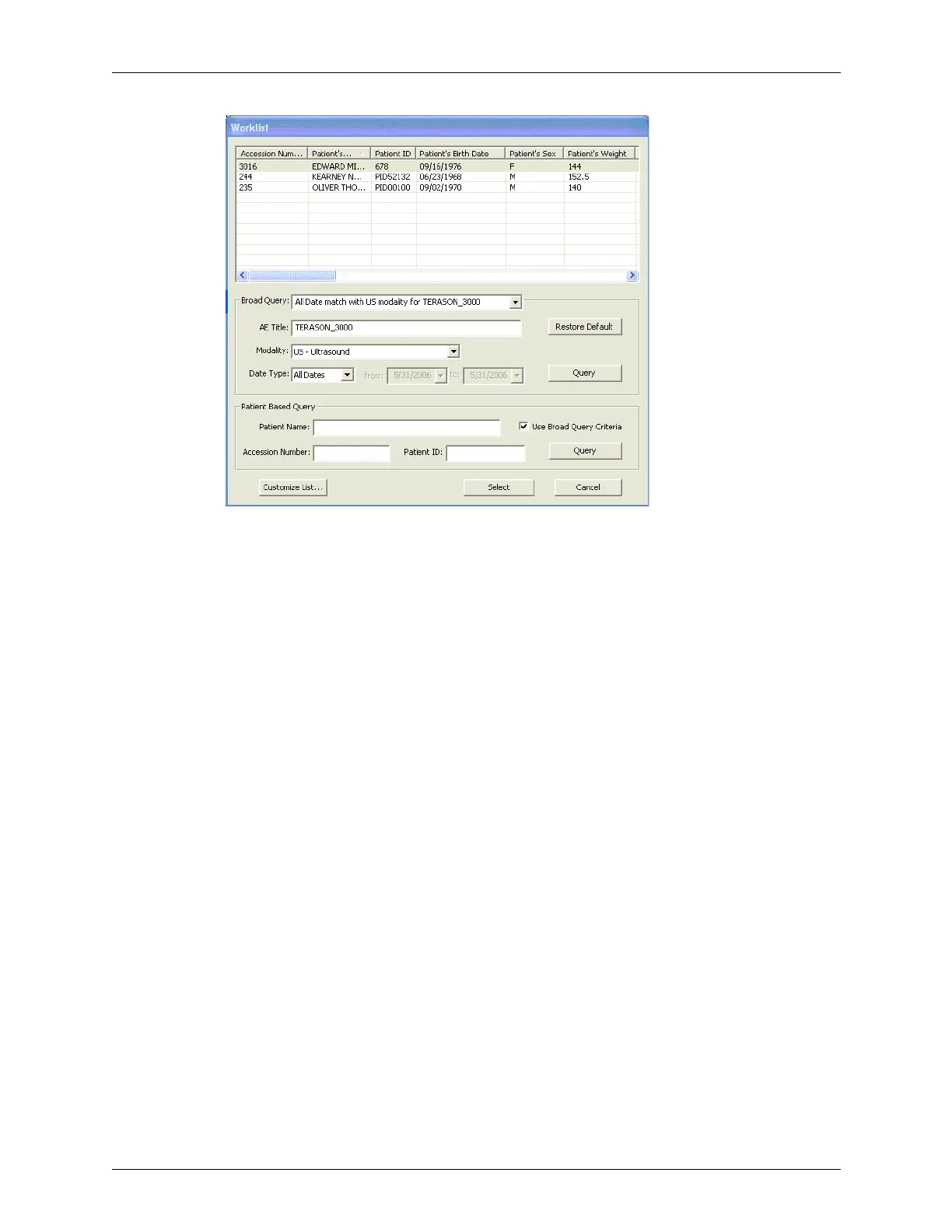
Worklist Window
2. Pull down the Broad Query: menu, and select the query that uses the parameters you
want.
If there is no appropriate query in the menu, create one, using the procedure described
in Configuring Broad Queries on page 230.
3. If the patient you are searching for has not had an ultrasound exam before, pull down
the Modality: menu and select
All.
If the patient’s information was saved to the DICOM server during a previous exam of
any type, the query will return that information.
4. To limit the search to specific dates, pull down the Date: menu, and choose
Today or a
range of dates to search.
5. Click
Query.
Worklist searches the DICOM server, and lists the results in the top part of the
Worklist window.
Making a Patient-Specific Query
To make a patient-specific query:
1. In the Patient Info window, click
Worklist.
The Worklist window opens.
2. Enter the patient’s name, or ID, or accession number in the appropriate field.
3. To apply the parameters in a broad query to the patient-specific query (this further
narrows the query results):
a. Click
Use Broad Query Criteria so the box is checked.



 To Next Page