Chapter 2 - Installing Software Upgrading Terason Software
Terason t3000 / Echo Ultrasound System User Guide 40
3. Click Next>. The Confirm Uninstall dialog box opens.
4. Click
OK to confirm. If you see a dialog box that includes a check box, select the Don’t
display this message again check box and click Yes.
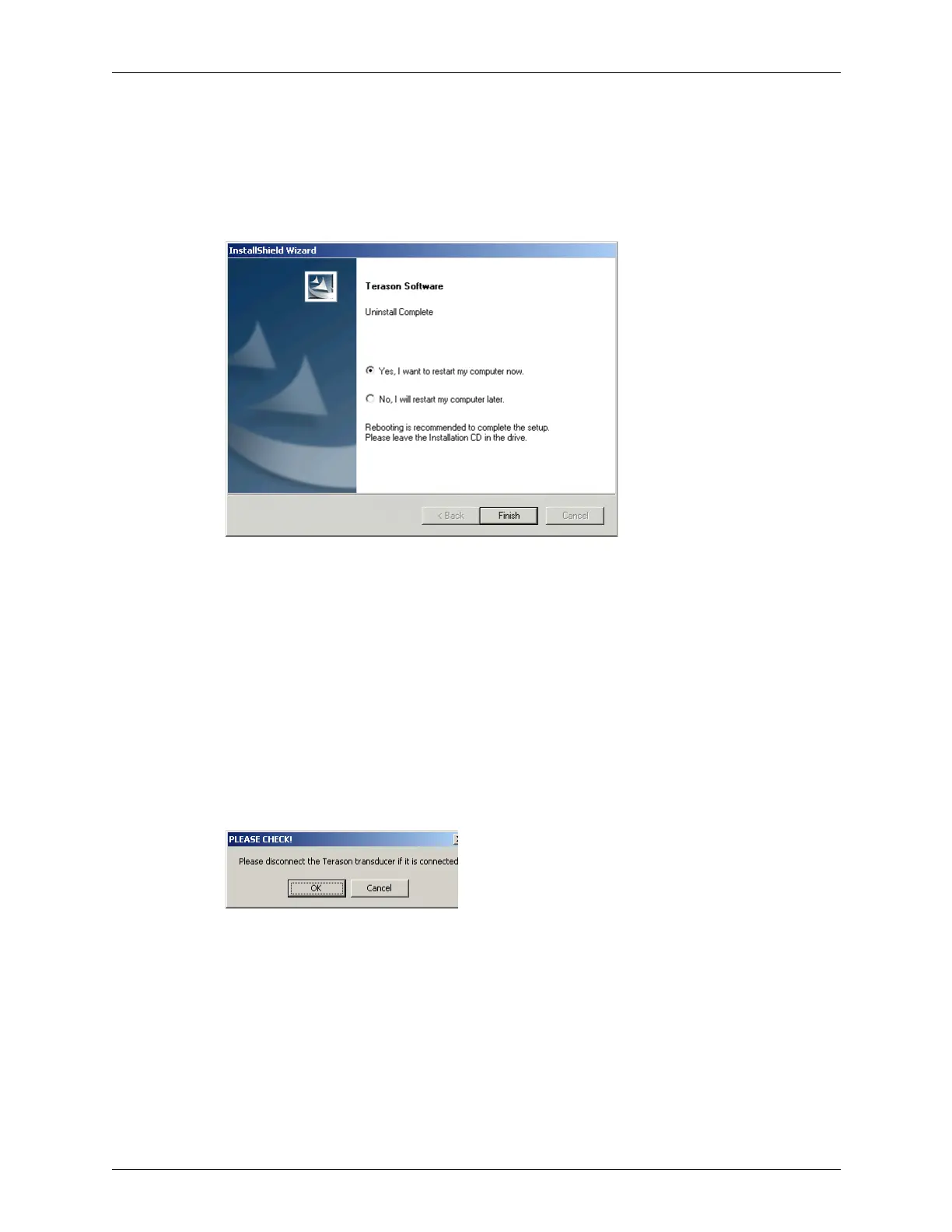
The installer removes all of the previous Terason software and displays a completion
message, recommending that you reboot.
Uninstall Complete Dialog Box
5. Click Finish. Keep the Terason CD in the drive and wait while the computer reboots
(restarts).
After the computer finishes starting up, you may have to log on before proceeding.
When you are logged in, the Welcome dialog for the new Terason application opens.
6. Click
Next>. The License Agreement dialog appears. Read the License Information
carefully.
7. Click
Yes. The Choose Destination Location dialog box opens.
8. Click
Next> to install the application in the default location. You can click Browse to
select a different location (not recommended). The wizard reminds you to unplug the
Terason Transducer.
Reminder to Unplug the Transducer
9. Click OK. The installer copies the files to the selected location. When finished, the
installer displays a setup complete message.



 To Next Page